

Token Expiration and Authentication
Two Minute Reports surfaces two distinct authentication-related errors. They look similar but have different causes and fix flows.
| Error | What happened |
|---|---|
| Token expired / Authentication failed | The platform (Google, Facebook, etc.) invalidated the auth token TMR holds — password change, inactivity, or security setting change |
| Account missing access permissions | The account still authenticates, but the user no longer has the required role or permissions on that platform |
| Connection expiry | The connection itself expired and must be re-authenticated before affected accounts can fetch data again |
Token expired or authentication failed
Error messages
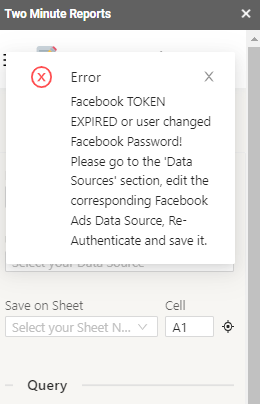
You will see messages like:
TOKEN EXPIRED or user changed Facebook Password!
TOKEN EXPIRED or user changed Google Ads Password!
Authentication failed for Platform account
Why this happens
- You changed your account password after authorizing TMR
- The platform expired the token after a period of inactivity
- Two-factor authentication or security settings changed on the platform
- You or an admin revoked TMR's access permissions on that platform
How to fix it
Google Sheets:
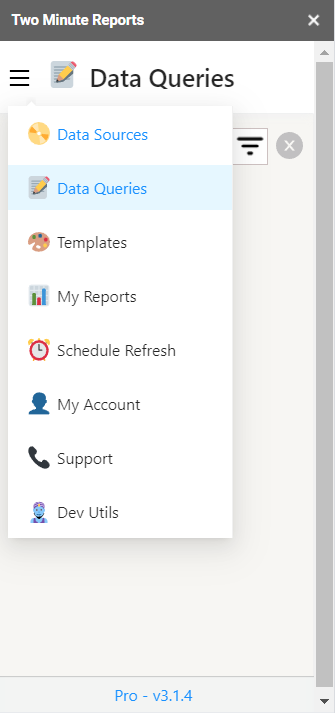
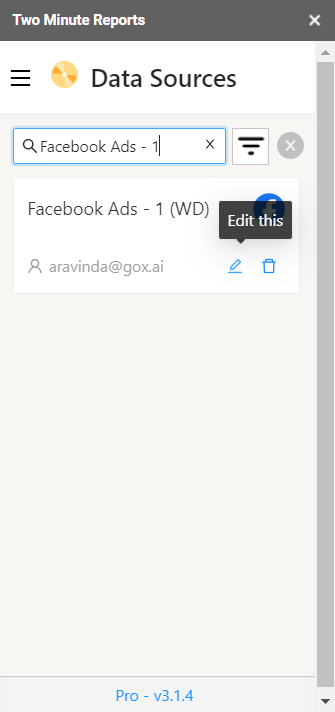
- In the TMR sidebar, go to Connections
- Find the connection showing the error
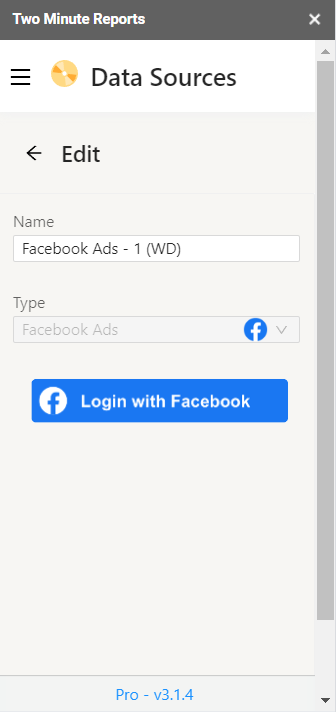
- Click the Edit icon (✏️) and complete the authentication flow
- Grant all requested permissions when prompted
Looker Studio:
- Go to https://apps.gox.ai → your team → the relevant connector → Connections
- Find the expired connection and click Re-authenticate
- Complete the login flow and grant permissions
Once re-authenticated, your queries and schedules will resume automatically.
Account affected due to connection expiry
What this means
An account used in your queries or schedules is affected because the underlying connection has expired. Queries and schedules that depend on it will fail until the connection is re-authenticated.
Error notice in the app
You will see a notice like this across the product — on the Schedules page, Data Queries page, Connections page, and Accounts page — and receive email reminders before auto-disablement.
⚠️ Account affected due to Connection expiry
What happens if not fixed: After 45 days, the account is automatically disabled and removed from all queries.
How to fix it
Option 1 — Re-authenticate the connection:
- Click the Fix Connections button from the error notice
- You'll be taken to the Connections page, filtered to show expired connections
- Click the Edit icon (✏️) next to the expired connection
- Complete the re-authentication flow
Option 2 — Disable the account (if it's no longer needed):
- Click the Disable Accounts button from the error notice
- You'll be taken to the Accounts page, filtered to show accounts with expired connections
- Toggle the account OFF to disable it
Account missing access permissions
This is a separate error from token expiry. The connection is still valid, but the account no longer has the required permissions on the source platform.
For the full details and fix steps, see Account Missing Access or Connection Expiry.
Still having issues?
If you've re-authenticated and continue to see errors:
- Verify you can log into the platform directly (Facebook.com, Google Ads, etc.)
- Check that the account has the correct permissions — see Account Missing Access or Connection Expiry for required roles per connector
- Contact [email protected] with the error message text, the affected connector name, and what you've already tried