
Summarize this blog post with:
Amazon isn’t just an advertising platform. It’s a marketplace where search, advertising, product visibility, and sales come together. In fact, Amazon accounts for an estimated 40.4% of U.S. ecommerce sales, making it a massive ecosystem for brands looking to reach high-intent shoppers.
However, with that ecosystem comes a lot of data to track. Ad spend, impressions, clicks, CPC, orders, sales, ACOS, ROAS, and conversion rates all tell a different part of the story. Managing multiple campaigns or products and manually pulling this data into spreadsheets can quickly become tedious.
You can overcome this tedious process by streamlining your Amazon Ads reporting in Google Sheets using a powerful PPC reporting software such as Two Minute Reports. You can automatically pull campaign data, build custom reports, and keep your performance data in one place.
In this guide, I’ll show you two ways to connect Amazon Ads to Google Sheets, track the metrics that matter, and use ready-made templates to simplify your reporting.
Let’s get started.
How to connect Amazon Ads to Google Sheets?
You can import your Amazon Ads data to Google Sheets via two methods:
Method 1: Connecting Amazon Ads to Google Sheets using the Two Minute Reports Hub.
Method 2: Connecting Amazon Ads to Google Sheets using the pre-built templates.
Let’s get started with the first method.
Method 1: Connect Amazon Ads to Google Sheets using the Two Minute Reports Hub
The Two Minute Reports Hub is your centralized workspace for managing all your Amazon Ads accounts. Here’s how to get started.
Step 1: Creating a Connection
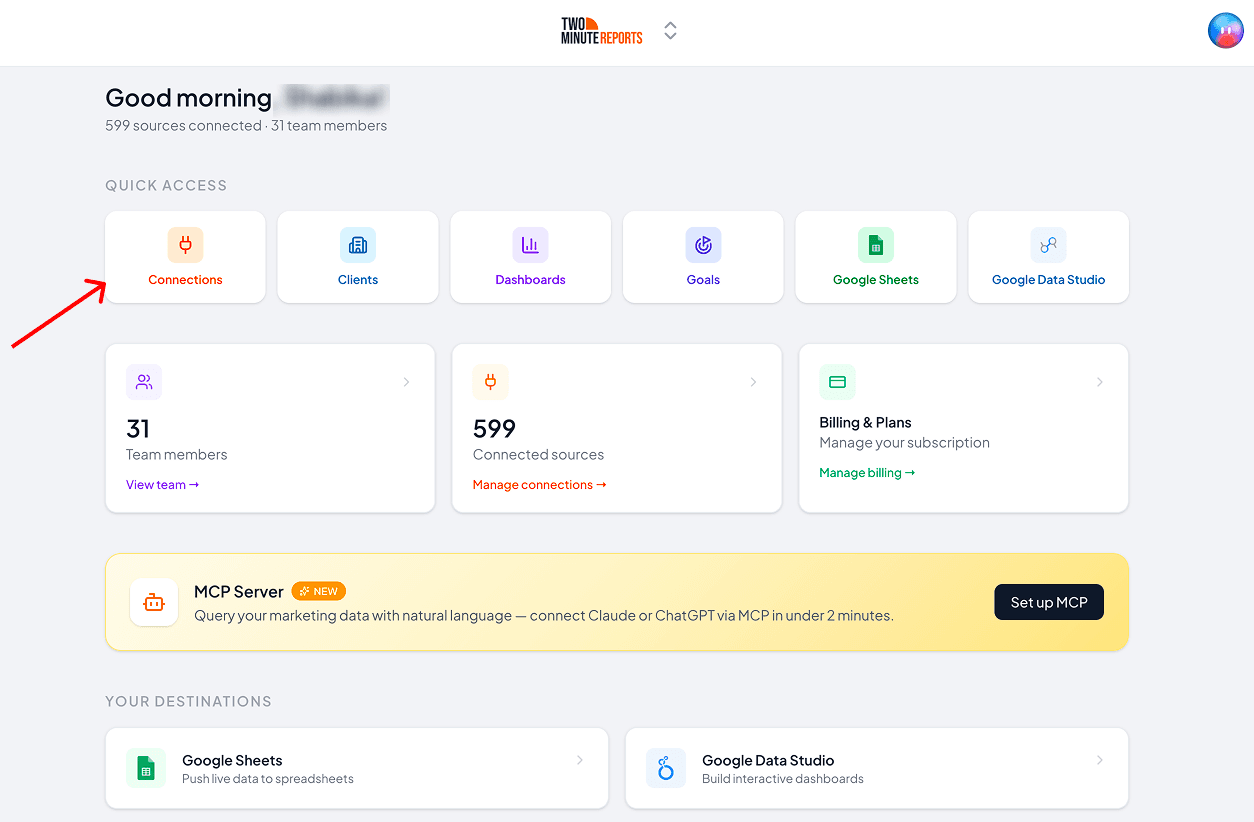
1. Go to hub.twominutereports.com and click Connections → Create Connection.
2. Inside the dialog box, complete these three steps:
- Select the Amazon Ads connector from the list of options.
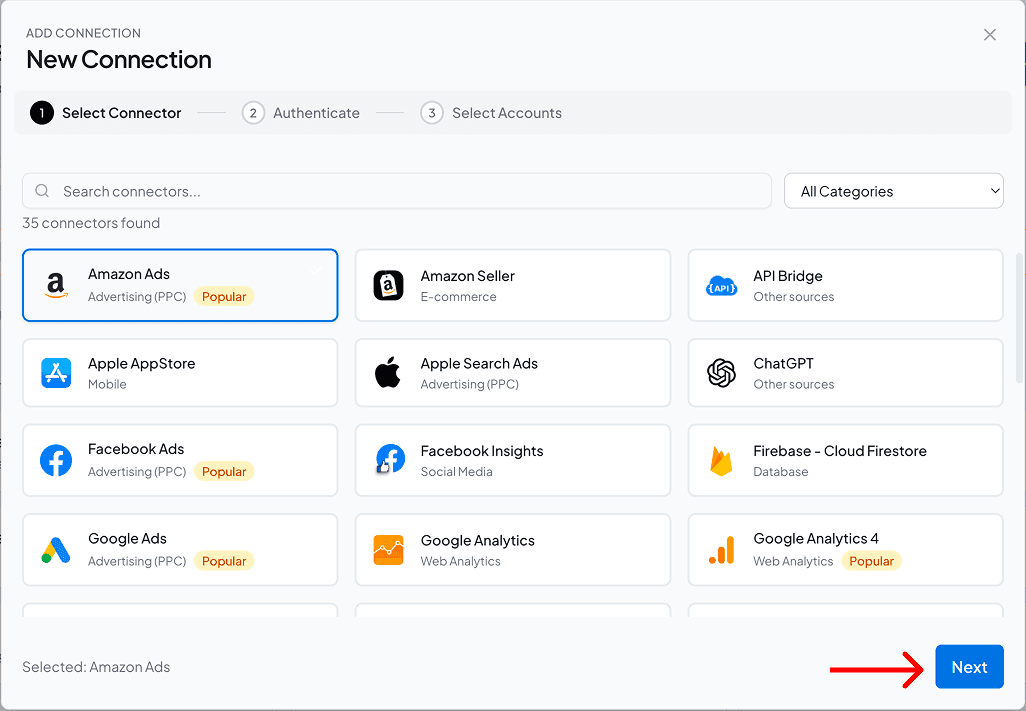
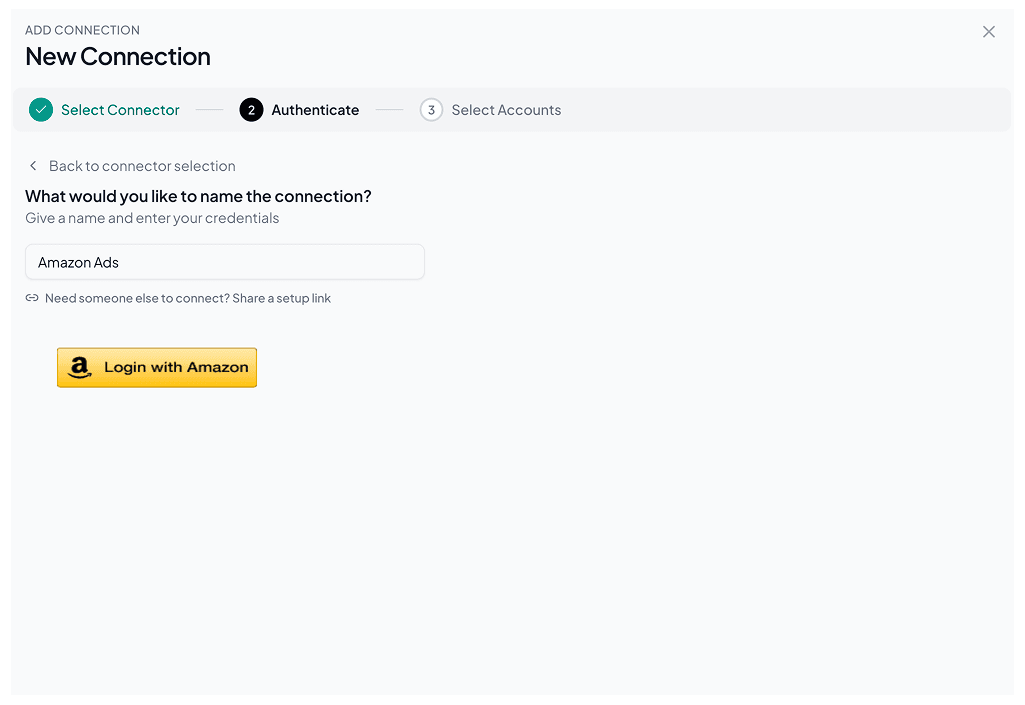
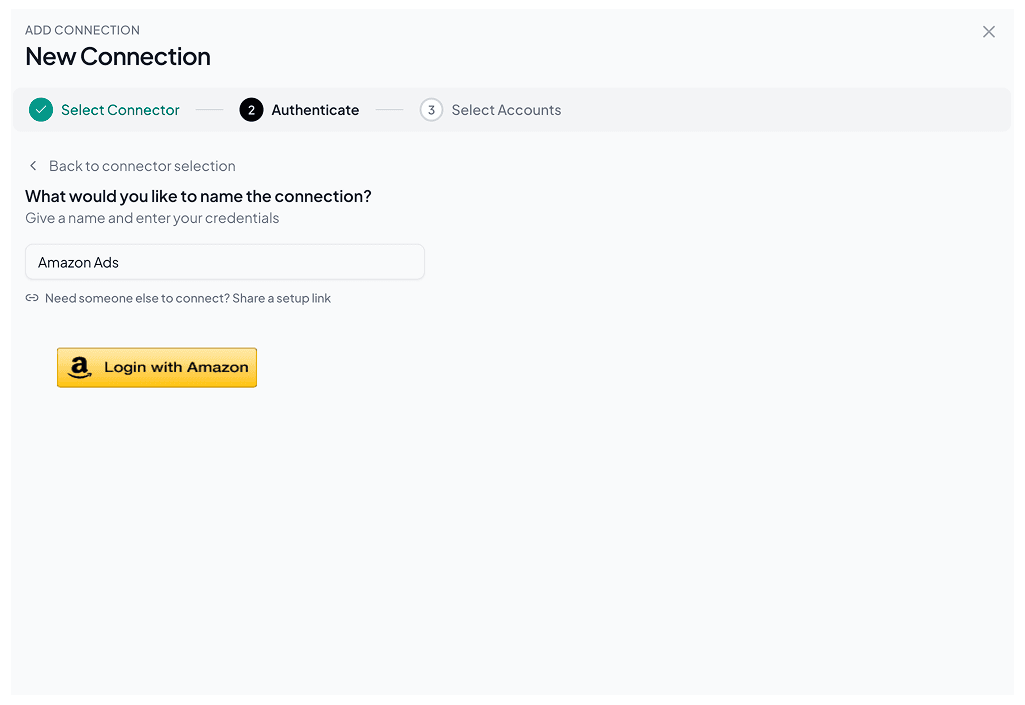
- Enter the name for your Connection and authorize it by logging in with your credentials.
- Enable the Amazon Ads accounts you want to measure performance for. Please note that you can’t query the disabled accounts.
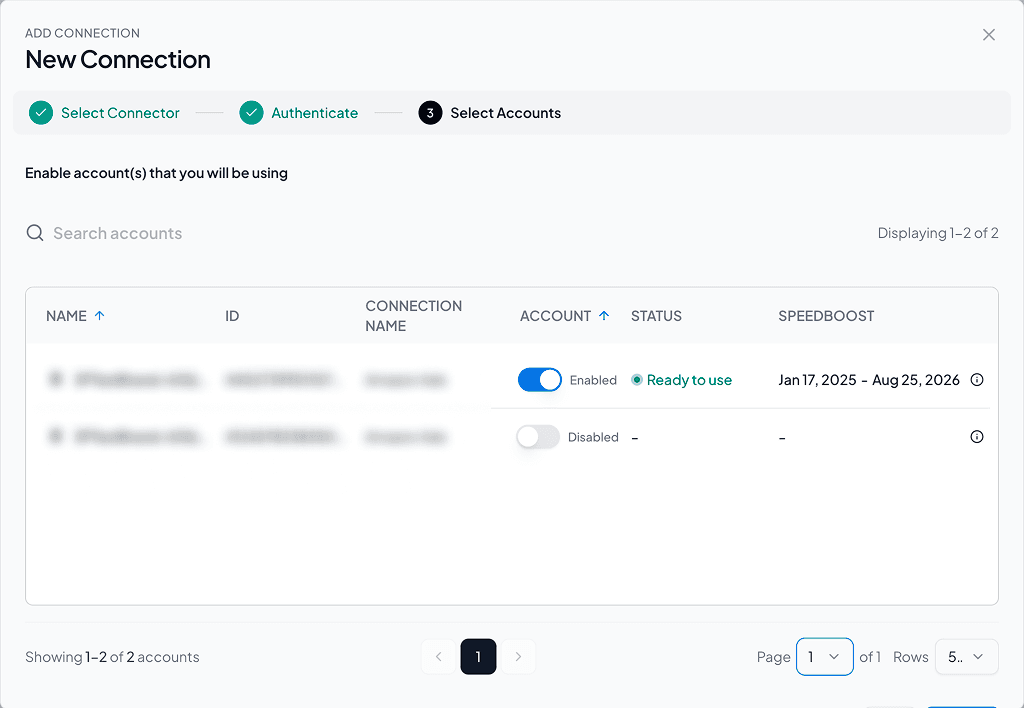
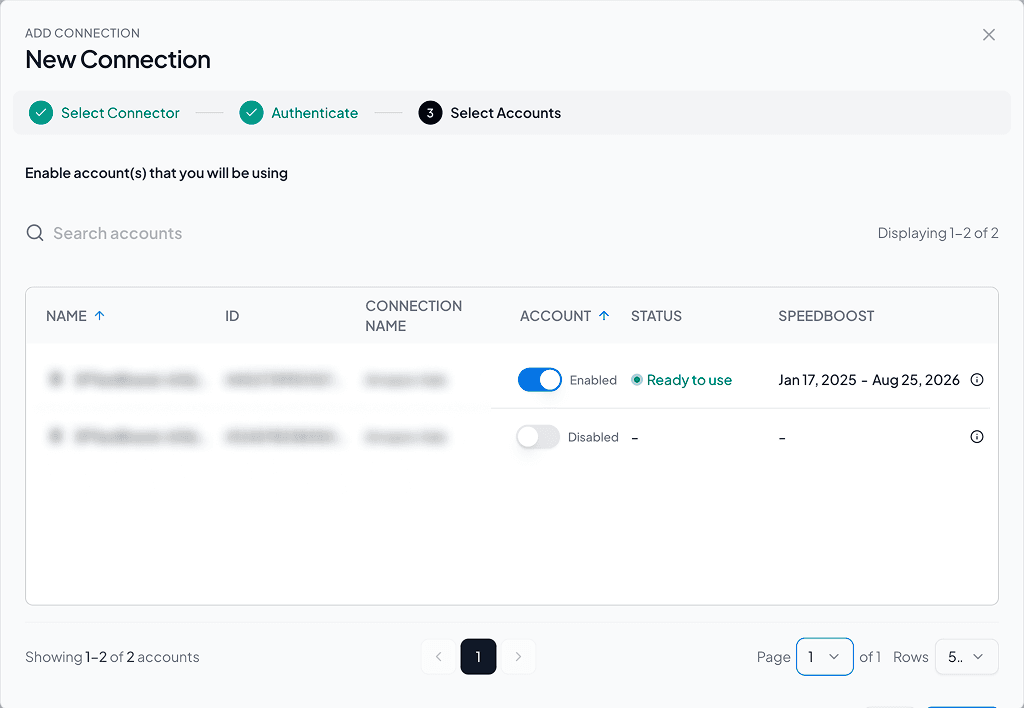
Note: With Speedboost, you can handle high-volume Amazon Ads datasets and create blazing-fast reports without any delays. This is a proprietary technology of Two Minute Reports built to scale client reporting.
3. Once done, navigate back to the Hub Homepage and click Google Sheets → New Google Sheets Report.
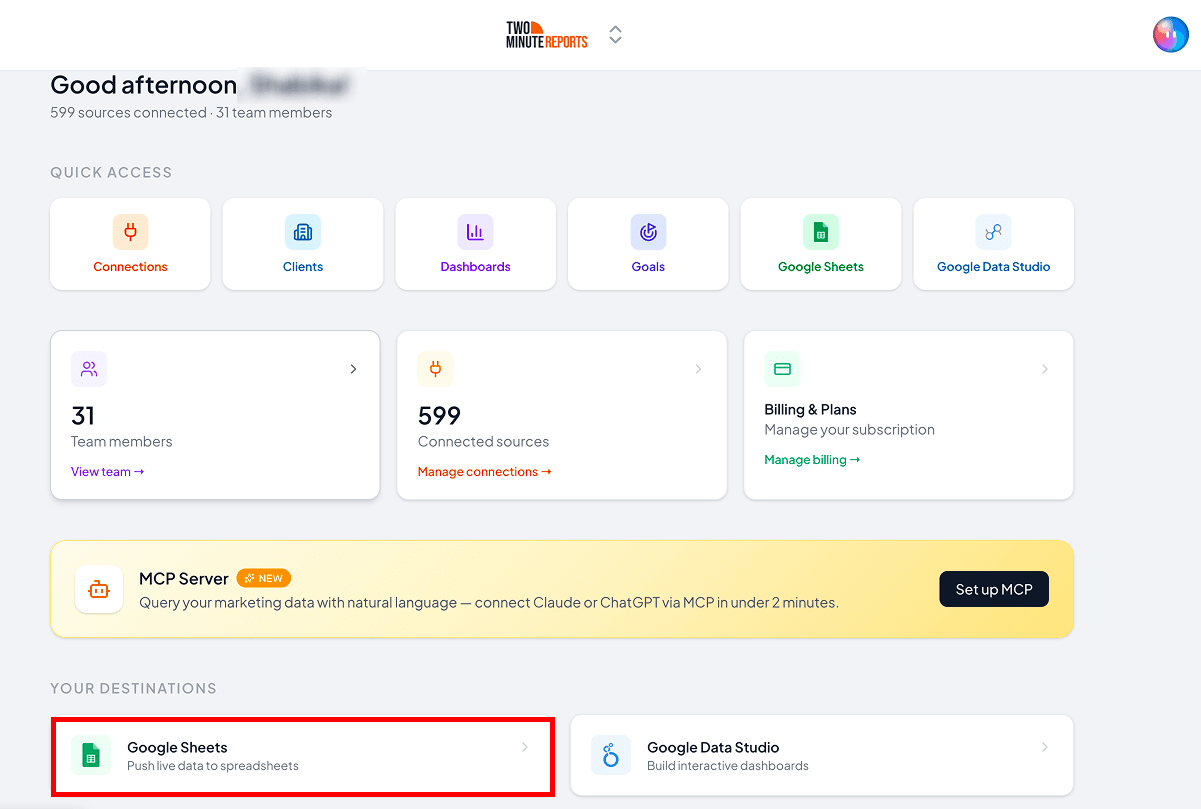
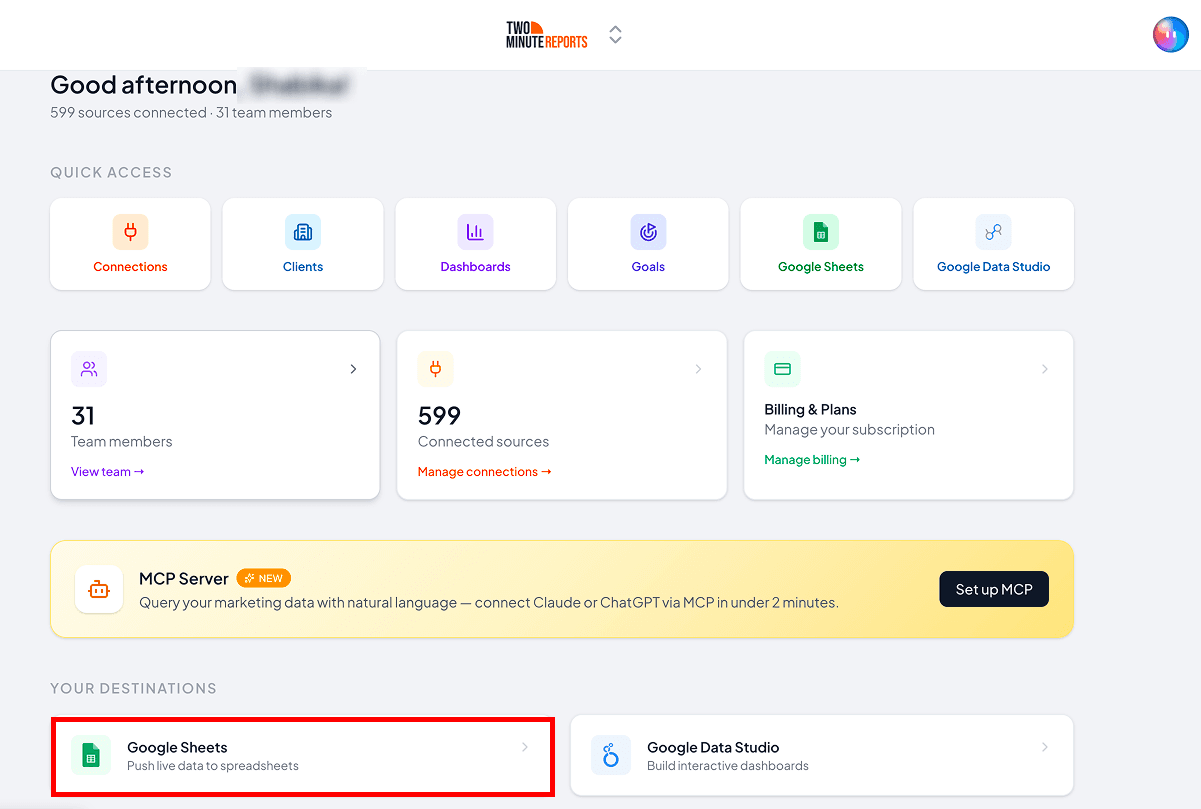
4. Click Use Template and follow the on-screen instructions to launch the Two Minute Reports add-on in your spreadsheet.
Step 2: Configure and Run Your Query
1. Once you’ve installed the add-on, navigate to Menu → Data Queries and click Add.
2. Select the Amazon Ads accounts that you want to include from the sidebar.
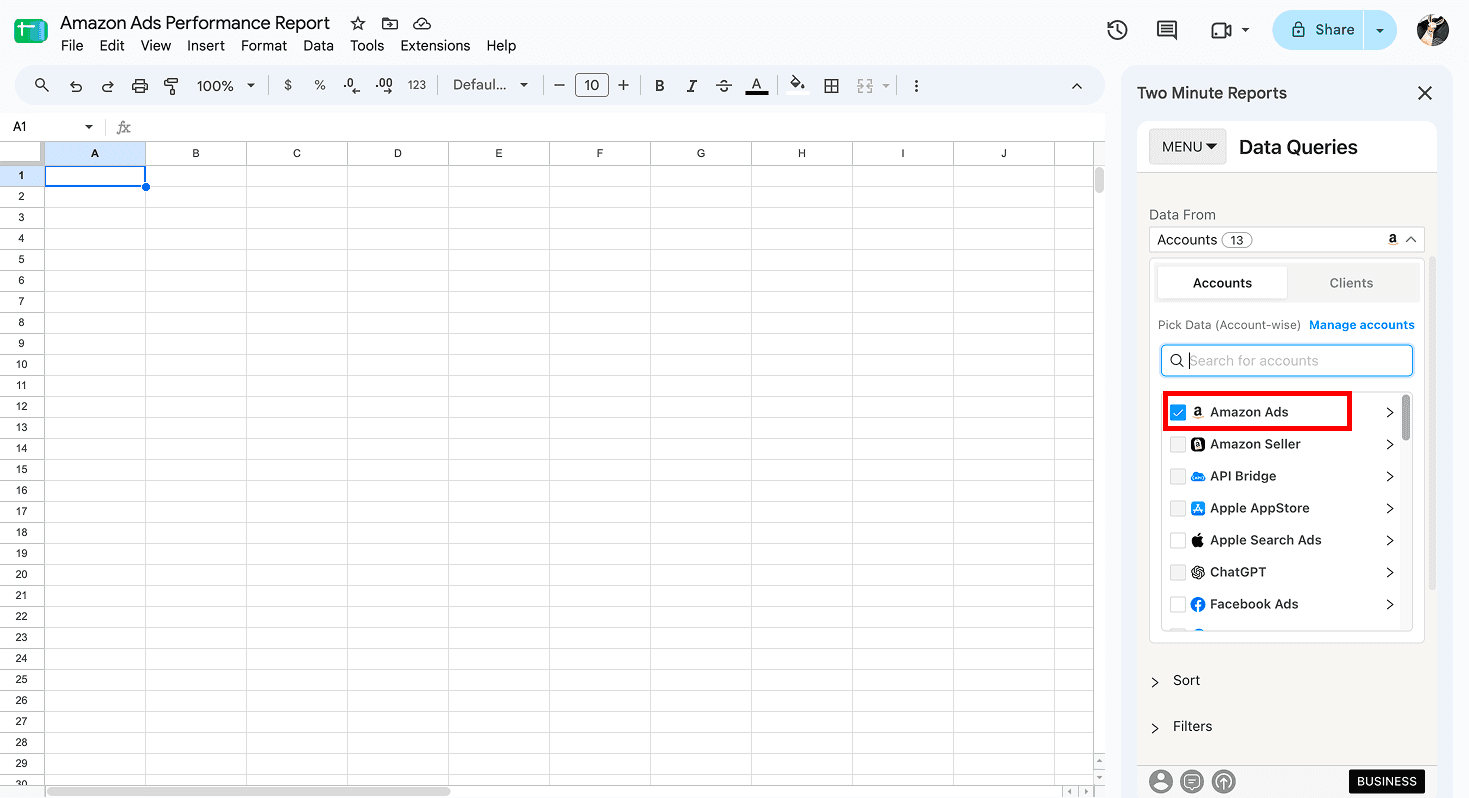
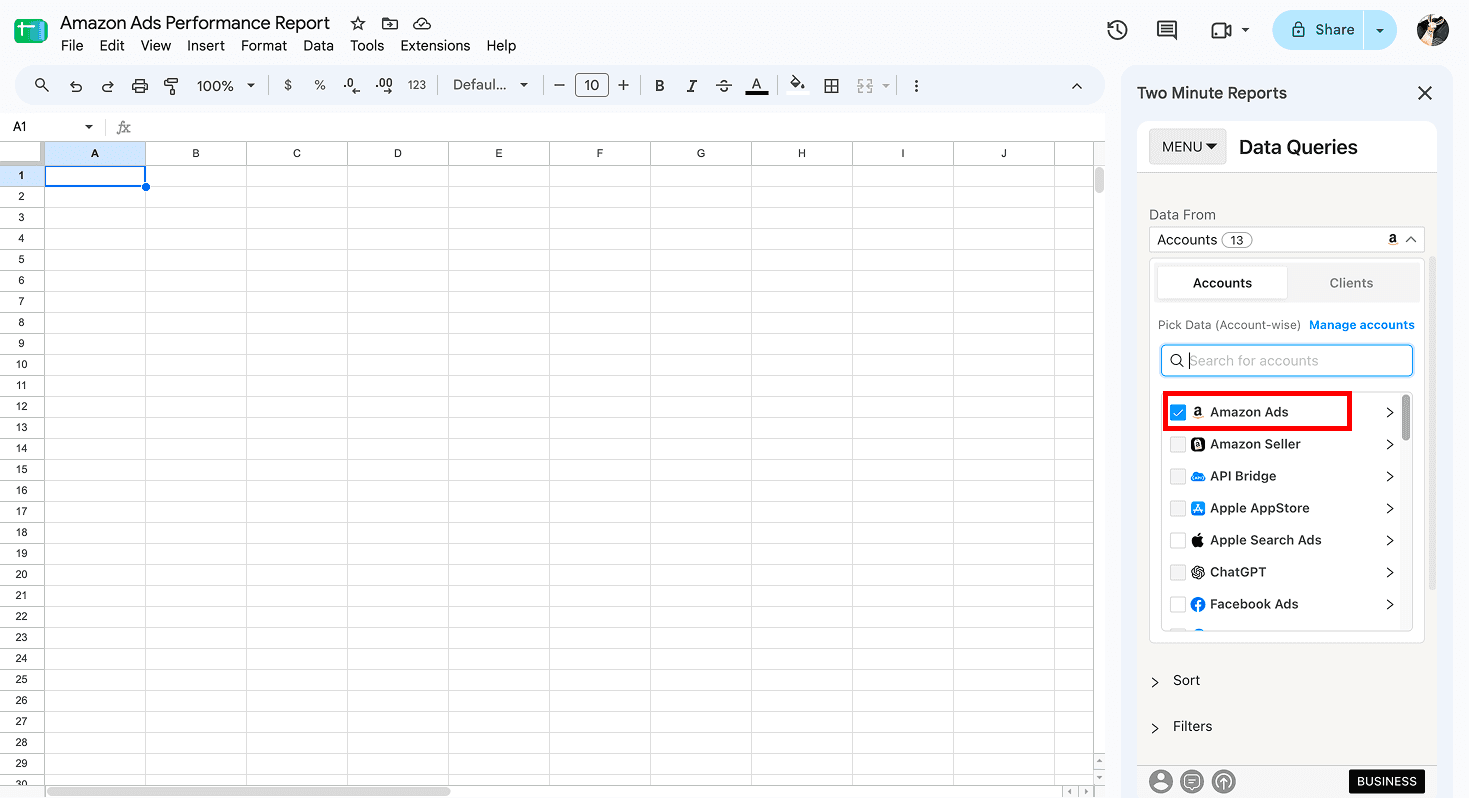
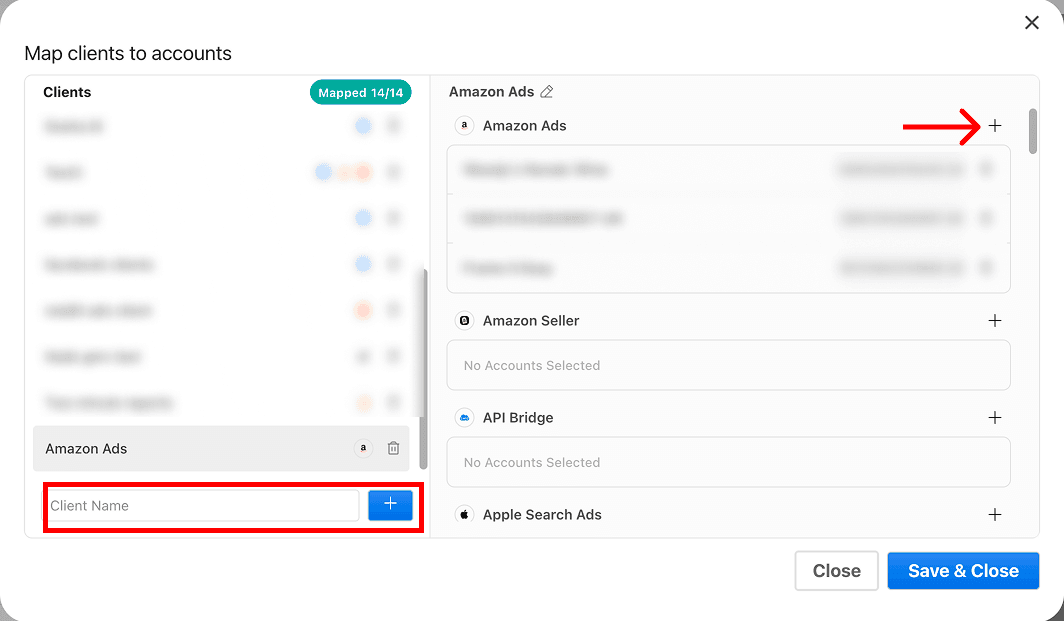
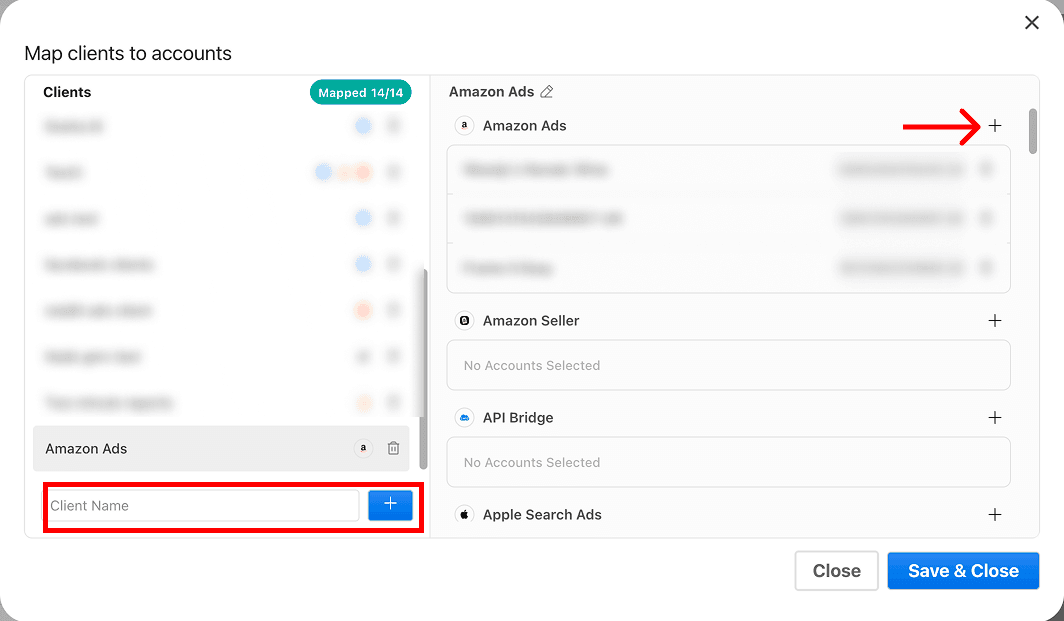
3. If you're managing multiple clients, go to Clients → Manage Clients, map your Amazon Ads accounts to the relevant clients and click Save & Close.
4. Choose relevant Amazon Ads metrics and dimensions and select your date range.
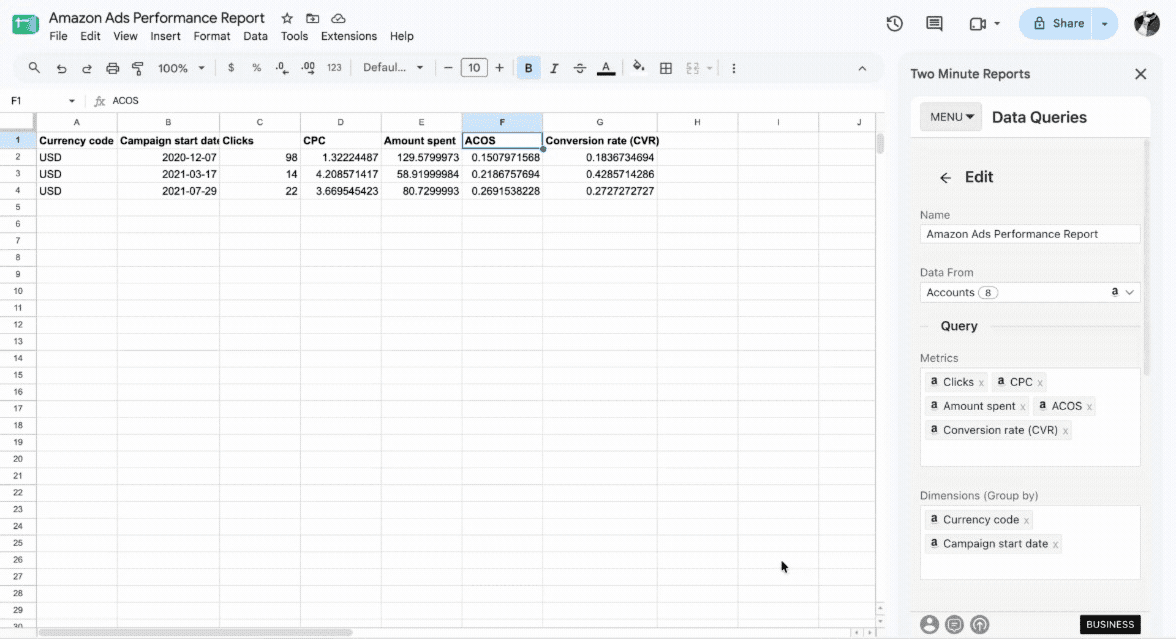
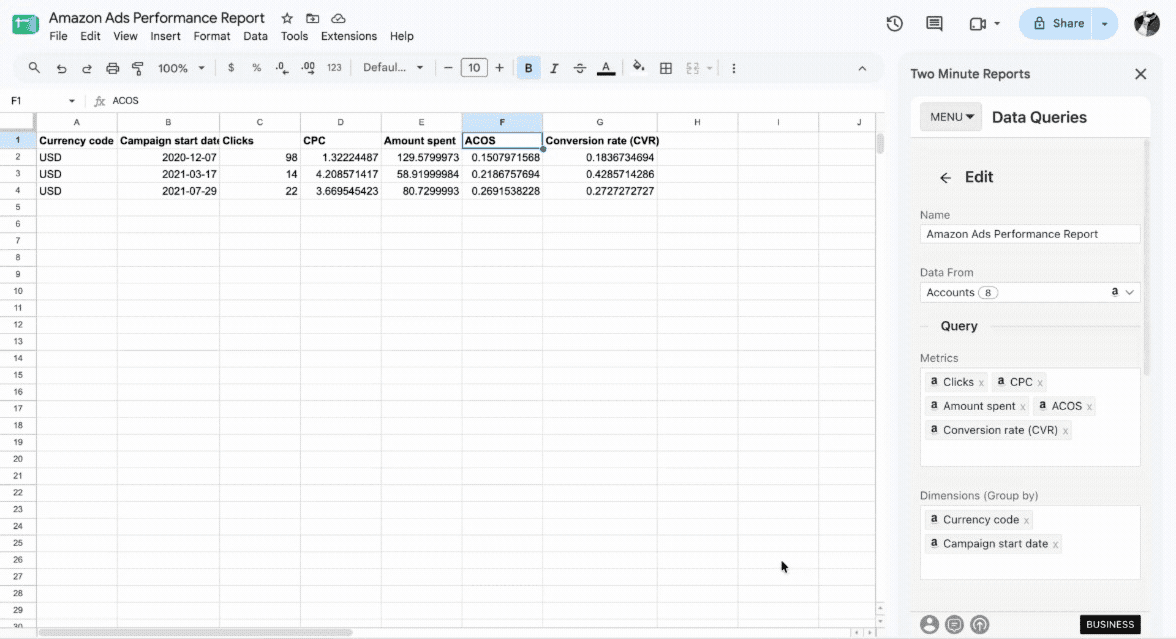
5. Click Run Query to pull the data into your chosen sheet and cell.
6. The next step is to Save & Automate your query.
Pro Tip: You can set up custom refresh schedules to automate daily, weekly, and monthly Amazon Ads performance reporting to your clients. Choose your preferred format – PDF, Excel, or Spreadsheet and keep reports updated automatically without manually exporting data every time.
Prefer to work directly inside Google Sheets? You can also connect Amazon Ads to Google Sheets by installing the Two Minute Reports add-on from the Google Workspace Marketplace, following the steps below:
- Open a spreadsheet. Launch the add-on from Extensions → Two Minute Reports → Launch.
- Click Menu → Connections → Add and select the Amazon Ads connector.
- Authorize your account and enable the accounts you want to query.
- Click Refresh Connections to confirm your accounts appear in the sidebar.
Once connected, follow the same query steps above to start pulling your Amazon Ads data directly into Google Sheets.
Method 2: Using Amazon Ads Google Sheets Template
With Two Minute Reports’ pre-built Amazon Ads templates for Google Sheets, you can create custom reports within minutes. Here’s how you can:
1. In the template gallery, select the Amazon Ads template; let us choose the Amazon Ads Performance Report.
2. Next, click ‘Get Template for Free’ to open the Google Sheets template.
3. Then, click Use Template. You’ll land on the Google Sheets dashboard.
4. Click Use to launch the Two Minute Report sidebar in your Google Sheets.
5. Finish importing your template by selecting the required Amazon Ads accounts from the dropdown. Once done, click Submit to create your report.
6. Click Run Query to fill this template with the necessary data.
7. And that’s it. Your Amazon ads data is populated across relevant sections, helping you give a detailed overview of what’s happening and what needs to be improved.
Once your Amazon Ads data is in Google Sheets, you can monitor metrics such as CPC, CTR, CPA, and conversion rate over time. Amazon Ads benchmarks show CPCs ranging from $0.28 to $0.86 and conversion rates from 2.83% to 11.84% across industries. To see how your performance compares with businesses in your industry, explore our Amazon Ads Benchmarks.
Why choose Two Minute Reports to import Amazon Ads to Google Sheets?
With its quick, no-code integration, you can automate data import, track campaign performance, and gain actionable insights – without the need for technical skills. Here's why Two Minute Reports is the best choice for effortless Amazon Ads reporting.
1. Centralized data integration: Create a seamless data flow from Amazon Ads to Google Sheets by consolidating key metrics in a single Google Sheets dashboard. This eliminates the need for manual CSV exports, so you can focus on refining and optimizing your strategy.
2. Intuitive reporting: With Two Minute Reports, you can create professional, white-label Amazon Ads reports that are fully customizable to match your brand’s style. The easy-to-use interface allows you to blend data from multiple PPC channels, enabling you to measure cross-channel ad spend and ROI.
3. Faster data syncs: Load complex dashboards faster with our exclusive Speedboost technology. With 99.9% uptime, you can deliver blazing-fast Amazon Ads reports to clients without the wait. No manual setup required.
4. Automatic data refreshes: Never miss a deadline. With automatic updates (daily, weekly or monthly), you can keep clients informed with real-time insights. You can implement proactive measures to address underperforming areas instead of waiting for manual reports.
5. Unlimited reporting: No matter which plan you choose, you can create unlimited Amazon Ads reports, especially with no data volume limits. Whether you are handling multiple clients or managing large volumes of data, you can generate as many reports as you need, all while maintaining faster performance and reliability.
Overall, whether you are a marketer, agency owner, or freelancer, Two Minute Reports makes Amazon Ads reporting faster, easier, and more effective.
How to Build a Strong Amazon Ads Reporting Strategy?
To build a strong Amazon Ads analytics strategy, you need to track the metrics that show how efficiently your campaigns turn ad spend into clicks, orders, and sales. Here’s how you can get a clear picture of your Amazon Ads performance by focusing on these five metric categories:
1. Performance insights: Like most advertising platforms, you can start by tracking the core metrics that give you an overview of campaign performance:
- Impressions, clicks, and amount spent.
- Cost Per Click (CPC)
- Click-through Rate (CTR)
- Conversion Rate (CVR)
- Return on Ad Spend (ROAS)
- Advertising Cost of Sales (ACOS)
2. Attribution insights: Amazon Ads lets you measure performance across different attribution windows, helping you understand how ad clicks contribute to orders and sales over time. You can track:
- 1-day, 7-day, 14-day, and 30-day ACOS
- 1-day, 7-day, 14-day, and 30-day ROAS
- 1-day, 7-day, 14-day, and 30-day CVR
- 1-day, 7-day, 14-day, and 30-day total orders
- 1-day, 7-day, 14-day, and 30-day total sales
You can also track 14-day view-attributed ACOS, ROAS, CVR, total orders, and total sales for campaigns where view attribution applies.
3. Conversion insights: Beyond overall orders and sales, Amazon Ads lets you understand whether customers purchased the product you advertised or another product from your catalog. You can analyze:
- Total ad orders
- Total ad sales
- Total orders same SKU
- Total orders other SKU
- Total sales same SKU
- Total sales other SKU
These metrics help you understand the direct sales impact of your advertised products and the additional sales generated from other SKUs.
4. Campaign and targeting insights: Performance can vary significantly across campaigns, ad groups, placements, keywords, and targeting. Break down your data using dimensions such as:
- Ad type
- Campaign name and status
- Campaign bid strategy
- Campaign budget and targeting type
- Ad group name and status
- Placement
- Keyword and keyword type
- Keyword bid
- Targeting expression and targeting type
- Search term
5. Product insights: Finally, connect ad performance to the products you’re promoting. Track dimensions such as advertised product title, ASIN, SKU, brand, category, price, product availability, and best seller rank. You can also analyze performance by date, month, week, account, and marketplace.
Regularly monitoring these metrics and dimensions gives you a clearer view of where your Amazon Ads budget is going, which campaigns and products are driving sales, and where you can optimize performance for better ROAS and ACOS.
Connect your advertising platforms with Google Sheets
Bring all your PPC reporting into one place by combining data from multiple advertising platforms in a unified dashboard. Connect Facebook Ads, LinkedIn Ads, Snapchat Ads, and more to get a complete view of cross-channel performance and ROI. Spot high-performing campaigns, uncover areas for improvement, and act on fresh data without relying on manual updates. Simplify reporting across multiple clients, reduce reporting time, and help your clients achieve better results.
Frequently Asked Questions
Install the Two Minute Reports add-on from the Google Workspace Marketplace. Open Google Sheets, launch the TMR sidebar, and connect your Amazon Ads account. Choose the metrics, dimensions, and reporting period you need, then run your query to bring campaign data directly into your spreadsheet.
With Two Minute Reports, you can schedule automatic data refreshes for your Amazon Ads reports. Set a custom refresh schedule based on your reporting needs, so your Google Sheets stay updated without repeatedly exporting data from Amazon Ads. You can also create and share white-label reports with clients.
Start with a ready-to-use Amazon Ads Google Sheets template and customize it for your reporting needs. Click “Use Template,” connect your Amazon Ads account through the Two Minute Reports add-on, select the required metrics and dimensions, and run the query to populate your report.
Yes. With data blending, you can bring Amazon Ads alongside data from platforms such as Google Ads, Meta Ads, LinkedIn Ads, and other supported sources. This lets you compare campaign performance and analyze cross-channel results without manually combining spreadsheets.
Two Minute Reports lets agencies connect and manage multiple Amazon Ads accounts from the Google Sheets sidebar. You can build a report once and reuse the same reporting setup for different clients, reducing repetitive work and giving your team more time to focus on campaign analysis and optimization.
With Two Minute Reports, you can bring both Amazon Ads and Amazon Seller data into Google Sheets without building a custom API integration. Connect your Amazon account, choose the metrics, dimensions, and date range you need, and pull the data directly into your spreadsheet. You can also schedule automatic refreshes to keep your Amazon reports up to date without manual exports.

Meet the Author
Shabika VenkidachalamShabika, at her core, is a storyteller who believes even data-heavy topics can be infused with heart. At Two Minute Reports, she blends creative writing with user intent to create clear, purposeful content that is deeply human. Away from her desk, she finds inspiration in nature, where creativity flourishes without distractions.