Summarize this blog post with:
Facebook Ads can be a powerful driver of ROI, but managing and reporting on multiple campaigns can quickly become a challenge, especially when you’re handling accounts for different clients.
While Facebook Ads Manager provides valuable insights, manually pulling data into client reports isn’t scalable. You need an intuitive PPC reporting software such as Two Minute Reports to help you connect and automate your Facebook Ads reporting to Google Sheets within a few clicks.
In this guide, we’ll explore two different ways to connect your Facebook Ads with Google Sheets and turn your campaign data into clear, actionable insights.
How to Connect Facebook Ads to Google Sheets?
You can import Facebook Ads to Google Sheets in two ways:
Method 1: Connect Facebook Ads to Google Sheets using the Two Minute Reports Hub
The Two Minute Reports Hub is your centralized workspace for adding, organizing and managing your Facebook Ads accounts. Here's how to get started.
Step 1: Creating a Connection
1. Go to hub.twominutereports.com and click Connections → Create Connection.
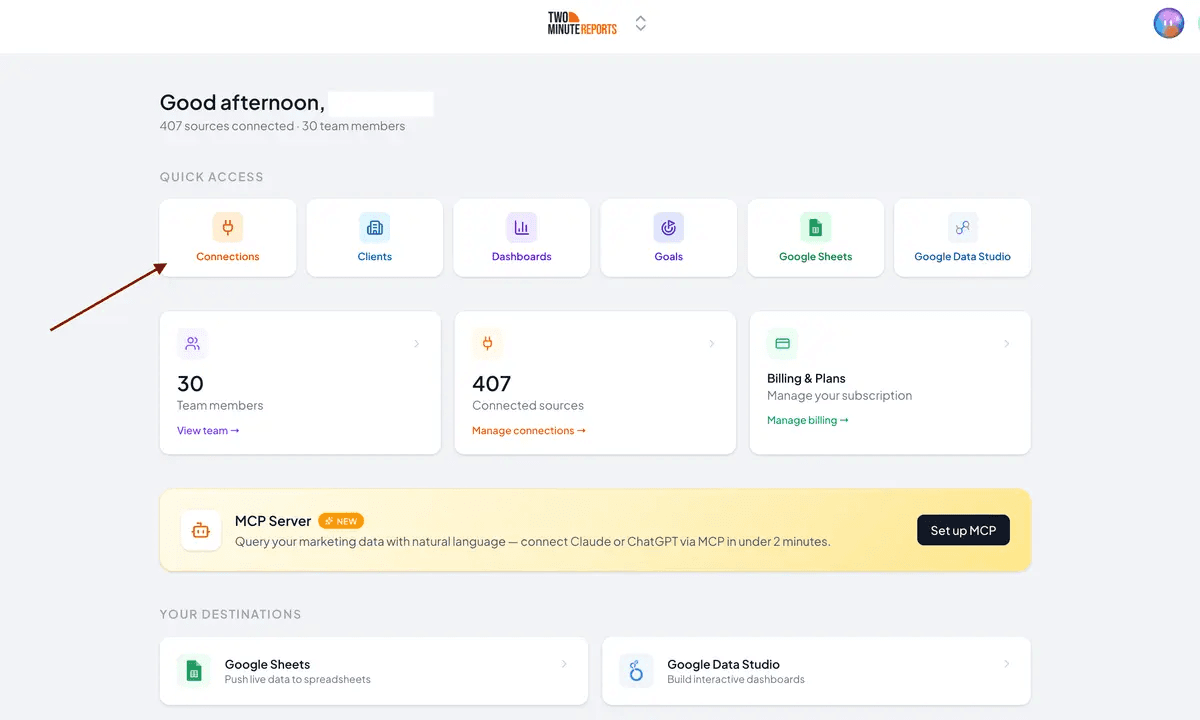
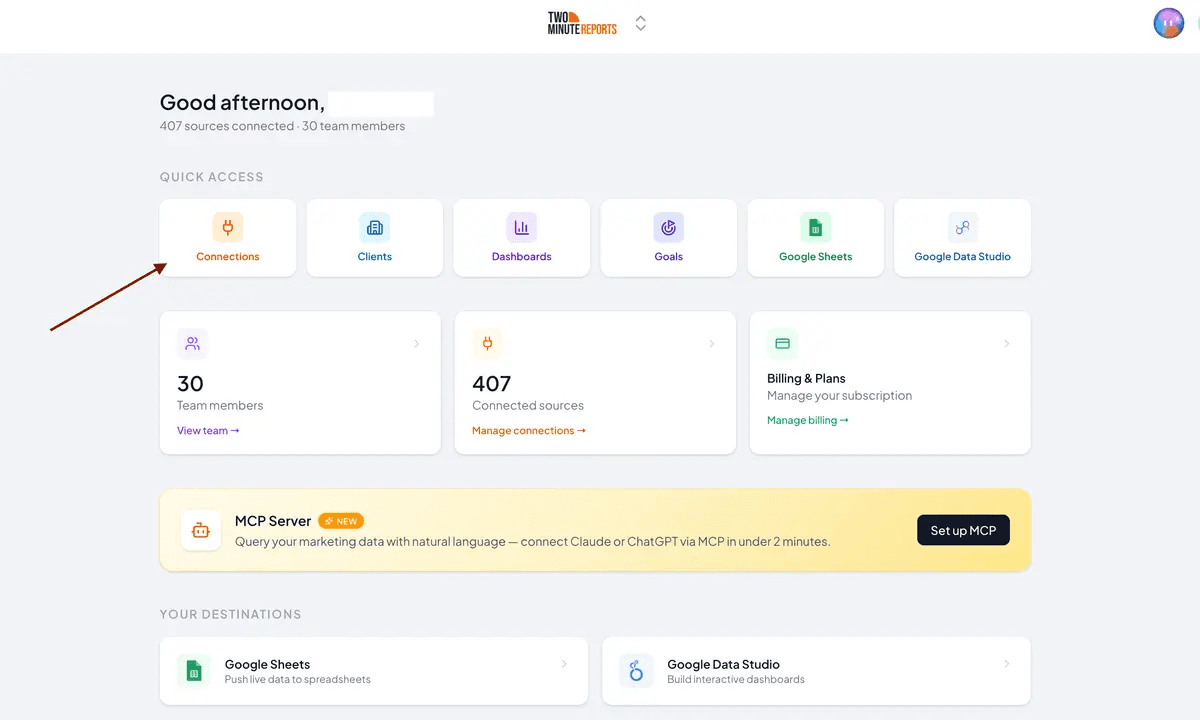
2. Inside the dialog box, complete these three steps:
- Select the Facebook connector from the list of options.
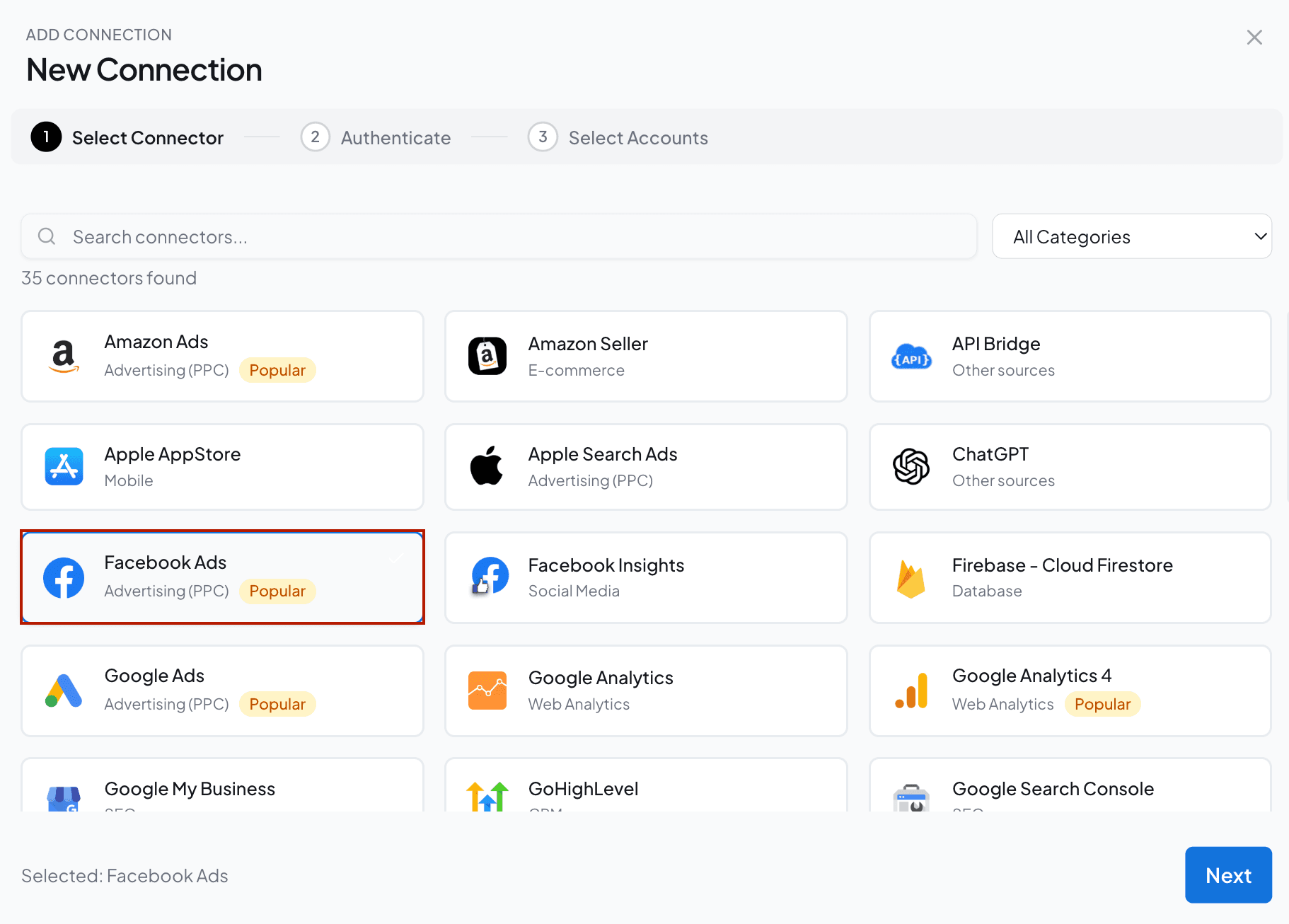
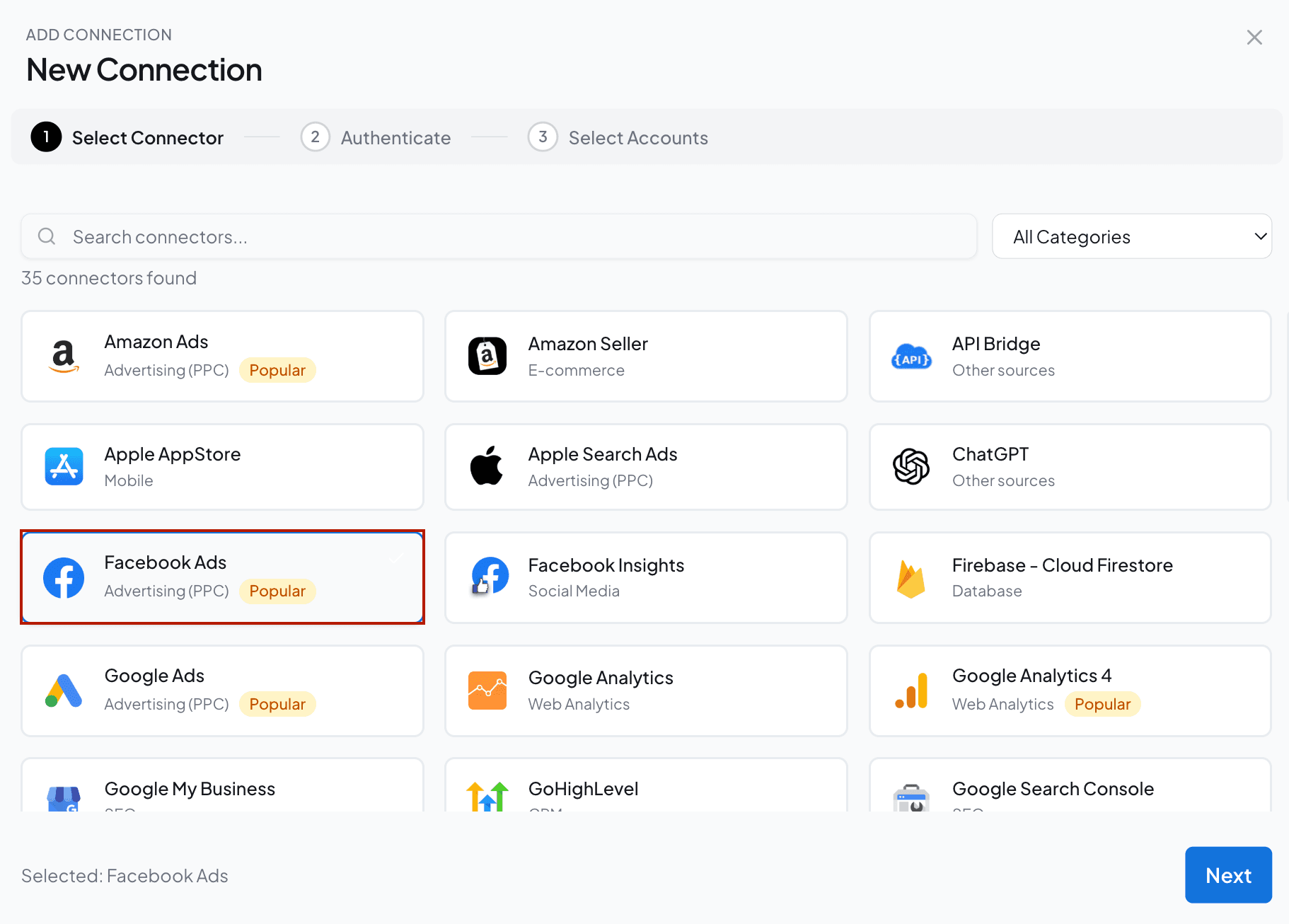
- Enter the name of your Connection and authorize it by logging in with your credentials.
- Once authenticated, enable the Facebook ad accounts you want to analyze performance. Please note that you cannot query disabled accounts.
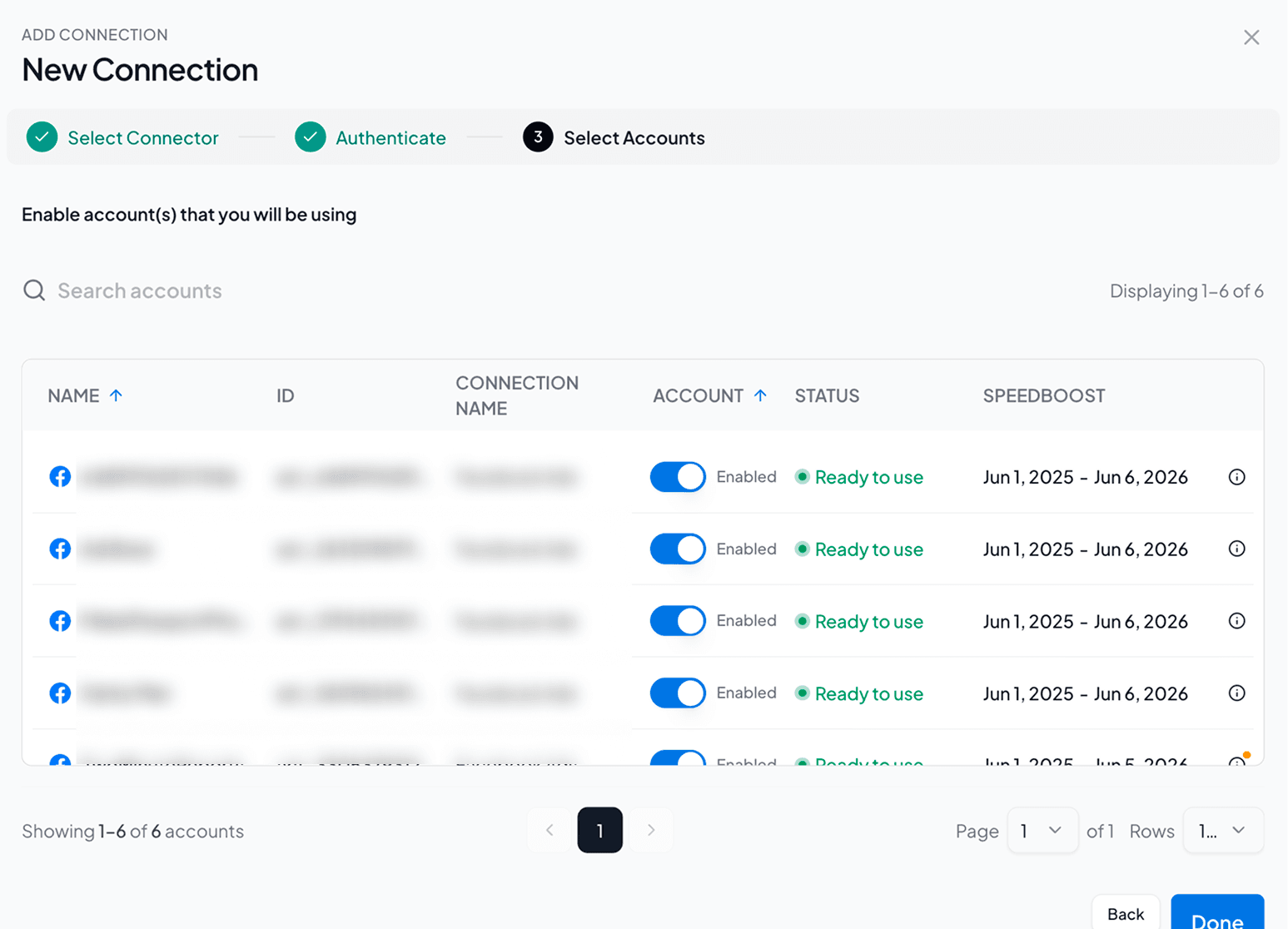
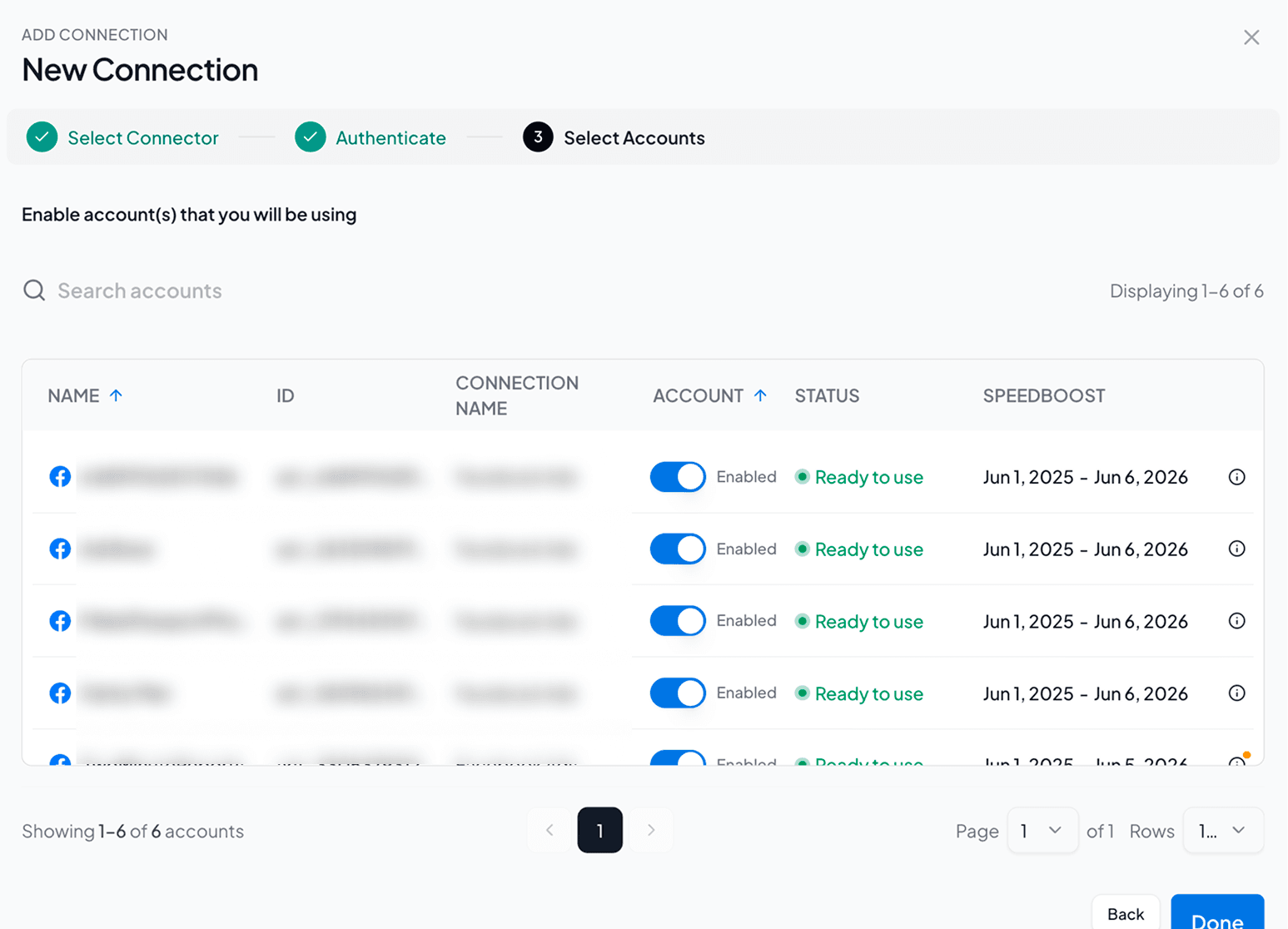
Note: If you’re working with large Facebook ad datasets, Speedboost helps your reports load faster without delays. This is an exclusive technology of Two Minute Reports built to make data-heavy client reporting scalable.
3. Once done, go back to the Hub Homepage and click Google Sheets → New Google Sheets Report.
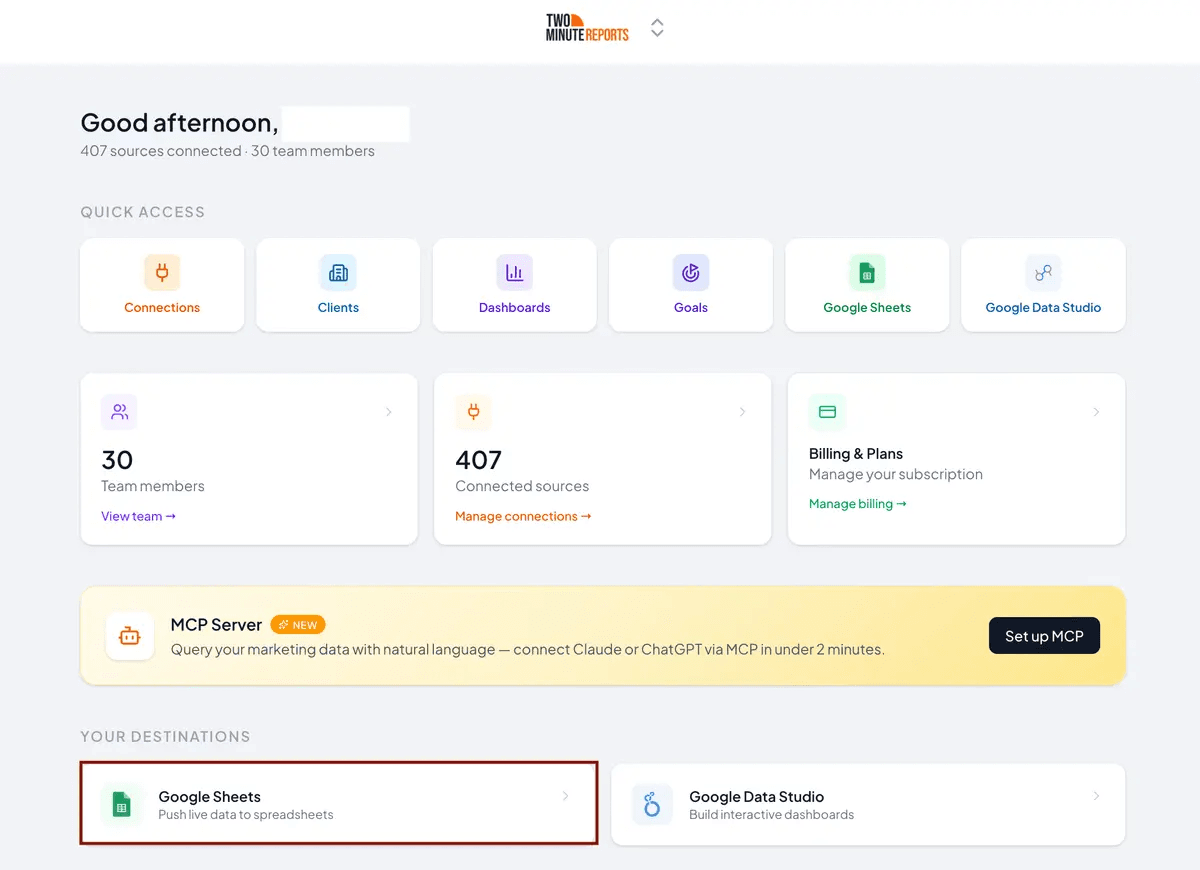
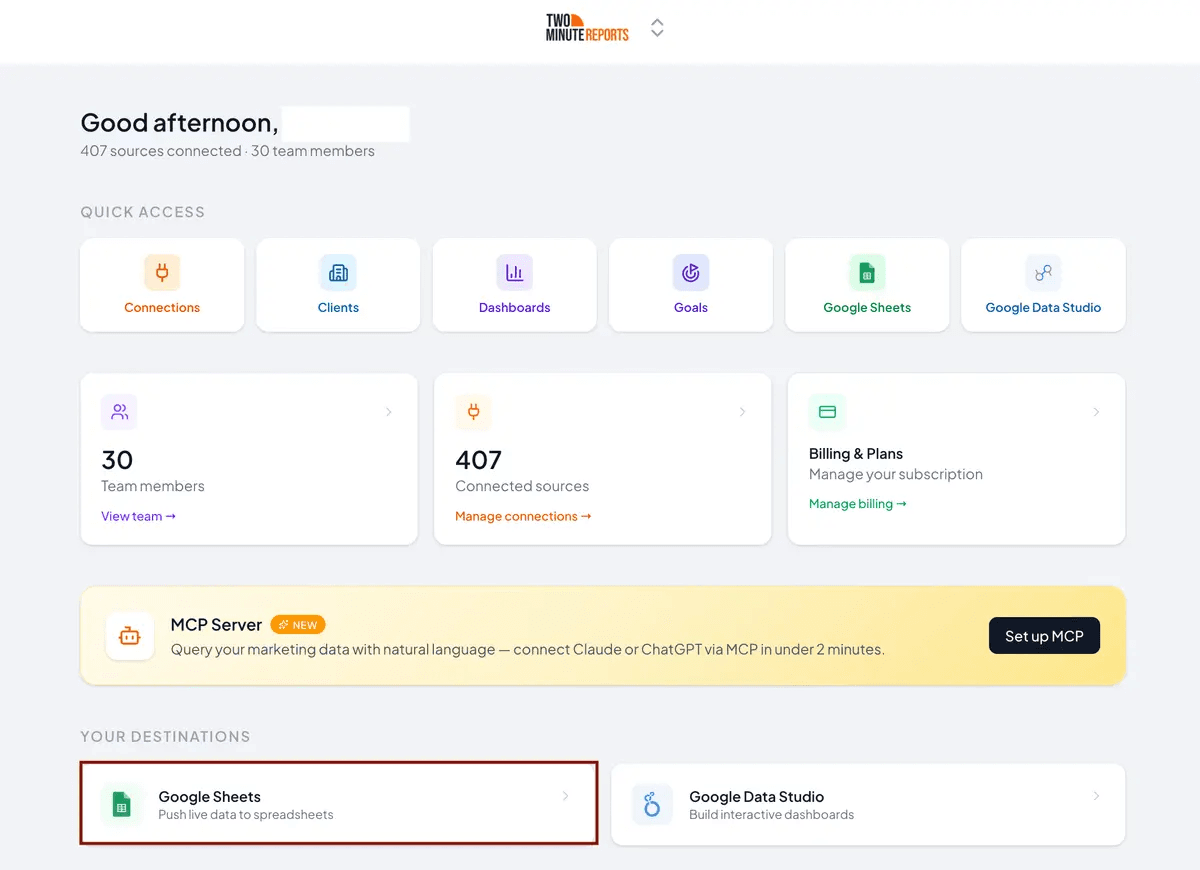
4. Click Use Template and follow the on-screen instructions to launch the Two Minute Reports add-on in your spreadsheet.
Step 2: Configure and Run Your Query
1. Once you’ve installed the add-on, navigate to Menu → Data Queries and click Add.
2. Select the Facebook ad accounts that you want to include from the sidebar.
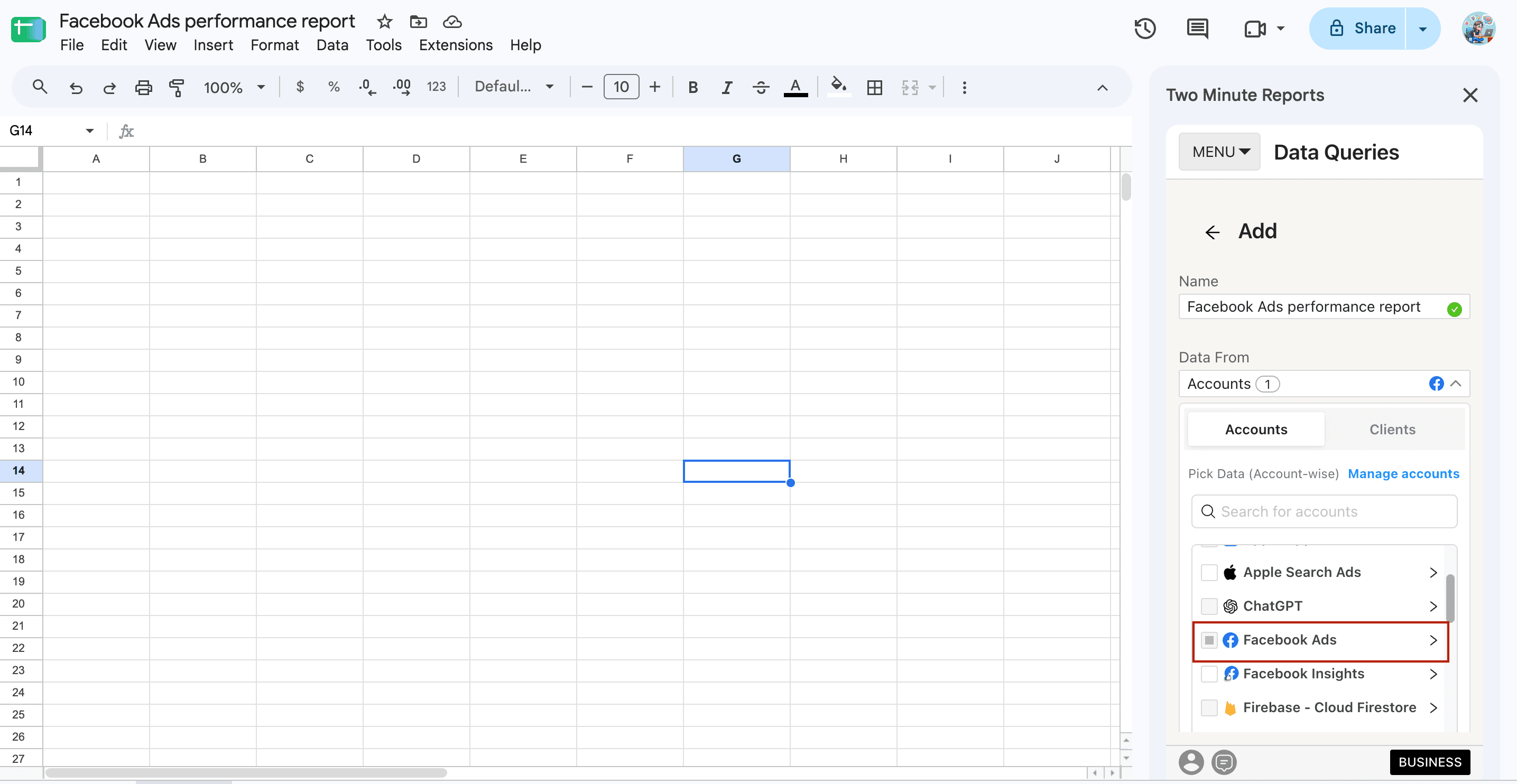
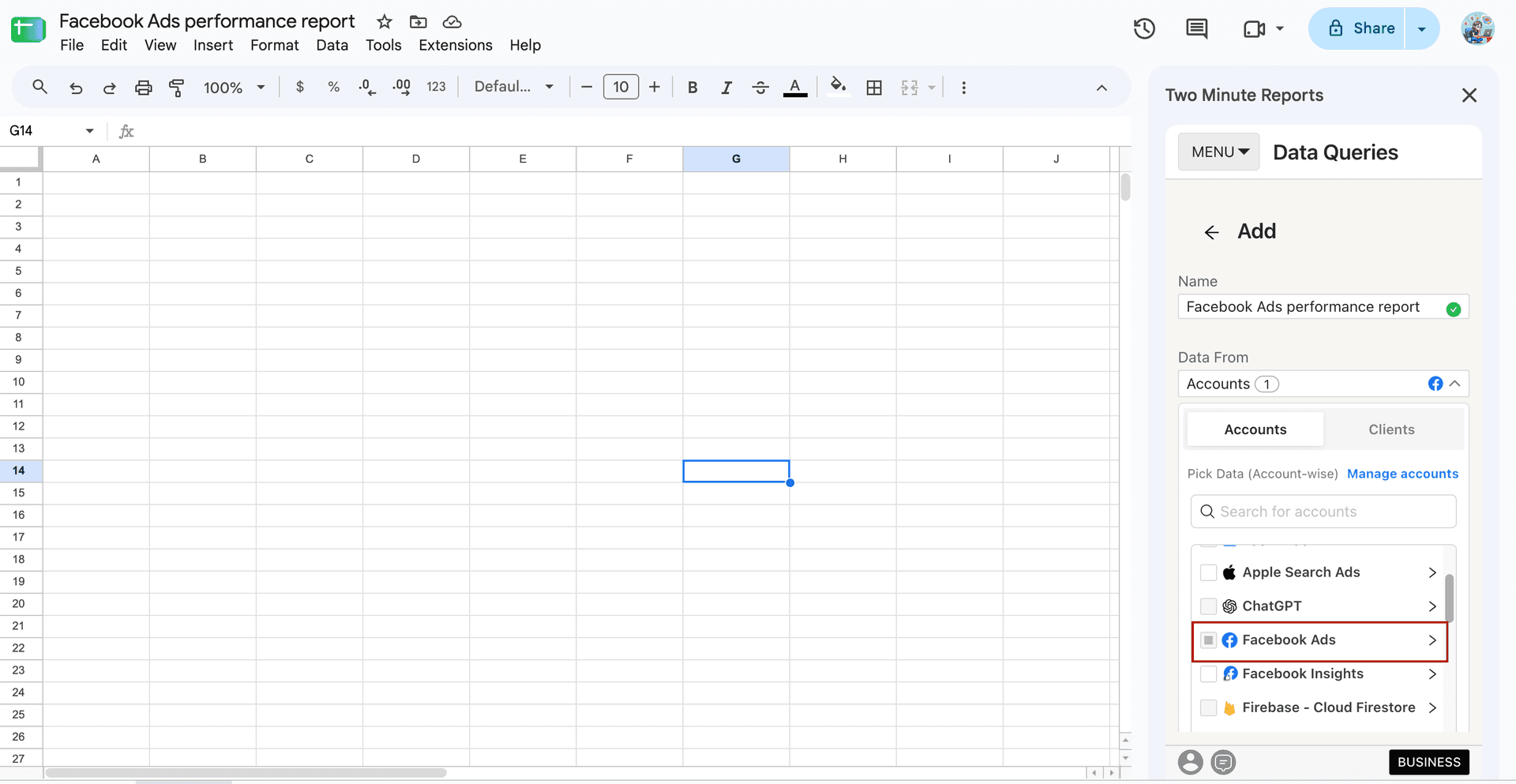
3. If you’re managing multiple clients, go to Clients → Manage Clients (in the sidebar), map your Facebook ad accounts to the relevant clients and click Save & Close.
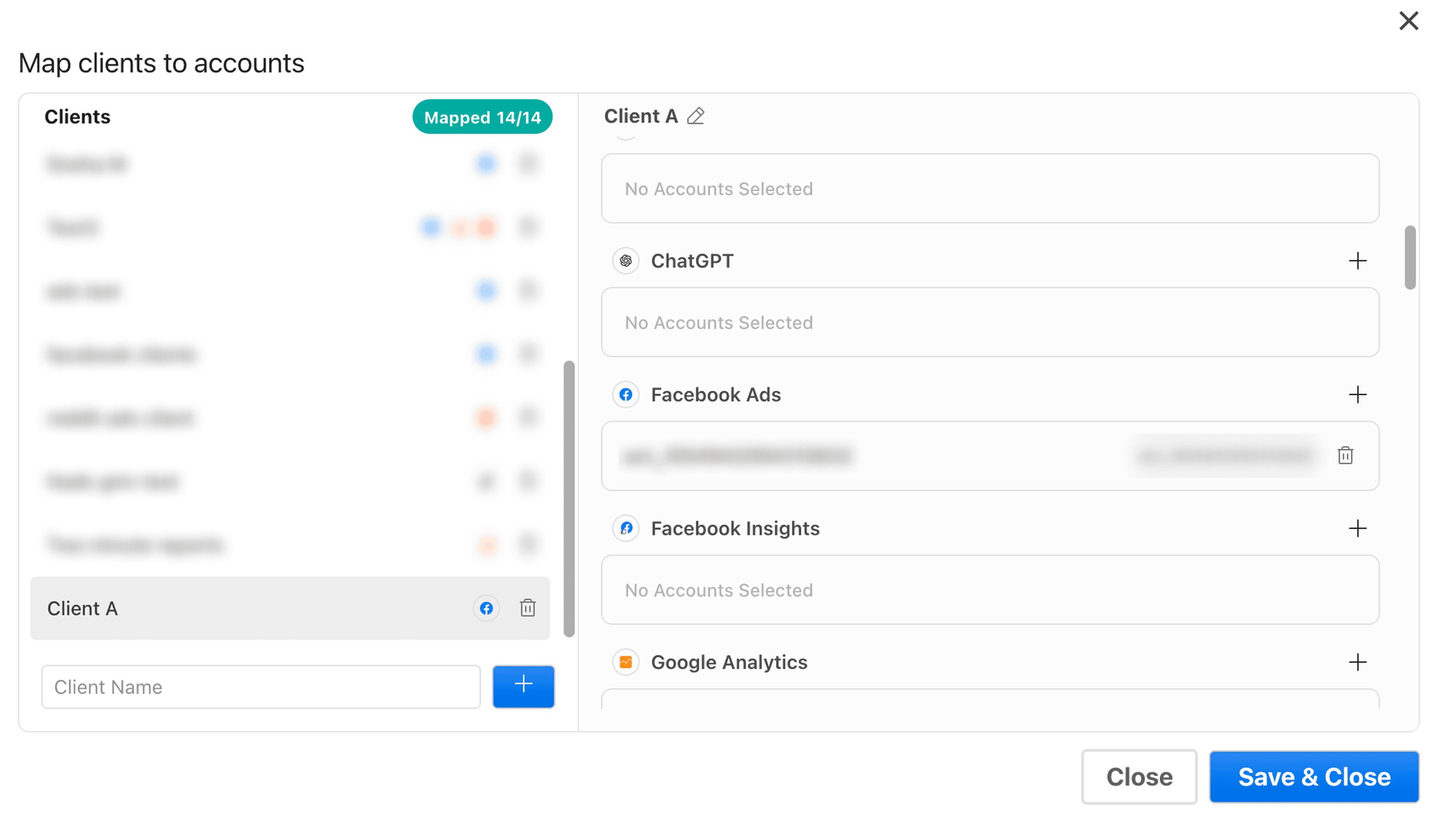
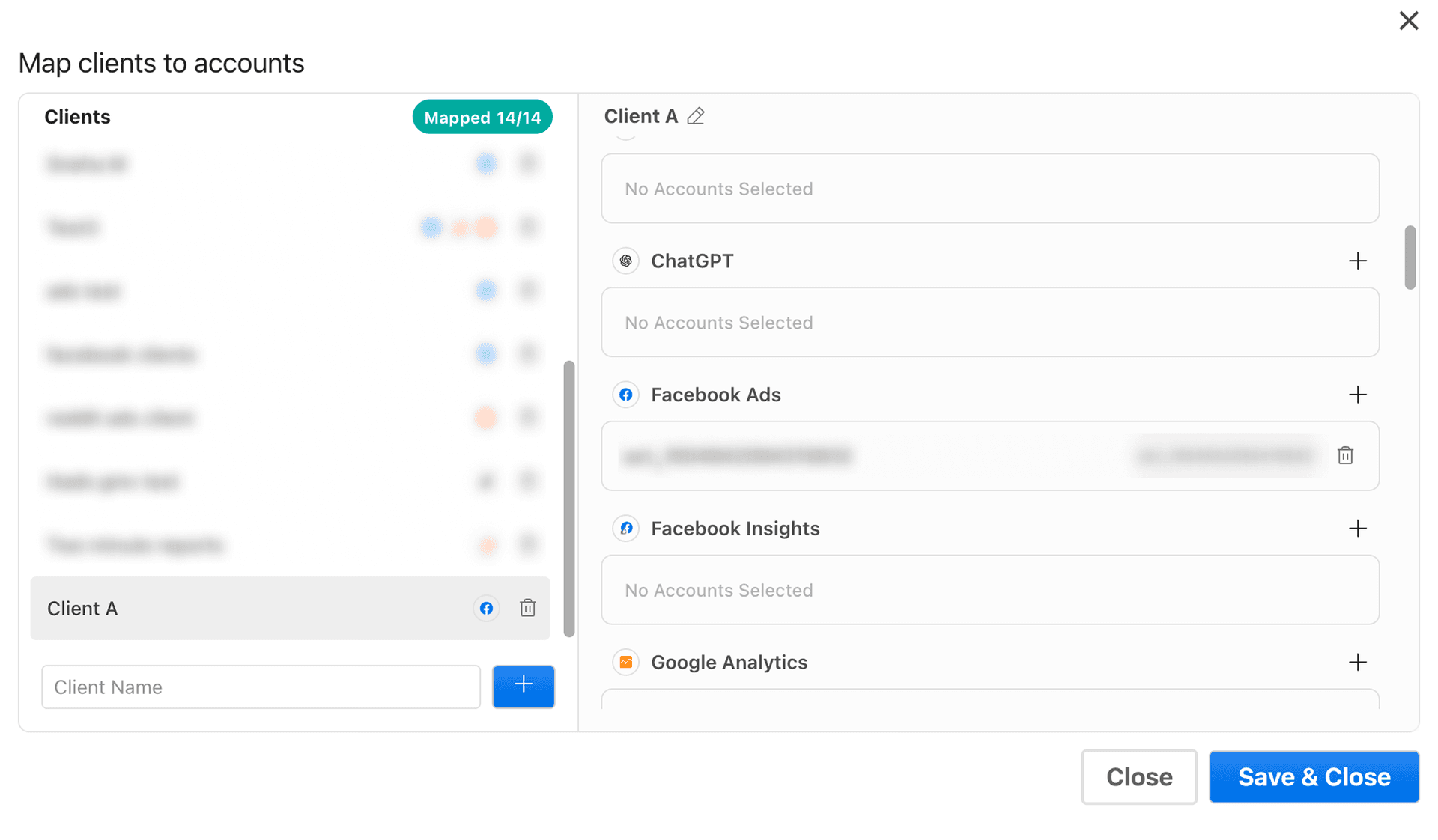
4. Once you’ve set up the accounts, choose relevant Facebook ads metrics and select your date range.
5. Consider you want to import Facebook ad leads to Google Sheets. Once you’ve chosen the fields from the sidebar, click Run Query to pull your Facebook Ads leads performance insights into your Google Sheets.
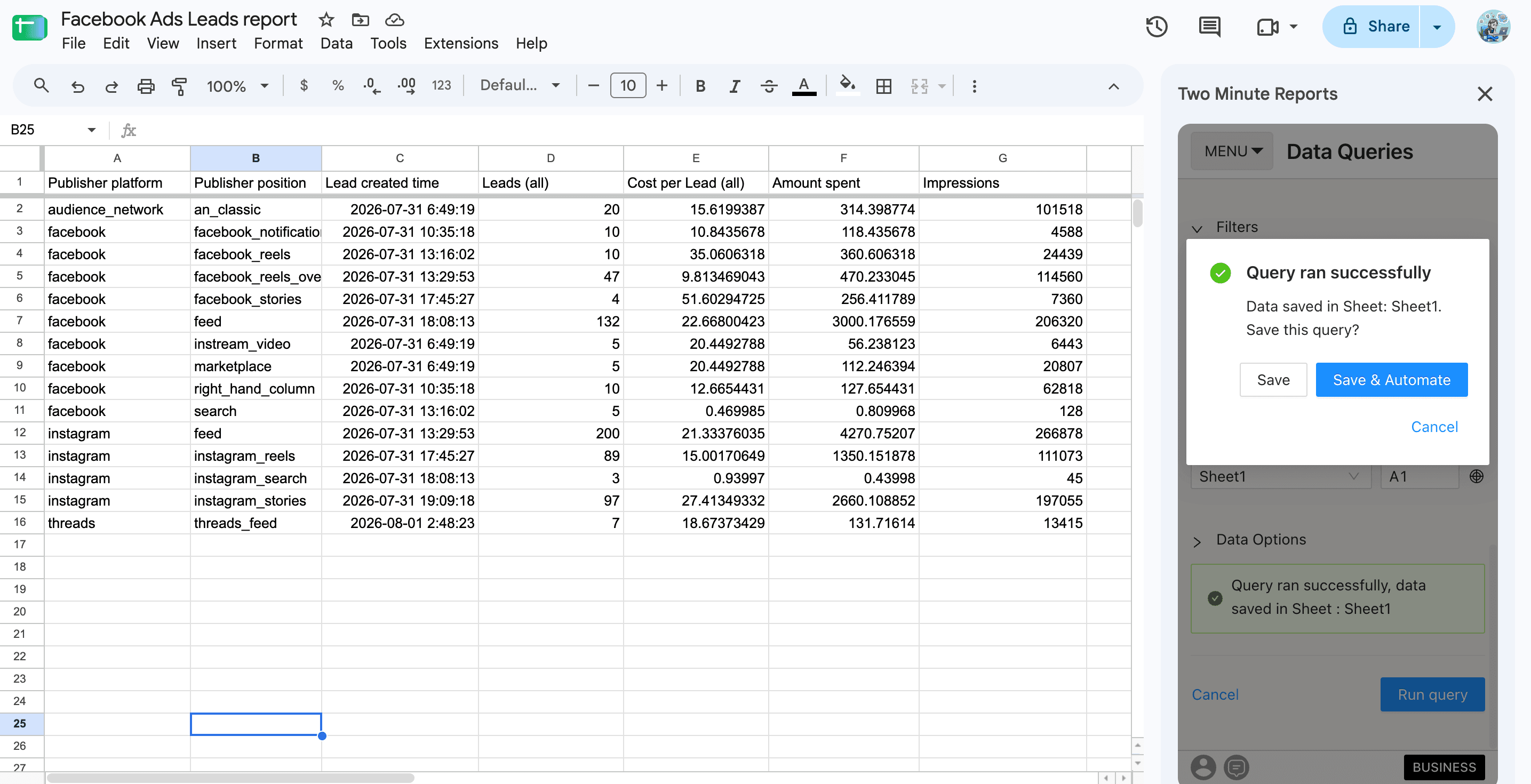
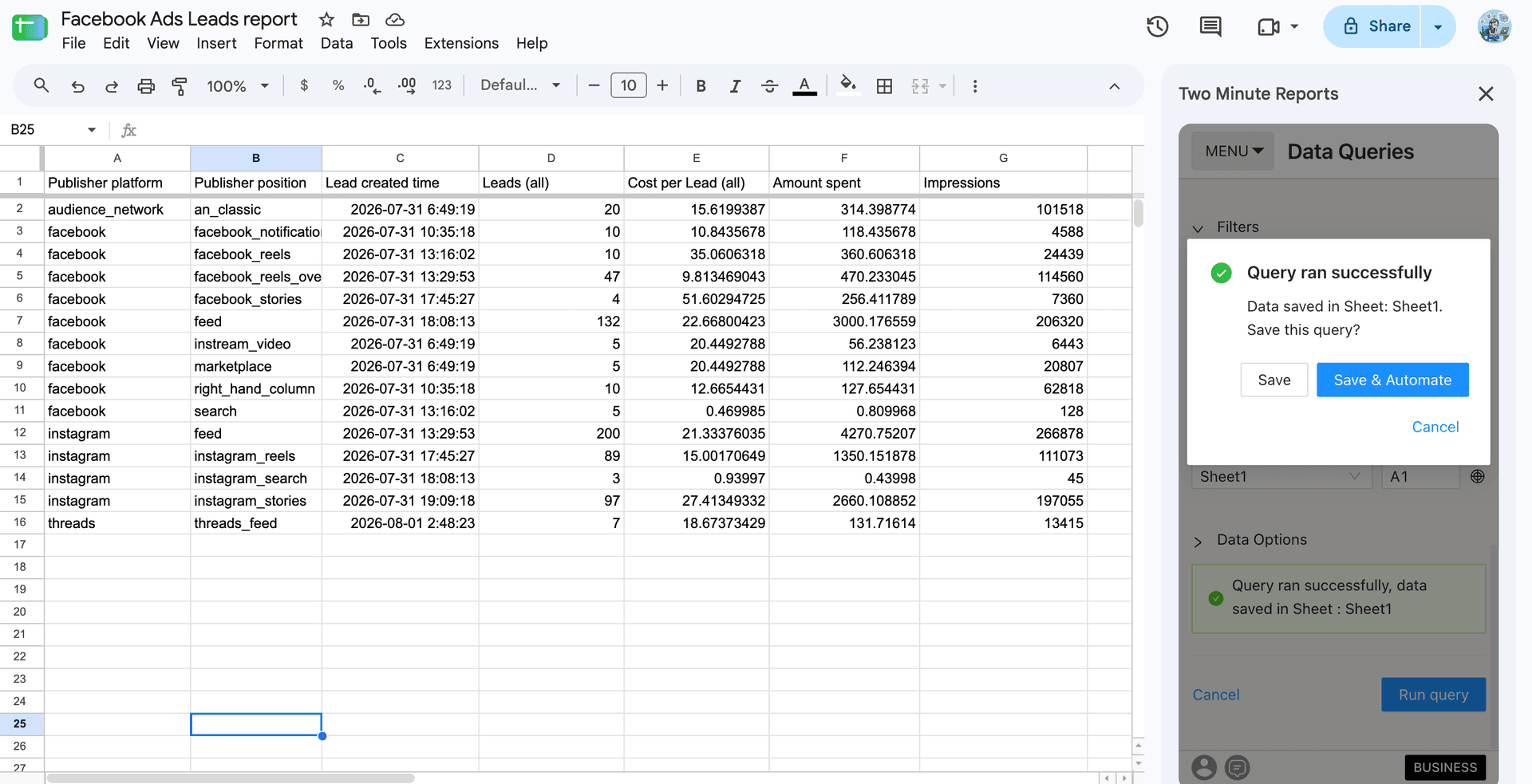
Now our Facebook Ads leads report is ready to view in Google Sheets.
The next step is to automate your query. In this way, you can receive the latest campaign insights on the schedule you’ve set.
You can either click Save & Automate or navigate to Menu → Schedule Refresh. Either way, the steps remain the same.
For now, let’s click Save & Automate. Then follow the steps below:
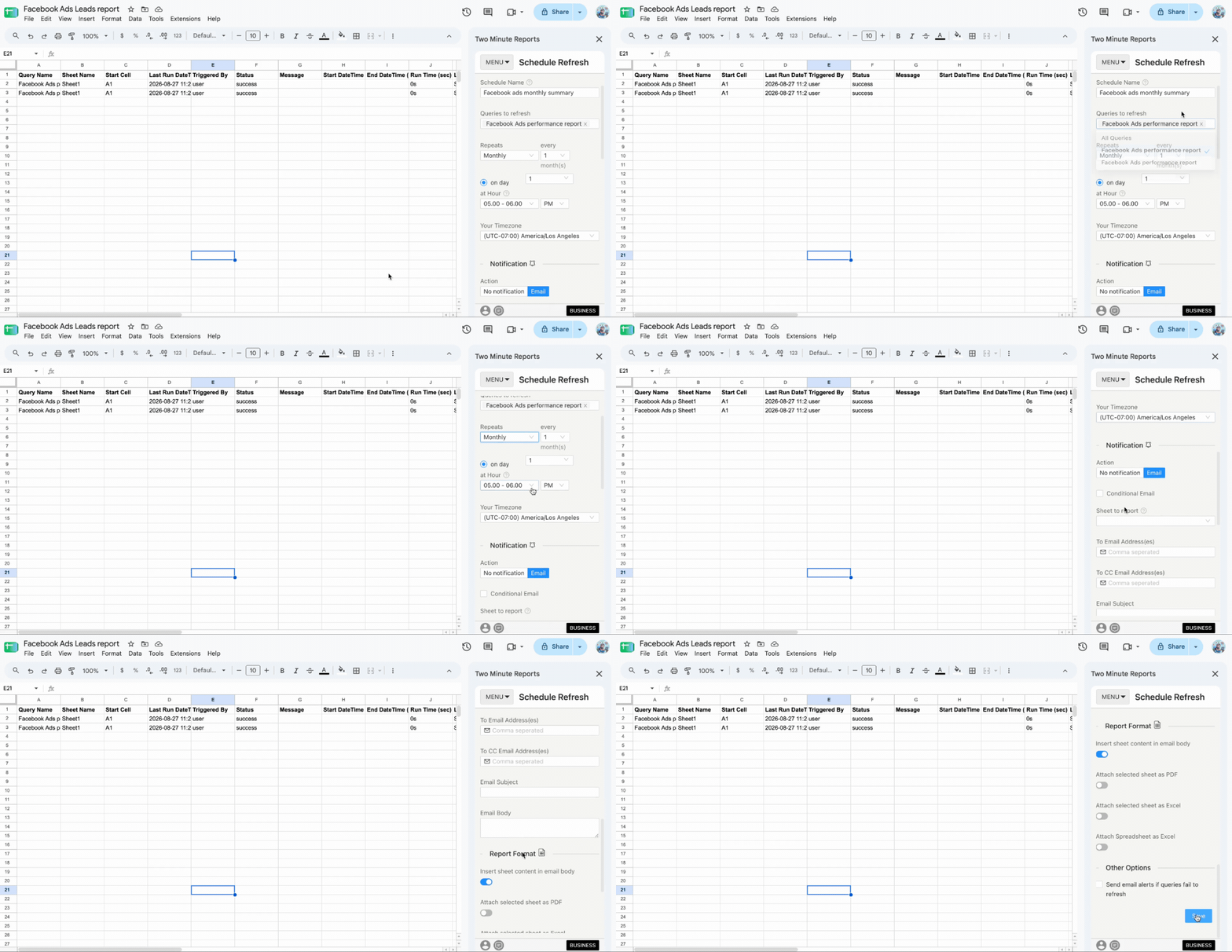
- First, enter your schedule name. Let’s enter as Facebook ads monthly summary.
- Next, select the queries to include in this schedule. You can choose multiple queries if you want them to refresh on the same schedule.
- Then, choose how often you want to refresh: hourly, daily, weekly and monthly.
- Specify the exact timezone for refreshes to occur.
Once you are done, you can set up your Facebook Ads reports to be delivered via email. Here’s how you can:
- To enable email delivery, move the toggle to ‘Email’.
- Next, select the Sheet to report.
- Enter the email addresses of your recipients – your clients, team members or stakeholders.
- Select whether you need to attach the report as a PDF, Excel/CSV or both.
- Write a customized email subject and body message to include with each report.
And that’s it. Your schedule is now saved. From here on, you can share real-time Facebook Ads Google Sheets reports to your clients automatically.
Once your Facebook Ads data is in Google Sheets, you can monitor metrics such as CPC, CTR, CPM, and ROAS over time. Facebook Ads benchmarks vary significantly across industries, with CPC ranging from $0.093 to $1.021 and CTR from 1.15% to 3.12%.
To see how your performance compares with other industries, explore our Facebook Ads benchmarks.
Method 2: Using Facebook Ads Google Sheets Template
With Two Minute Reports’ pre-built Facebook ads templates for Google Sheets, you can create custom campaign reports within minutes. Here’s how:
1. In the template gallery, choose from the list of options. For this example, let's choose a template that monitors your lead performance. You can use the Facebook Ads leads performance template to get started.
2. Next, click ‘Get Template for Free’ to open the Google Sheets template.
3. Then, click Use Template. You’ll land on the Google Sheets dashboard.
4. Click Use to launch the Two Minute Reports sidebar in your Google Sheets.
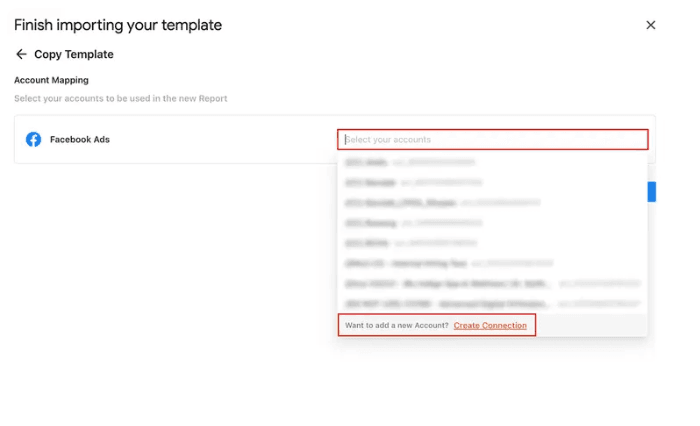
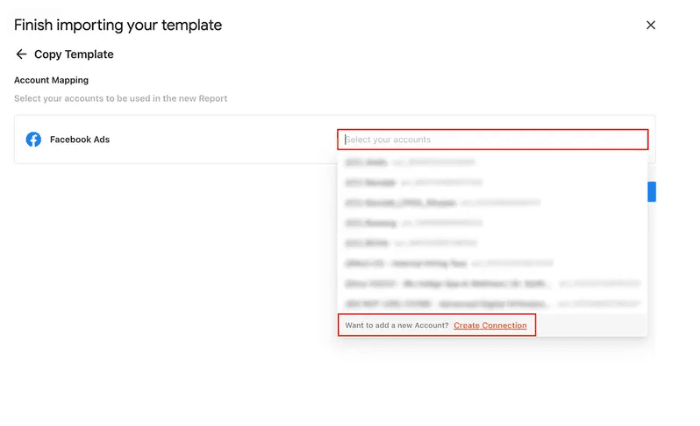
5. Finish importing your template by selecting the required Facebook Ads accounts from the dropdown. Once done, click Submit to create your report.
6. Click Run Query to fill the template with the necessary data.
7. And that’s it. Your Facebook ads performance data is automatically populated, helping you give a detailed overview of what’s happening and what needs to be done. Click the template below to get started.

Why import Facebook Ads data to Google Sheets?
Incorporating Facebook Ads into Google Sheets can significantly boost your ad management and analytics prowess. You can unlock abundant opportunities to implement data-driven marketing strategies by enabling a seamless integration between these two platforms. Here’s how you can leverage this integration:
Streamlined reporting
Streamline campaign performance, monitor real-time updates, and create custom Google Sheets dashboards with a reliable Facebook Ads reporting tool. When integrated with data visualization tools like Google Sheets, you can highlight important KPIs and translate their impact into actionable reports, providing an organized and efficient approach to data analysis and reporting.
Marketing strategy enhancement
Compare your Facebook Ads campaign performance with various PPC channels and visualize true cross-channel ROI. A marketing reporting software can help you gather the analysis and significant outcomes, enabling you to make data-driven decisions that enhance the effectiveness of your Facebook advertising strategy.
Optimized data management
Bid adieu to manually downloading CSV files, as now you can effortlessly import Facebook Ads data to Google Sheets. Additionally, leverage Two Minute Reports’ automated reporting capabilities to consistently report up-to-minute campaign insights, ensuring you’re working with the most current information.
Comprehensive data analysis
Using Google Sheets, you can extract built-in and custom Facebook ad metrics that resonate with your campaign goals. This functionality paves the way for easy accessibility, enabling your team to work together on analyzing campaign data and fostering a highly collaborative environment.
Workflow efficiency
Set up automated workflows to channel data from Facebook ads to Google Sheets, effectively streamlining the data extraction process. This process ensures seamless synchronization when connecting Facebook ads data to Google Sheets, enabling consistent workflow management by aligning your datasets.
Overcoming challenges with Facebook Ads and Google Sheets integration
While integrating Facebook Ads with Google Sheets, syncing data between two platforms can sometimes be challenging. Let me explain the potential issues and actionable steps to successfully extract campaign data and gain actionable insights.
1. Technical issues with integration
Problem: Sometimes, you might encounter technical roadblocks such as sync failures, incorrect data being pulled, or a lack of real-time data updation. These issues affect your reporting workflow, making it difficult to access performance data.
Solution: Ensure you use a reliable reporting tool such as Two Minute Reports to quickly connect your Facebook Ads account to Google Sheets and extract KPIs hassle-free.
2. Data formatting and structure issues
Problem: When importing Facebook Ads data to Google Sheets, data might not align or be formatted properly. This doubles down on your manual efforts, consuming countless hours to get things done.
Solution: Leverage Google Sheets' built-in features like pivot tables, filters and conditional formatting to structure and organize your data, streamlining the process and saving time.
3. Inconsistency in reporting
Problem: When exported to Google Sheets, Facebook Ads Manager displays certain metrics in slightly different ways. This happens due to incorrect time zones, rounding differences, and varied formats for tracking custom metrics.
Solution: Ensure you set the same time zones, dates, and precise formats for custom metrics to be consistent in Facebook Ads Manager and Google Sheets. This will help maintain data integrity, enabling accurate campaign analysis and insights.
4. Lack of customization
Problem: Facebook Ads Manager has limited reporting capabilities, making extracting and customizing specific campaign insights into Google Sheets difficult.
Solution: You can use Two Minute Reports’ Facebook Ads templates for Google Sheets to centralize KPIs, create personalized dashboards, and gain actionable performance insights to make informed decisions.
5. Handling large volumes of data
Problem: When managing multiple Facebook Ad campaigns across different ad sets, handling the sheer volume of data within a single Google Sheet can be challenging.
Solution: With Two Minute Reports’ Facebook Ads reporting tool, you can load complex, high-volume dashboards in under 5 seconds – thanks to its smart caching.
Important metrics used in the Facebook Ads Google Sheets reports
The Facebook ads integration into Google Sheets enables you to extract key Facebook Ads KPIs to optimize your ad strategy and budget. Here are the top metrics you can extract from Facebook Ads:
Create actionable Facebook Ads reports in Google Sheets
Integrating Facebook Ads data with Google Sheets provides a comprehensive approach to boosting digital marketing efforts. By exporting a wide range of crucial data points from Facebook Ads, you can unlock the full potential of your advertising data.
This integration streamlines your data analysis process and ensures that every aspect of your Facebook advertising is clearly optimized. Leverage the powerful synergy between Facebook Ads and Google Sheets to create data-driven Facebook Ad reports that propel your marketing strategy to the next level.
Frequently Asked Questions
Install the Two Minute Reports' Facebook Ads add-on from the Google Workspace Marketplace. Next, open your spreadsheet, launch the sidebar, connect your Facebook Ads accounts and select the KPIs you want to export to Google Sheets. Then, run your query. You can visualize your Facebook Ads performance insights and track your campaigns with ease.
With Two Minute Reports, you can set up custom refresh schedules – daily, hourly, weekly or monthly and ensure your client reports reflect the latest Facebook Ads campaign insights. Deliver professional, white-label reports directly from Google Sheets to your clients within minutes.
You can access our free, ready-to-share Facebook Ads Google Sheets templates to streamline campaign tracking. Once you click “Use Template”, you can launch the Two Minute Reports add-on, import your client’s ad accounts, run queries and auto-populate the dashboard with meaningful insights quickly.
Absolutely, yes. With data blending, you can connect Facebook Ads, Google Ads, LinkedIn Ads, and other advertising platforms into a single dashboard to unlock cross-channel ROI. No need to toggle between platforms. Analyze what’s working and what’s not and allocate optimum resources to improve your client’s ROI.
You can choose to directly select your client’s Facebook Ads accounts from the Two Minute Reports sidebar and consolidate key KPIs in one place. Alternatively, you can also reuse the existing reports across multiple clients, ensuring you save time and focus more on strategy and not spreadsheets.

Meet the Author
Shalini MuruganShalini is driven by ideas that create a tangible impact. At Two Minute Reports, she specializes in content that helps marketers optimize their reporting workflows. When she's not transforming complex data into meaningful insights, you might find her lost in a book, jotting down ideas in her notebook, or connecting the dots others overlook.