

Authentication
The Two Minute Reports API authenticates every request with a bearer token. The token is an API key that you create in the Hub. Send it in the Authorization header:
curl https://api.twominutereports.com/v1/users/me \
  -H "Authorization: Bearer tmrc_live_xxxxxxxxxxxxxxxxxxxxxxxxxxxxxxxx"
The API does not use cookies or sign-in sessions. The token is the only credential.
Create an API key
Create the key with the intended use API. The REST API accepts only API keys. A key made for the MCP server does not work with the REST API.
You can create an API key in two places:
- In the Hub, select AI tools, then the Automations tab. In the REST API section, select Create key. The section sets the intended use to API.
- Or go to Settings › API keys and select Create key. Set Intended use to API.
If you have no keys yet, the button is Create your first key.
Configure the key
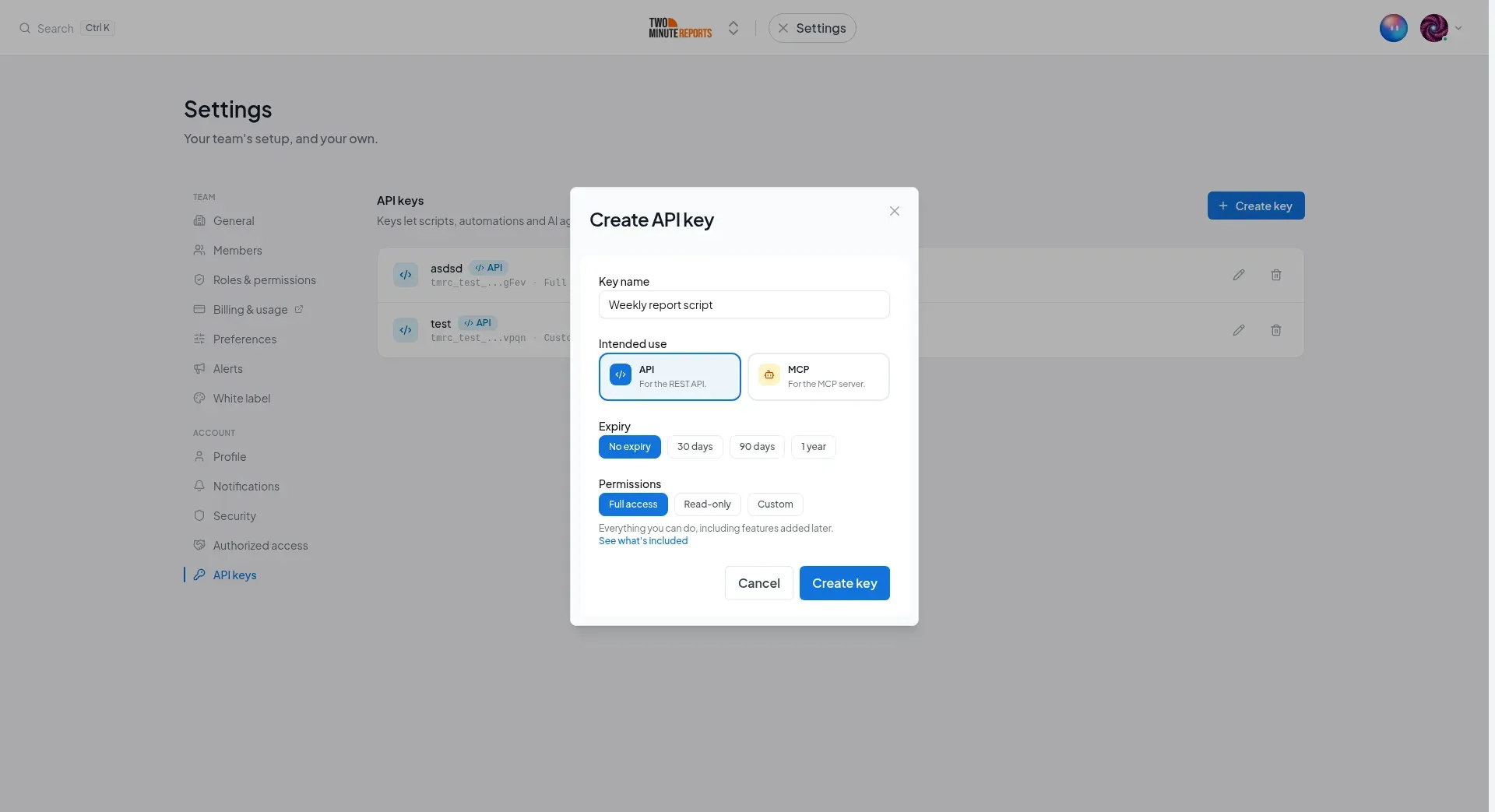
In the Create API key dialog:
- Key name: a name that helps you find the key later, for example Weekly report script.
- Intended use: API.
- Expiry: when the key stops working (No expiry, 30 days, 90 days or 1 year).
- Permissions: Full access, Read-only or Custom. See Permissions.
Then select Create key.
Copy your key
The Hub shows the key one time. Copy it and keep it in a safe place. Then select Done.

If you send a key with a different intended use, the API responds with 403 Forbidden:
{
  "success": false,
  "error": {
    "code": "FORBIDDEN",
    "message": "The Two Minute Reports API accepts API keys only. Create one under Settings → API Keys with intended use \"API\"."
  }
}
For the MCP server, create an MCP key instead. See The MCP server.
Managing keys
To create, edit and revoke keys, use the Automations tab of the AI tools page, or Settings › API keys. The REST API cannot manage keys or sessions.
Permissions
An API key can do anything you can, unless you limit it. You choose what it can do for each feature, and it never gets more than your role allows on each team.
In the Create API key dialog, or the Edit API key dialog (the pencil next to a key), choose one under Permissions:
- Full access: everything you can do, including features added later.
- Read-only: view everything available today. No changes, sharing or exports.
- Custom: choose a level for each feature.
To see what Full access or Read-only covers, select See what's included.
To choose a level for each feature:
- Under Permissions, select Custom.
- In the What this key can do dialog, set each feature under Feature levels to No access, View, Edit or Delete. A feature shows only the levels it offers.
- Select Done. To discard your changes, select Cancel.
Under Permissions, the key then shows how many features it allows, for example 3 of 5 features allowed. To change them, select Edit.
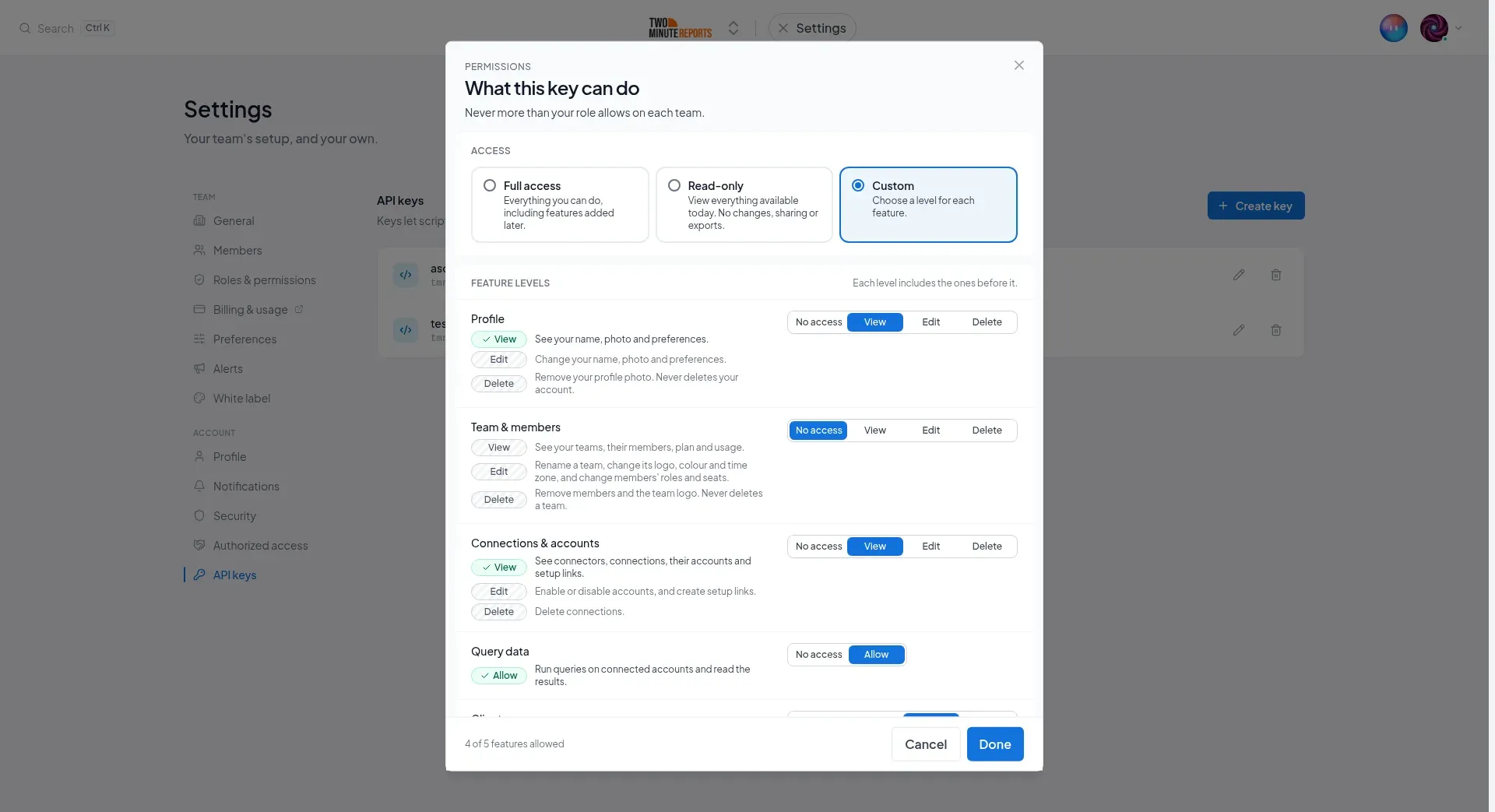
Levels include the ones before them: Edit includes View, and Delete includes Edit. Each feature row lists what each level allows. A level the key gets shows a green check, and a level it does not get is striped. With Full access or Read-only, the section is headed What's included and shows what the choice covers.
If you allow no features, Done is unavailable and says Allow at least one feature.
In the key list, each key shows Full access, Read-only or Custom with its count, for example Custom (3 of 5 features).
If you edit a key and only change its name, its permissions stay exactly as they were. A key whose permissions do not match a whole level shows This key has older permissions that don't match a whole level. Saving new permissions replaces them. It keeps that access until you choose new permissions and save the key.
Reading the public product catalogue (plans, connector list, roadmap and changelog, the platform:read scope) is always allowed, whatever you choose.
Features and levels
An API key offers these features:
| Feature | View | Edit | Delete |
|---|---|---|---|
| Profile | See your name, photo and preferences. | Change your name, photo and preferences. | Remove your profile photo. Never deletes your account. |
| Team & members | See your teams, their members, plan and usage. | Rename a team, change its logo, colour and time zone, and change members' roles and seats. | Remove members and the team logo. Never deletes a team. |
| Connections & accounts | See connectors, connections, their accounts and setup links. | Enable or disable accounts, and create setup links. | Delete connections. |
| Query data | Allow: run queries on connected accounts and read the results. | ||
| Clients | See clients, their linked accounts and contacts. | Create and update clients, link accounts, and add or update contacts. | Unlink accounts and delete contacts. Never deletes a client. |
Query data has one level, labelled Allow. An MCP key or a connected AI app offers more features, such as Dashboards, Reports, Goals, Sharing and Exports. See What a key or app can do.
Team routes also need the Use the public API team permission (api.access). A member whose role does not include it gets 403 on every team route, whatever the key can do. See the permissions matrix.
Scopes
Each level stands for a fixed set of scopes, written as <resource>:<action>. Every endpoint page lists the scope it needs as its Permission.
- Actions:
read,write(create and update),delete. A key that can write or delete a resource can also read it. - Resources:
account,teams,connections,connectors,clients,data,platform. The endpoints in this reference need these seven.
| Feature | View | Edit | Delete |
|---|---|---|---|
| Profile | account:read | account:write | account:delete |
| Team & members | teams:read | teams:write | teams:delete |
| Connections & accounts | connectors:read, connections:read, setup_links:read | connectors:write, setup_links:write | connections:delete |
| Query data | data:read | ||
| Clients | clients:read | clients:write | clients:delete |
A level includes the scopes of the levels before it. A key is allowed if it holds the scope an endpoint needs, or a wildcard such as clients:*, *:read or *:*. A full-access key is allowed everything.
Only these resource and action combinations exist for the seven resources:
| Resource | read | write | delete |
|---|---|---|---|
account | Yes | Yes | Yes |
teams | Yes | Yes | Yes |
connections | Yes | No | Yes |
connectors | Yes | Yes | No |
clients | Yes | Yes | Yes |
data | Yes | No | No |
platform | Yes | No | No |
A key can also carry scopes for other resources. The endpoints in this reference do not use them, so a key for these endpoints does not need them. They are offered to MCP keys and connected AI apps only. They have these actions:
| Resource | read | write | delete | Held under |
|---|---|---|---|---|
dashboards | Yes | Yes | Yes | Dashboards |
goals | Yes | Yes | Yes | Goals |
reports | Yes | Yes | Yes | Reports |
report_shares | Yes | Yes | Yes | Sharing (Edit) |
dashboard_shares | Yes | Yes | Yes | Sharing (Edit) |
exports | Yes | Yes | No | Exports |
custom_fields | Yes | Yes | No | Custom fields |
setup_links | Yes | Yes | No | Connections & accounts |
watch_tower | Yes | No | No | Watch Tower |
initiatives | Yes | No | No | Initiatives |
exports is used by the MCP export tools.
account scope covers your profile and preferences only. You cannot manage sessions or API keys
through the public API. Manage them in the Hub, in
Settings › API keys.If a key cannot do what an endpoint needs, the API responds with 403 Forbidden. The message names the feature and level the key is missing, and where to change it. required gives the same in fields, with the scope:
{
  "success": false,
  "error": {
    "code": "INSUFFICIENT_PERMISSIONS",
    "message": "This API key doesn't have Edit access to Clients. To allow it, edit the key in Two Minute Reports under Settings → API keys and set Clients to Edit: https://hub.twominutereports.com/settings?tab=user-api-keys",
    "required": { "feature": "Clients", "level": "Edit", "scope": "clients:write" }
  }
}
For Query data, the message says the key doesn't have access to Query data and asks you to set Query data to Allow.
Token format
API keys begin with tmrc_live_, followed by 32 random characters. A key has 42 characters in total.
tmrc_live_aB3dEfGhIjKlMnOpQrStUvWxYz123456
Unauthenticated requests
A request fails with 401 Unauthorized if the Authorization header is missing or the key is not valid, has expired, or was revoked.
{
  "success": false,
  "error": {
    "code": "UNAUTHORIZED",
    "message": "Invalid or expired session"
  }
}
The message is Missing bearer token when there is no Authorization header. A key that is not valid, has expired or was revoked gets the same message, so the response does not tell if a key exists.