Your Client Updates, Drafted and Ready To Send
Dashboard briefings are client emails that Dash AI writes from your dashboard: a short summary of the key results, a link to the live dashboard, and a PDF of the pages you choose. Review the draft, then send it once from your Gmail or schedule it weekly or monthly.
Try Free for 14 Days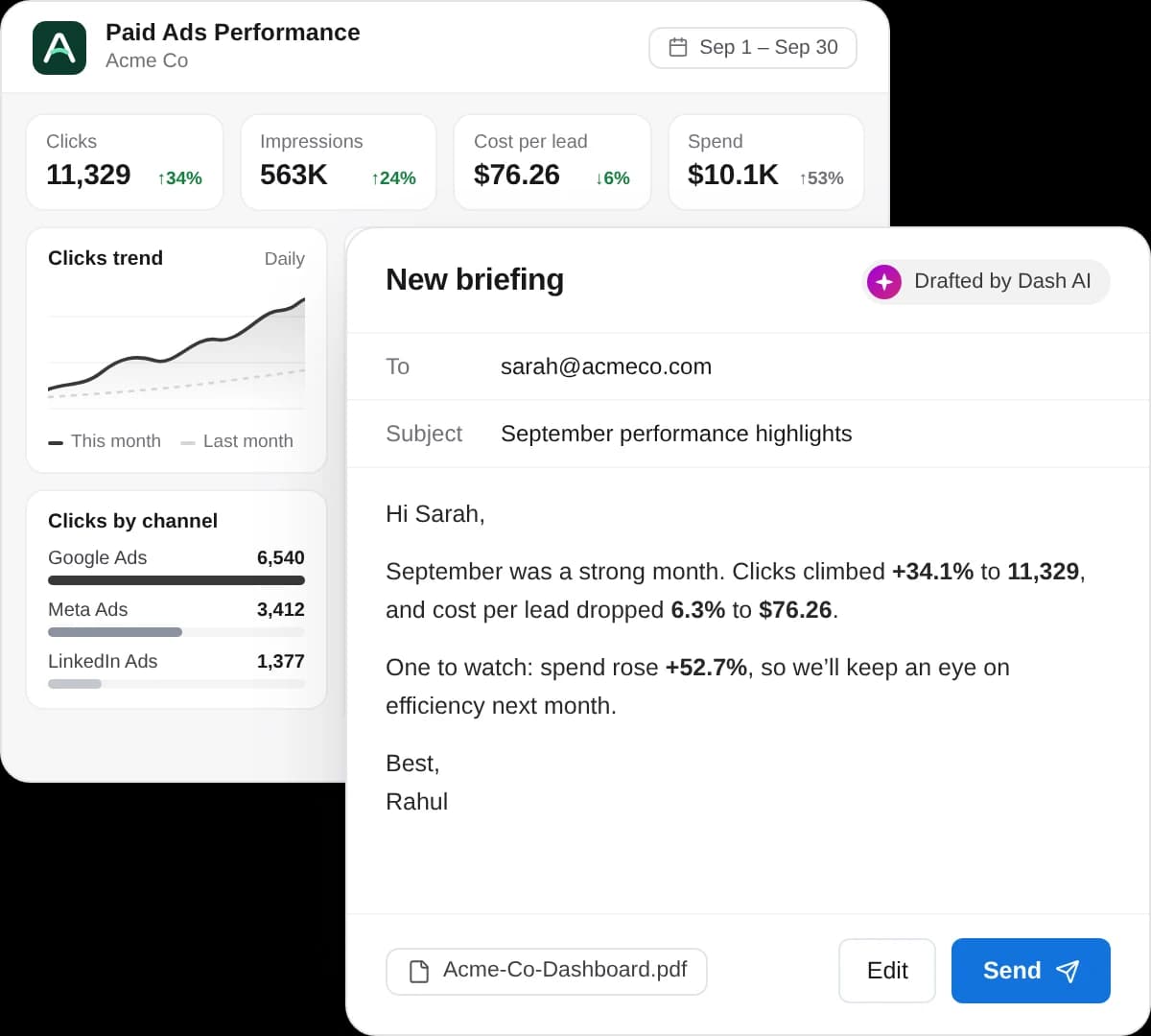
Send a Client Update When You Need It
Tell Dash AI what matters, and get an email with your performance report and a tailored summary, ready to send.
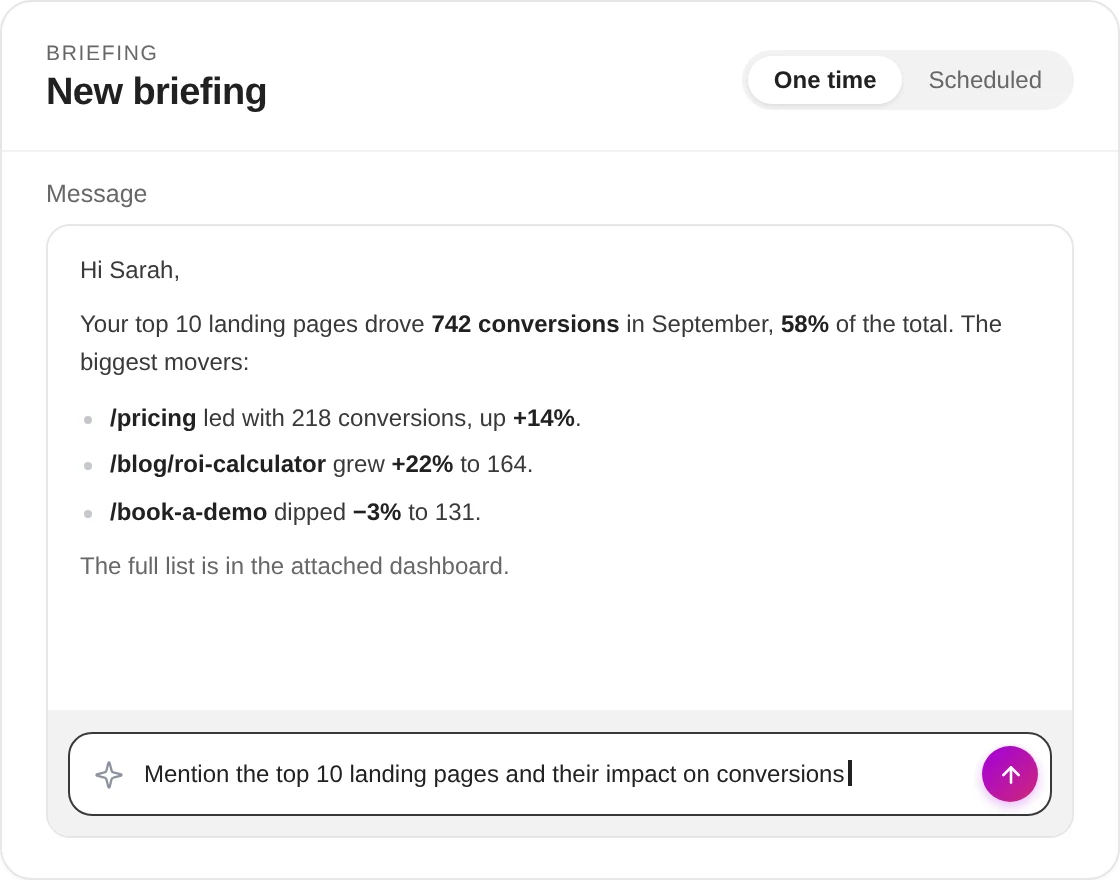
Let AI Write the First Draft
Ask Dash AI to “Summarize your key highlights” or “Mention the top 10 landing pages and their impact on conversions” and get an email drafted in seconds.
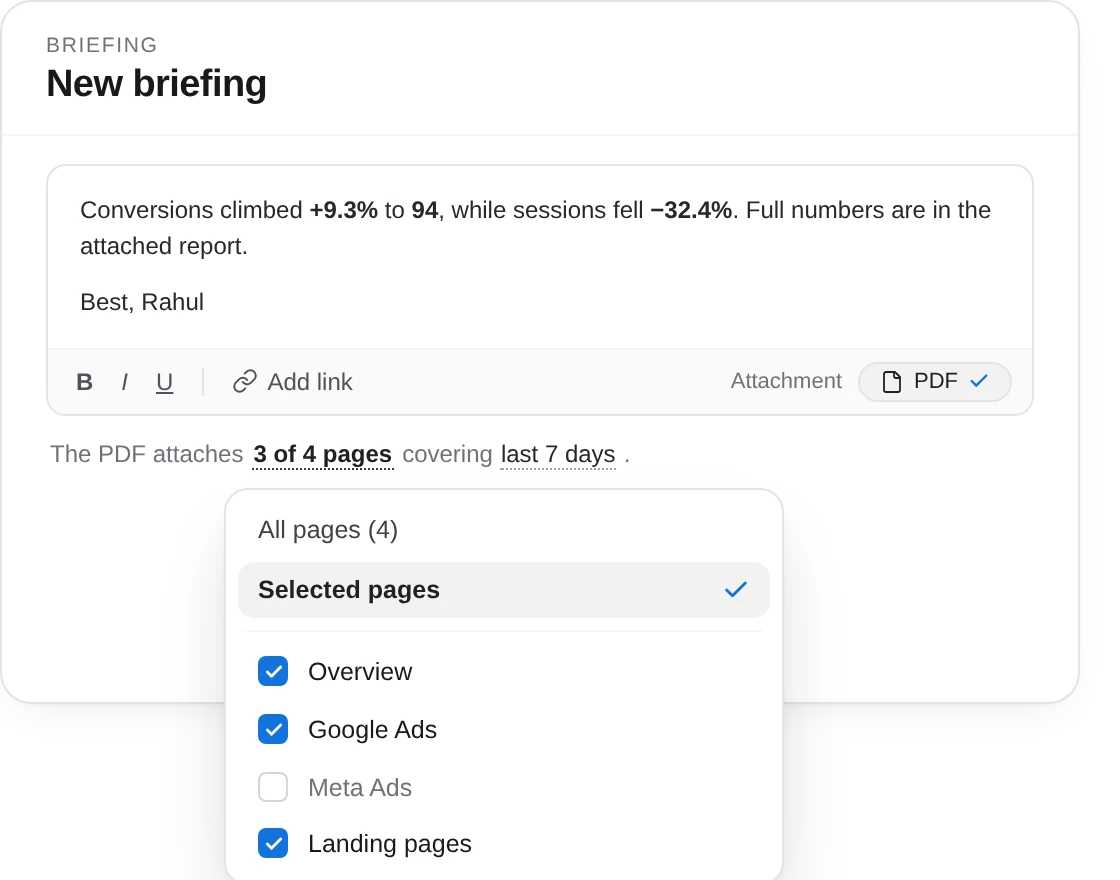
Choose What to Include
Select which dashboard pages should be included with your email. Include specific pages or the entire dashboard for your clients to view.
Keep Client Updates Running on Autopilot
Set up recurring emails and let your clients receive the latest performance insights without doing repetitive work.
Automatically Pull in the Latest Data
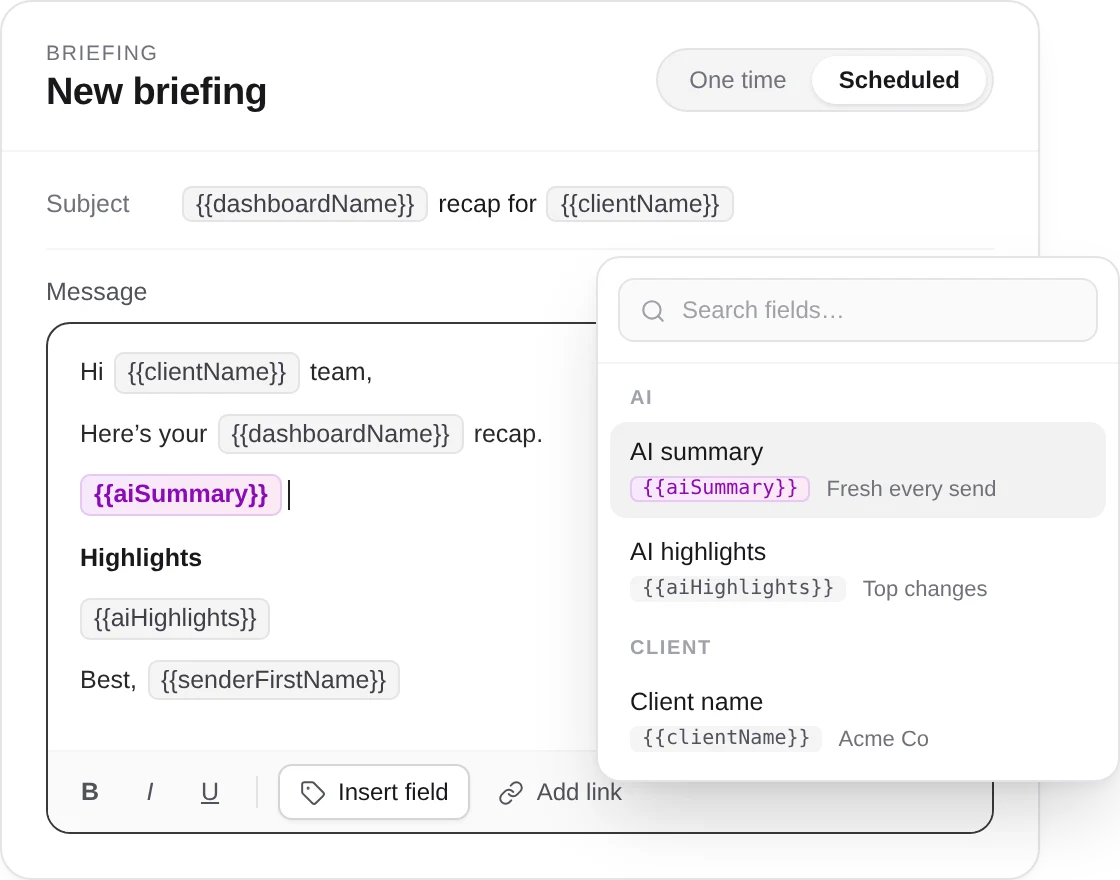
Add fields such as {{clientName}}, {{dateRange}} and {{aiSummary}}. They fill in when the email goes, and Dash writes the summary from that week’s or month’s figures at every send.
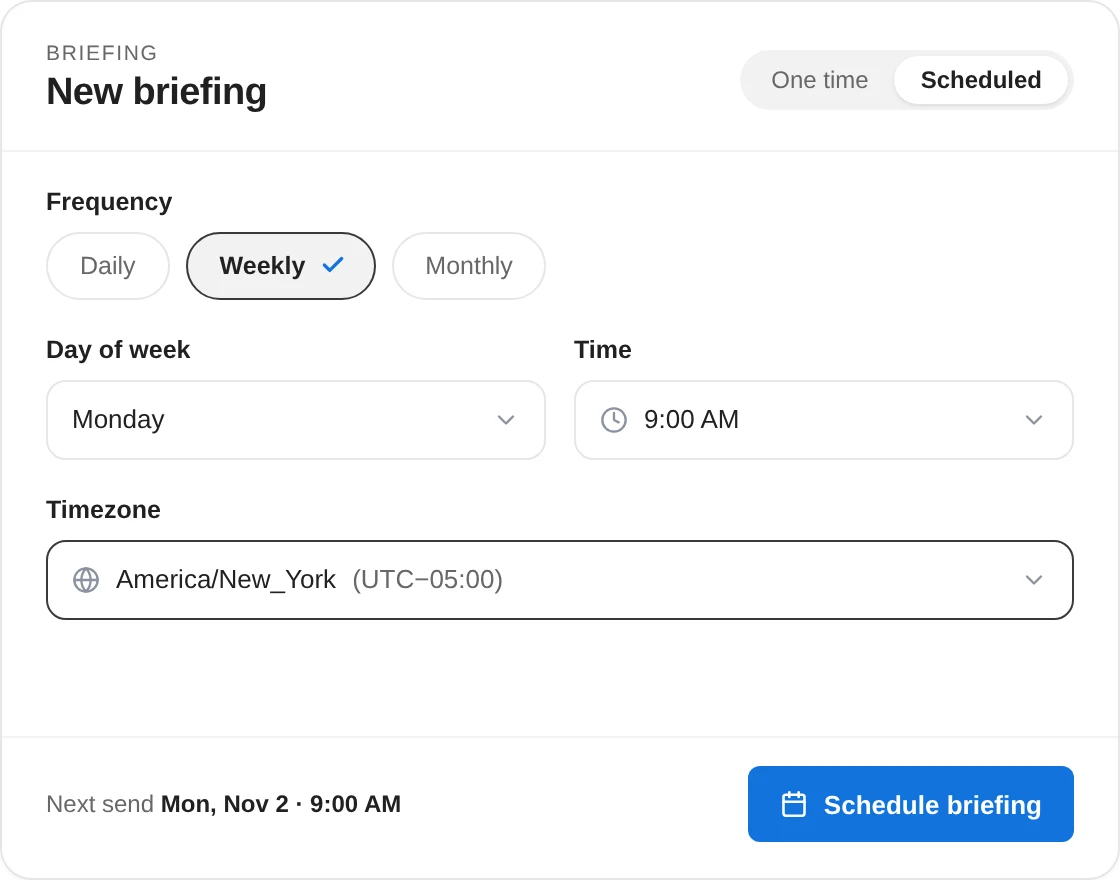
Schedule Updates Your Way
Send weekly or monthly, on the day, time and time zone that suit your client. Each send covers the period before it, so nobody has to update the email.
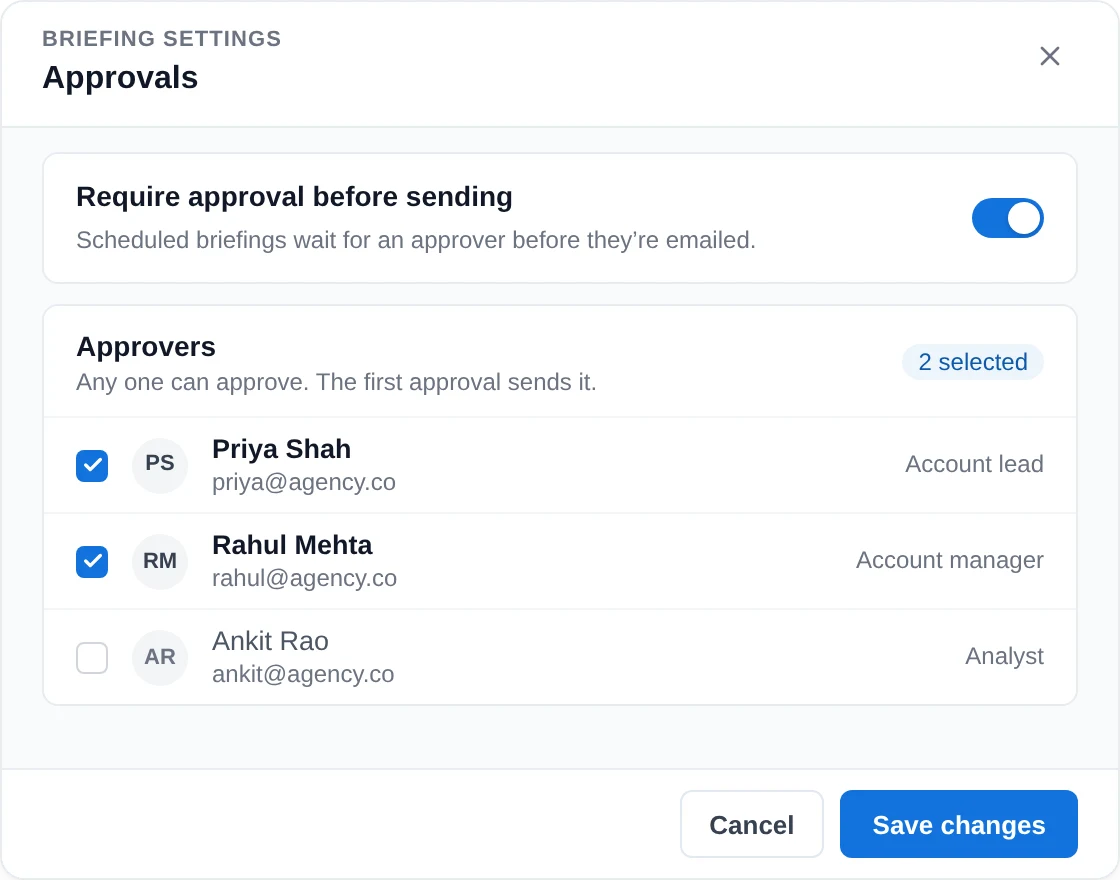
Add a Team Approval Step
Require a team member to approve each recurring send before it reaches a client. Approvers can approve, edit the copy, request changes or reject it.
Your Reports Stay Current
Each time a schedule runs, your clients receive the latest dashboard data.
- SentMon, Oct 5Data through Oct 4
- SentMon, Oct 12Data through Oct 11
- Next runMon, Oct 19Pulls fresh data
Get Your Client Update Ready in Minutes
Share key insights with your clients without spending hours searching for the data or writing emails.
Open the dashboard you want to share
Open a client’s dashboard and select Send as a briefing (the paper plane icon) in its header.
Draft your email
Choose Once or Recurring, then type what to cover in the Write with Dash bar, for example “Highlight the biggest win and one concern”.
Review and personalize
Edit the draft, choose the pages and period for the PDF, and preview the email exactly as your client gets it. Send yourself a test first.
Send or schedule
Send it now or at a time you choose, or pick a weekly or monthly schedule. Every email that goes out is kept on the Sent tab.
Keep Your Clients Updated on What Matters
Bring the data and insights together in a professional email, so clients can understand the key takeaways, spot what matters, and decide what to do next.
Send From Your Gmail
Briefings go out from a connected team member’s Gmail, so they read like a person on your team wrote them.
Link to Your Dashboard
Add the dashboard share link. Clients open the live dashboard without signing in and explore the latest data whenever they need it.
Attach the Dashboard as a PDF
Include the full dashboard or selected pages as a PDF, so clients have the complete report alongside the update.
Frequently Asked Questions
Every Client Update Written and Sent For You
Let AI draft it. Make it yours. Send once or keep it running automatically.