

Blending Across Sources
Every platform names its fields differently, "amount spent" on one, "cost" on another. The Blending method lets you map the equivalent field from each of your data sources into a single unified custom field, so a cross-platform chart or goal just works.
What You Can Do
- Combine one field per data source into a single unified field
- Build unified metrics like total Spend, Impressions, or Clicks across platforms
- Build unified dimensions like a single Campaign Name, Ad Group, or Country column
- Give each source its own field or its own formula
How Blending Works
When you choose Blending, you select the data sources to include, then tell the field which field to use for each source.
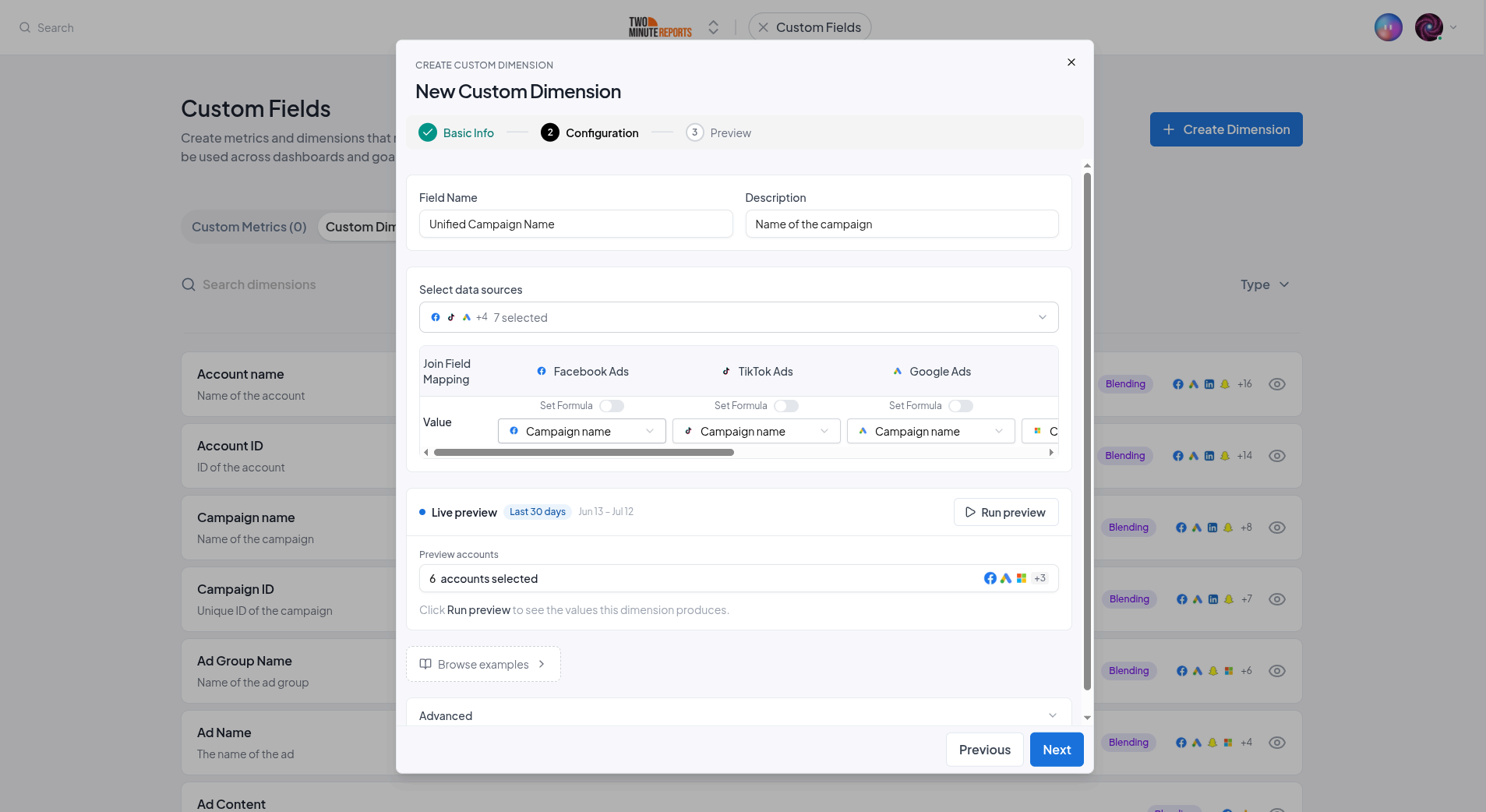
For each selected source, you can map either:
- A single field - pick the equivalent field from that source, or
- A formula - build a per-source calculation (and even add conditional rules for that source)
Metrics Are Summed
For a custom metric, the values from each source are added together into one total. Mapping "amount spent" from Meta, "cost" from Google, and "spend" from TikTok gives you a single blended Spend metric across all three.
Dimensions Are Unified
For a custom dimension, each source's mapped field flows into one unified column. Mapping each platform's campaign-name field produces a single "Campaign Name" dimension you can group by, regardless of which platform a row came from.
Setting It Up
Choose the Method
In the builder, pick Blending and continue to configuration.
Select Your Data Sources
Choose the data sources this field should span.
Map Each Source
For every selected source, map the field (or build a formula) that represents this value on that platform. Each selected source must be mapped before you can save.
Preview and Save
Use the live preview to confirm the blended values look right, then save.
Next Steps
- Formulas & Conditions - Add per-source calculations and rules
- Split Text - Extract fragments from a naming convention
- Using Custom Fields - Use blended fields in dashboards and goals
Formulas & Conditions
Build custom metrics with math operators and custom dimensions by combining fields and text, then layer on conditional rules to return values only when conditions match.
Split Text
Split a dimension value by a delimiter and extract a specific fragment, ideal for pulling region, channel, or strategy out of a campaign naming convention.