

Split Text
Many teams encode information in campaign names, like US_Brand_Search_2024. The Split Text method pulls a specific part out of a value so you can group and report on it. Split Text is available for custom dimensions only.
What You Can Do
- Split a dimension value by a delimiter (like
_or-) - Extract a specific fragment by position
- Optionally remap the extracted values to friendlier labels
How Split Text Works
You point Split Text at a source dimension, tell it how the value is delimited, and which piece to keep.
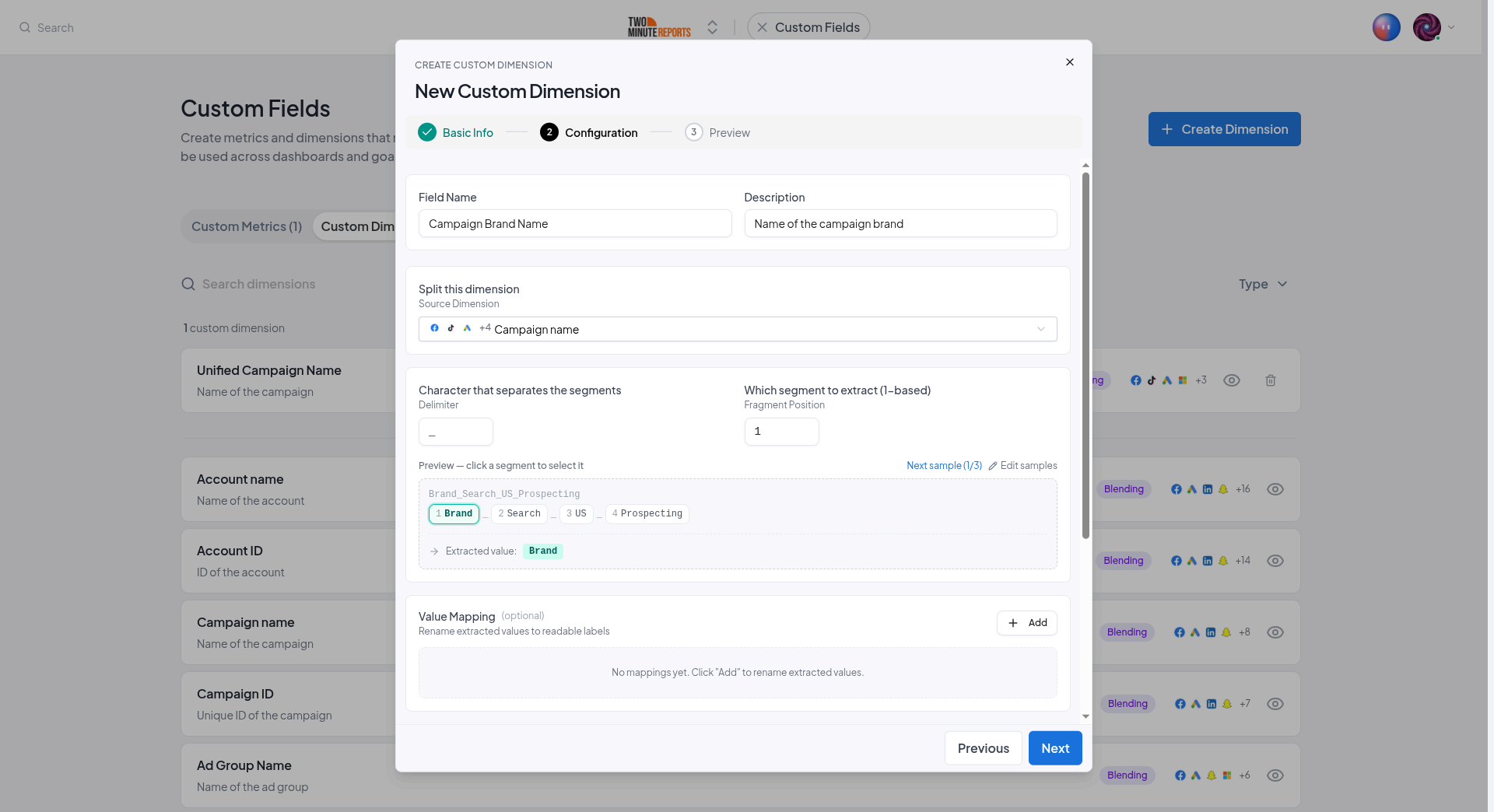
Configure:
- Source Dimension - the field to split (for example, Campaign Name)
- Delimiter - the character the value is split on (defaults to
_) - Fragment Position - which piece to keep, counted from 1
For US_Brand_Search_2024 split on _:
| Position | Value |
|---|---|
| 1 | US |
| 2 | Brand |
| 3 | Search |
| 4 | 2024 |
So Fragment Position 2 extracts Brand.
Value Mapping (Optional)
The extracted fragments are often codes rather than readable labels. Use the optional Value Mapping table to rename them, mapping each Original Value to a New Value.
For example, map US → United States, UK → United Kingdom, so your reports show clean, presentable labels instead of raw codes.
br, brand, and Brand all to a single "Branded" label.Setting It Up
Choose the Method
In the dimension builder, pick Split Text.
Configure the Split
Select the source dimension, set the delimiter, and choose the fragment position.
Map Values (Optional)
Add rows to the value mapping table to turn extracted codes into readable labels.
Preview and Save
Use the live preview to confirm the right fragment is extracted, then save.
Next Steps
- Formulas & Conditions - Categorize values with conditional rules instead
- Blending Across Sources - Unify a field across platforms
- Using Custom Fields - Group reports by your extracted dimension
Blending Across Sources
Map the same field from each of your data sources into a single unified custom field, summed for metrics or unified into one column for dimensions.
Using Custom Fields
Where custom fields show up once created, how to use them in dashboards and goals, plus recipe ideas and best practices.