

Google Ad Manager

The Google Ad Manager connector gets your Google Ad Manager data into Google Sheets and Google Data Studio. Use it to track your key metrics in a spreadsheet or a Google Data Studio report.
What you can report on
- Impressions, clicks, CTR, revenue, eCPM, and fill rate, in total and by demand source: ad server, Ad Exchange, and AdSense
- Ad requests and unfilled impressions
- Active View viewability
- Performance by ad unit, placement, order, line item, advertiser, and creative
- Performance by country, region, device, browser, and operating system
- Programmatic, video, and yield group data
Prerequisites
- A Google account that is a user on your Ad Manager network, with a role that can run reports, for example Executive
- API access turned on for the network. See How to turn on API access.
How to turn on API access
Two Minute Reports reads your data through the Ad Manager API. An admin of your network must turn on API access one time:
- Sign in to Google Ad Manager as an admin.
- Go to Admin › Global settings › Network settings.
- Turn on API access, then select Save.
How to create a connection
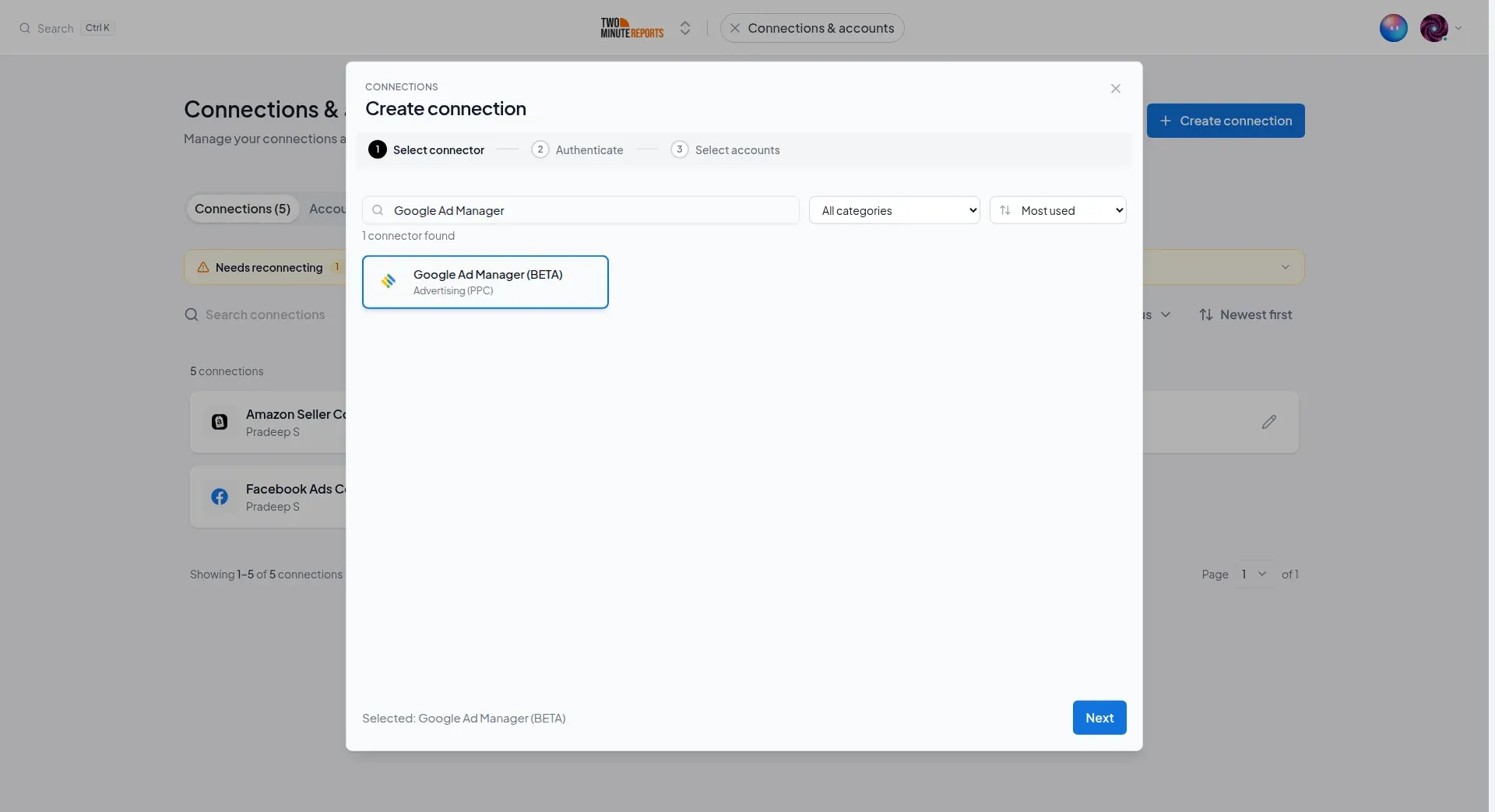
- In the Hub, open Connections & accounts.
- Select Create connection.
- Select Google Ad Manager in the connector list.
- Select Next.
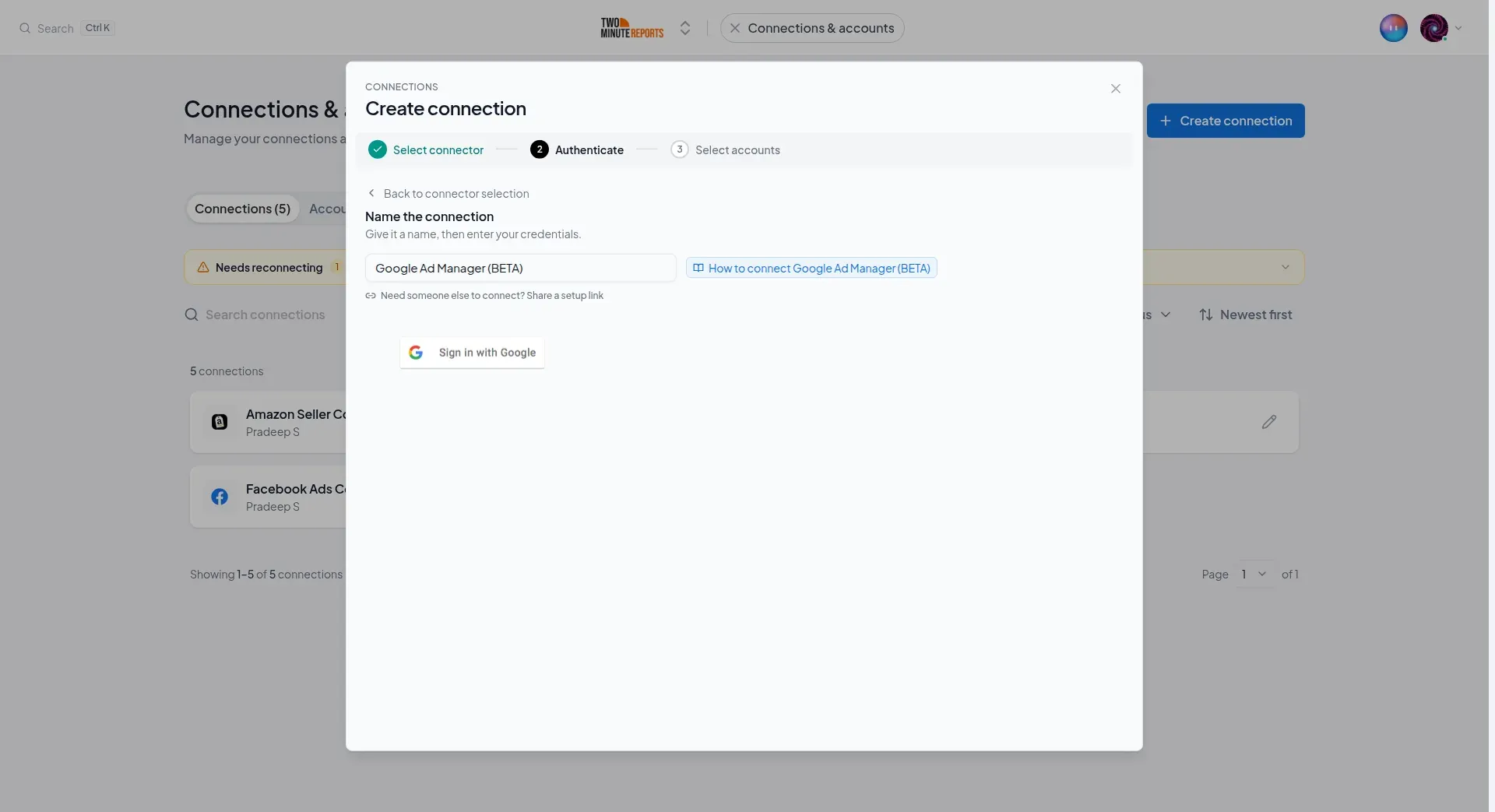
- In Name the connection, enter a name.
- Select Sign in with Google. Select the Google account that is a user on your network, then allow Two Minute Reports access.
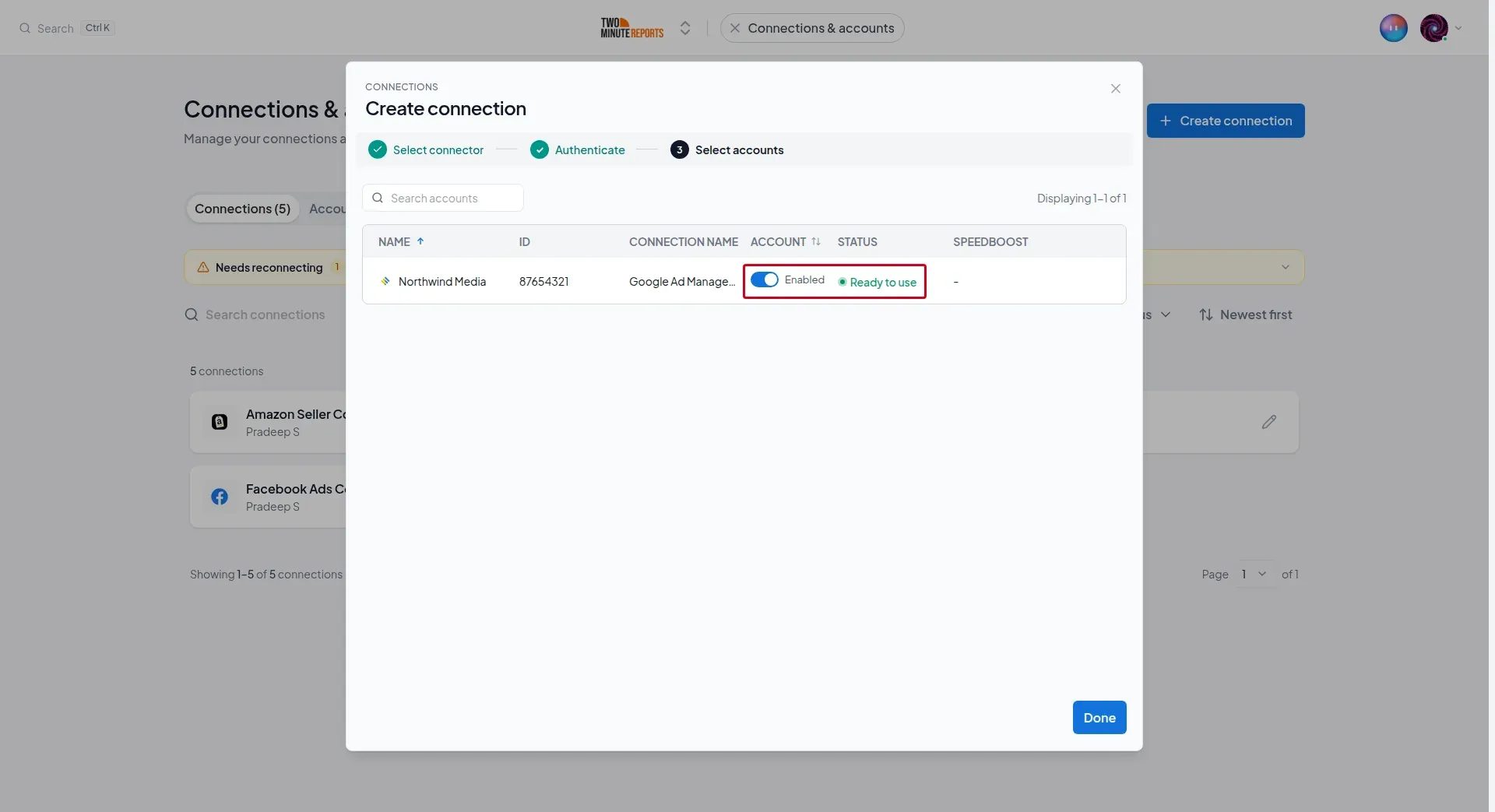
- Enable the networks you want to report on. Each network shows its name, and its network code in the ID column.
- Select Done.
How to get Google Ad Manager data into Google Sheets or Google Data Studio
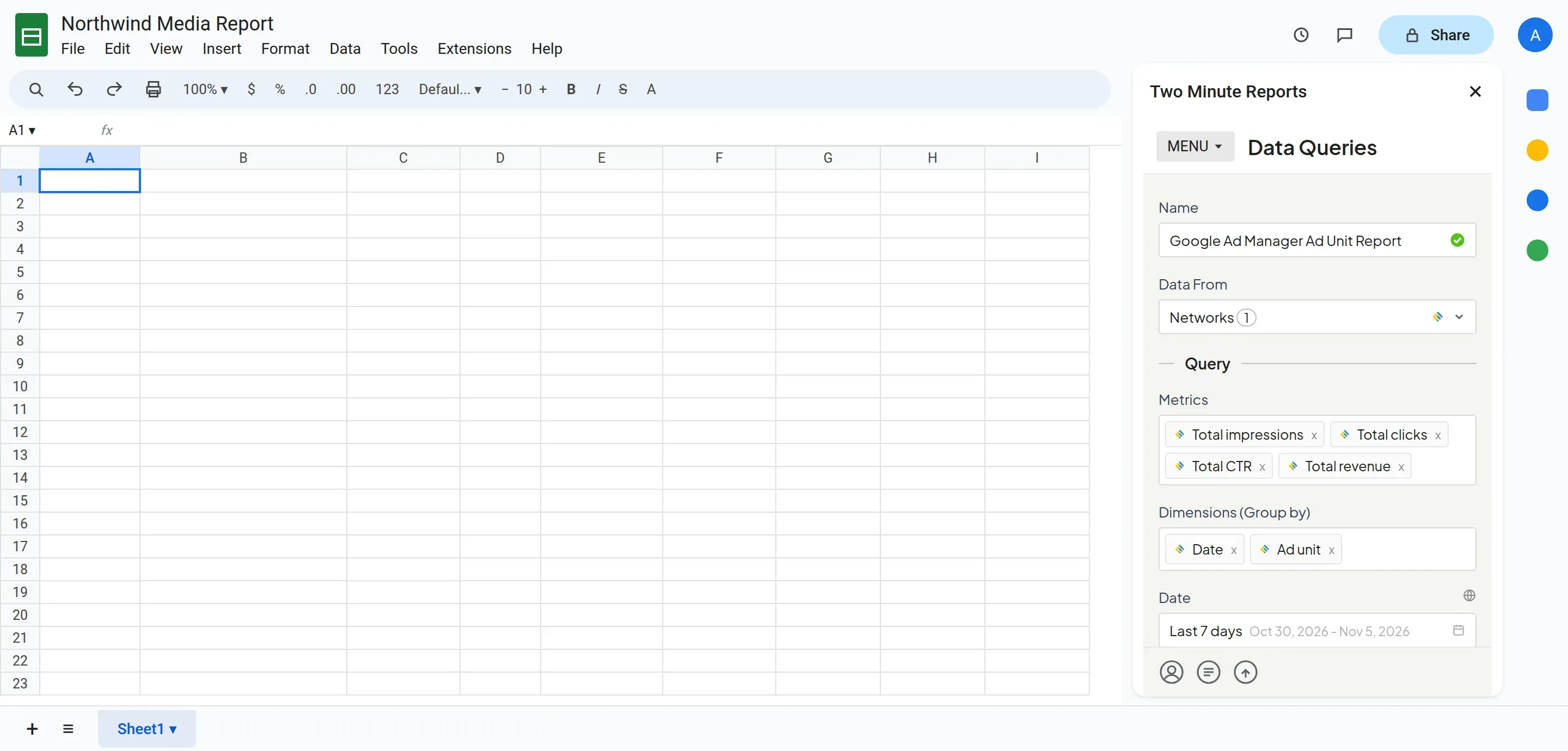
To get Google Ad Manager data into Google Sheets:
- In the Two Minute Reports sidebar, open Data Queries.
- Select Add.
- Select the networks you want to report on. You can select more than one.
- Select your metrics and dimensions.
- Select the date range.
- Set sorting and filters if you need them.
- Select Run query. Two Minute Reports adds the data to your sheet.
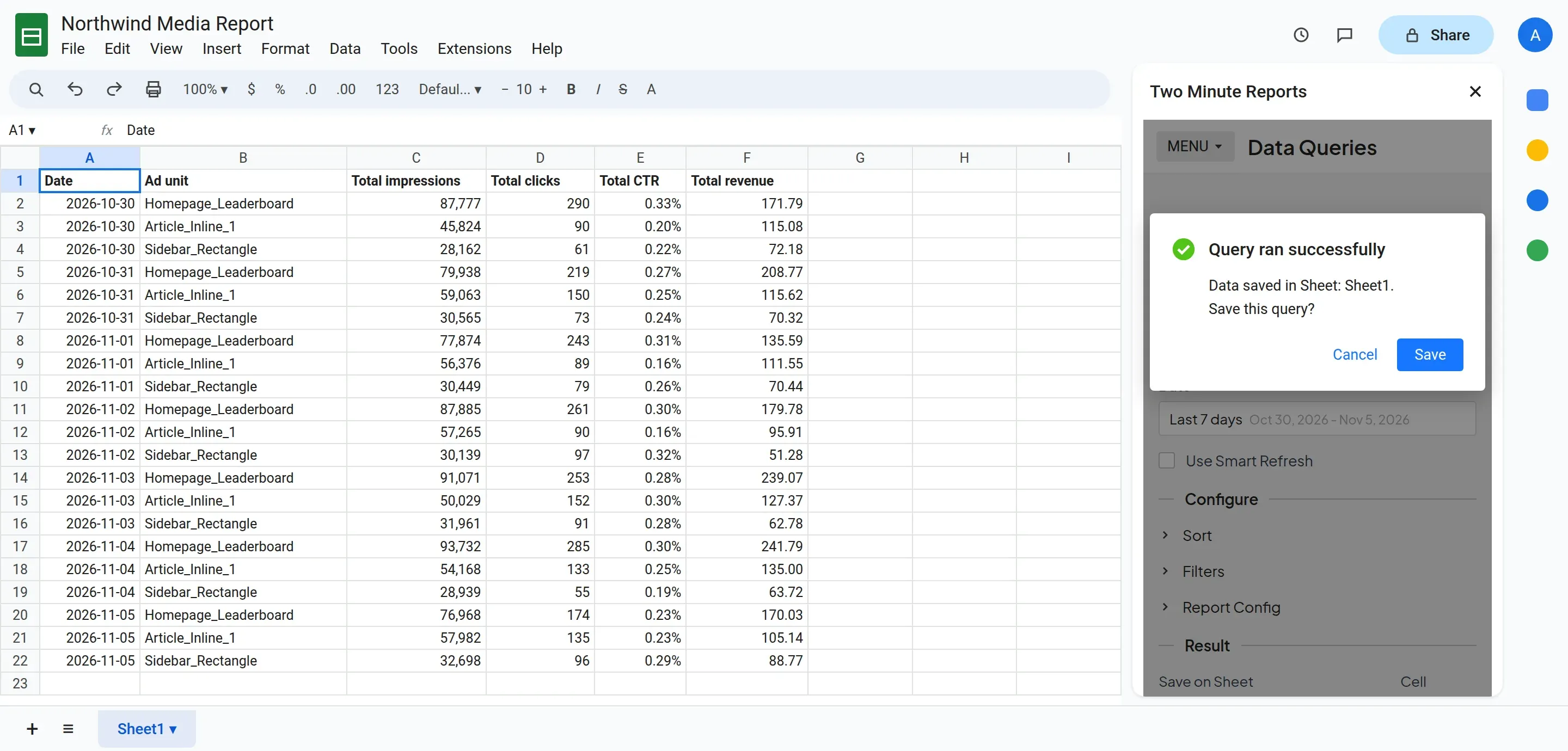
To get Google Ad Manager data into Google Data Studio:
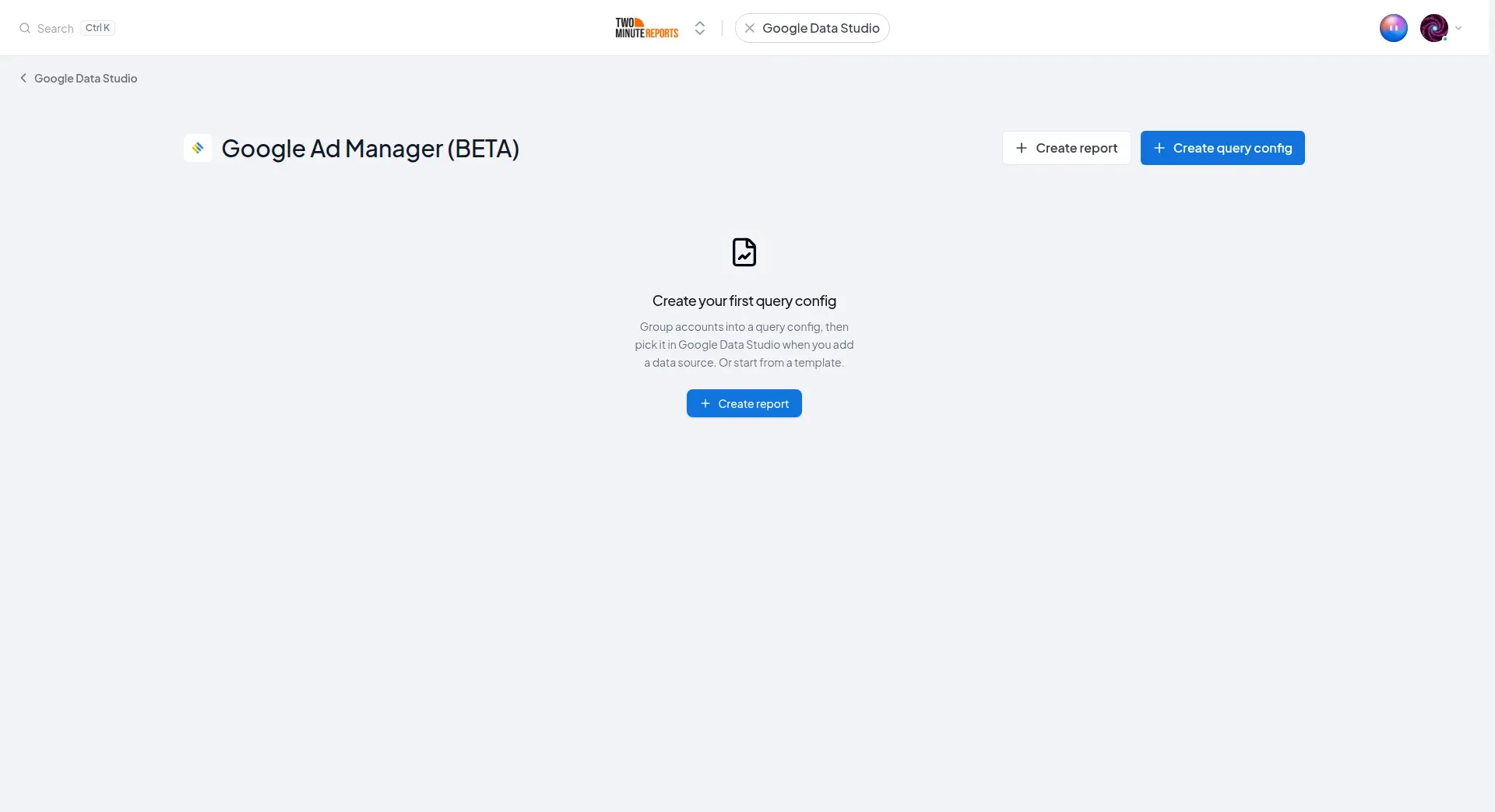
- In the Hub, open Google Data Studio › Google Ad Manager.
- Select Create report.
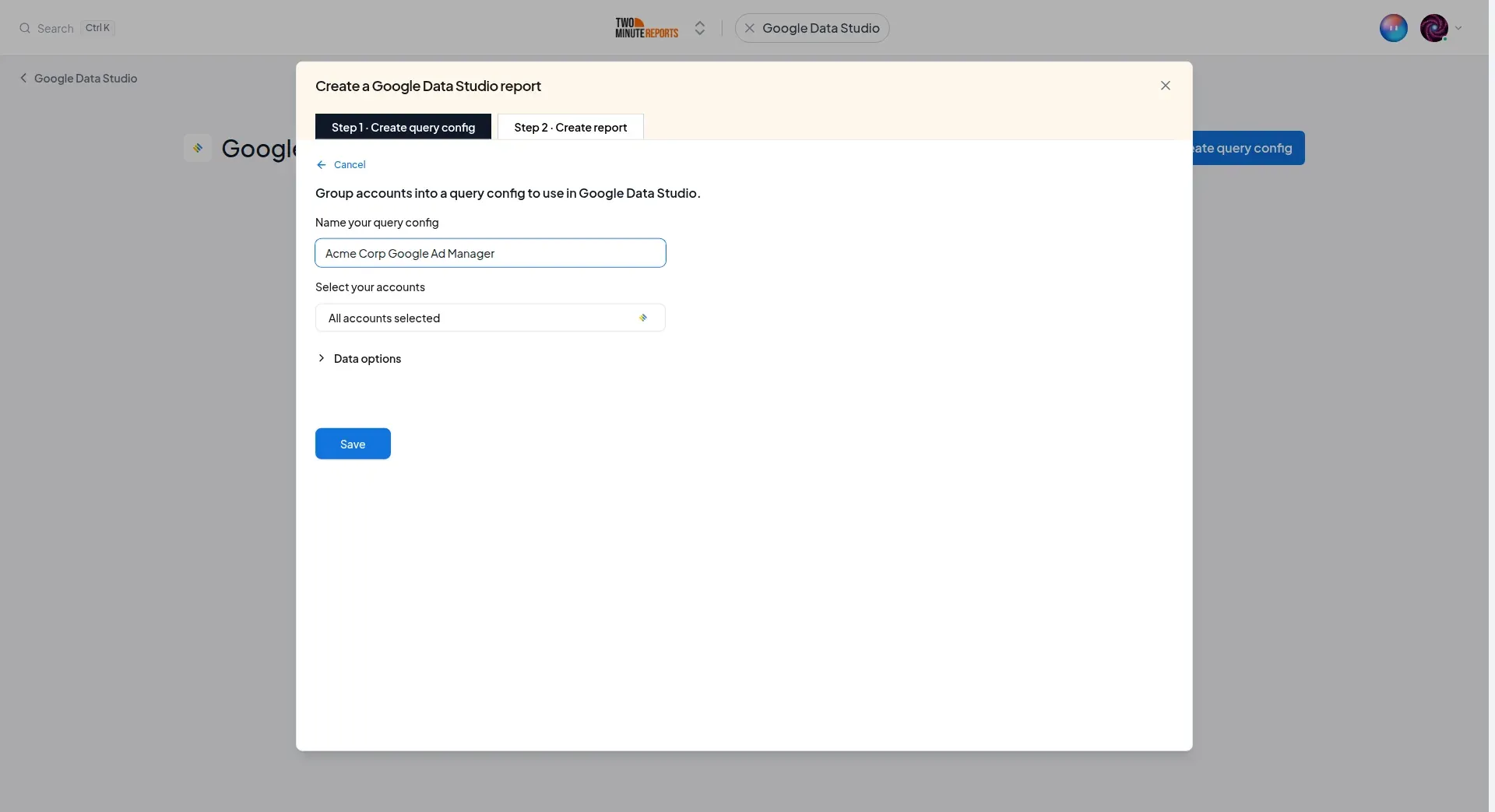
- Select or create a query config:
- To use a query config you have: select it in Choose your query config. Then select Save.
- To create a query config: if you already have one, first select Create new query config in the list. Enter a name in Name your query config, and select the networks in Select your accounts. Select Save.
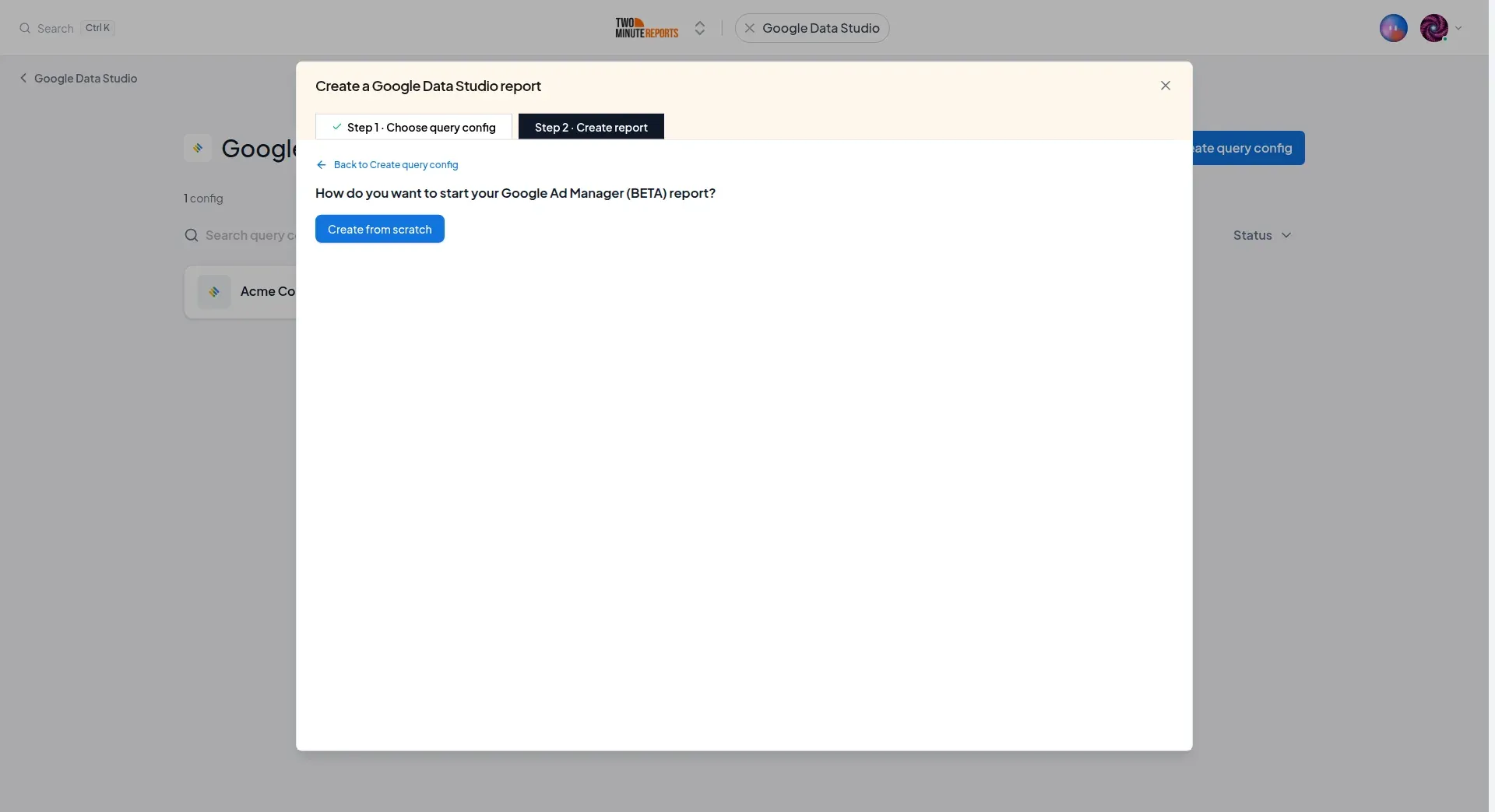
- Select Create from scratch.
- Looker Studio (formerly Google Data Studio) opens in a new tab, with the Two Minute Reports connector. If you are in more than one team, select your team in Select your Team.
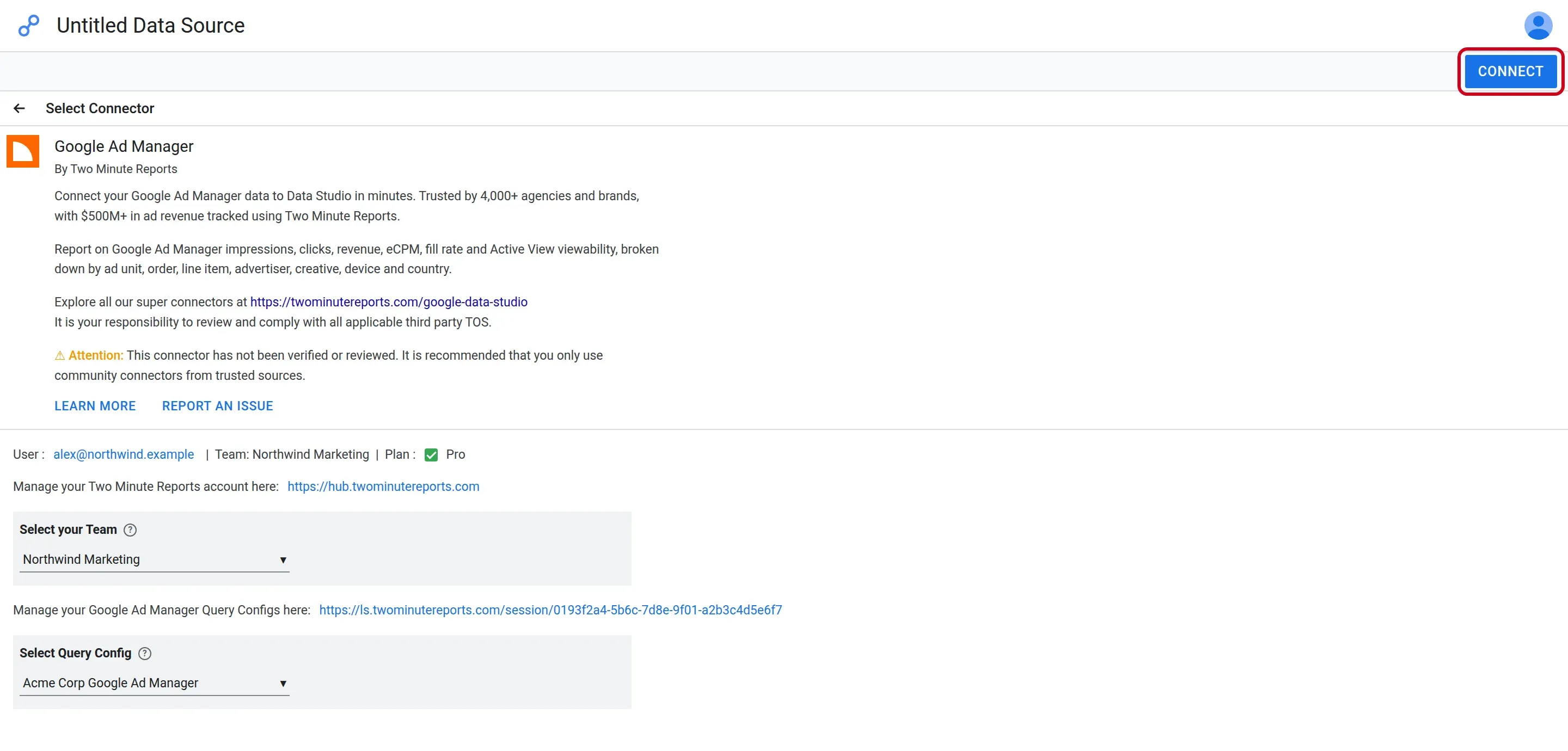
- In Select Query Config, select your query config.
- Select Connect in the top-right corner.
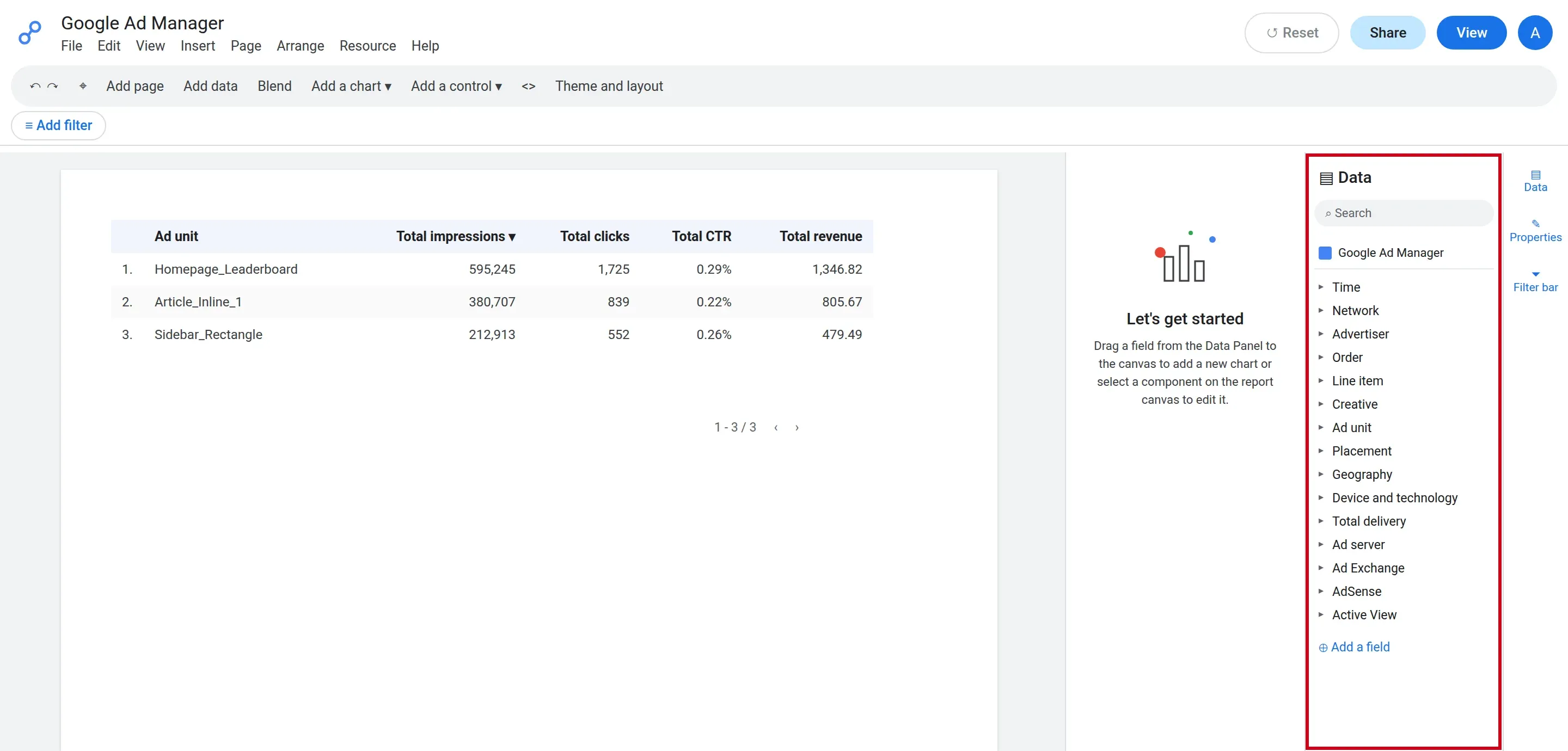
- In your new report, add Google Ad Manager metrics and dimensions to the canvas.
Good to know
Fields that you cannot use together
Ad Manager does not let you use all fields together. Two Minute Reports stops a query that uses fields that do not go together, and tells you which field to change. For example:
- Top private domain cannot be used with the Placement dimensions.
- Bid dimensions, such as Bid range, need a bid metric, such as Bids.
- Google Analytics dimensions, such as age, gender, and page, need a Google Analytics metric, such as Views.
- Deals bid rate and Deals bid requests need Deal ID or Deal name.
A query with many dimensions of different types can also fail. If this occurs, remove some dimensions and run the query again.
Queries with no metrics
If your query has only dimensions, Two Minute Reports gets them with Total impressions. An ad unit, order, or other item that had no impressions in the date range does not show.
Time zone and currency
Reports use the time zone and the currency of your Ad Manager network. To show the data in a different currency, use Convert currency to in the query options.
Date range
You can get data for the last 3 years. Each query runs a report in Ad Manager. A large report can take some minutes.
Troubleshooting
- "No Google Ad Manager networks found for …": the Google account is not a user on a network with API access. Ask an admin of your network to turn on API access and to add this Google account as a user. Then try again. See How to turn on API access.
- "This account is either removed or does not have required permissions to perform query operations": API access is off for the network, or the user role cannot run reports, or the user was removed from the network. Ask an admin to check API access and your role.
- "Google Ad Manager TOKEN EXPIRED!": edit the connection, select Sign in with Google again, and save the connection.
- "The request took too long to complete": Ad Manager took more than 10 minutes to make the report. Use a shorter date range or fewer dimensions.
If you need help, contact [email protected].