

Themes
A theme is your brand's look, saved once. One theme styles three layouts: dashboards, documents, and slides. It holds the colors, fonts, text sizes, and chart style that all three share. It also holds what only one layout needs, such as a dashboard's canvas or a report's cover and closing page.
Make a theme for your agency and one for each client. When a dashboard or a report uses a theme, an edit to the theme restyles it too.
What you can do
- Create a theme from a preset, then set its colors, fonts, charts, and block style
- Preview the theme as a dashboard, a document, or slides while you edit it
- Design the report pages: the cover, header and footer, page numbers, contents, section openers, and closing page
- Give slides their own title slide, section openers, and closing slide
- Make a theme for one client, so it is suggested first for that client
- Get a light and a dark theme in each new client's brand colors, made for you
- Make one theme the team default
- Use a theme on a dashboard or a report, and change one of them on top of the theme
- See where each theme is used, then duplicate, rename, or delete it
What a theme sets
The theme builder groups the settings by what they change:
| Part | What it sets | Used by |
|---|---|---|
| Colors and fonts | The preset, fonts, colors, text sizes, charts, and blocks | Dashboards, documents, and slides |
| Dashboard | The canvas behind the widgets, and what new widgets start with | Dashboards |
| Report › Cover and pages | The brand and logos, cover, header and footer, page numbers, contents, section openers, and closing page | Documents and slides |
| Report › Document | The paper size and margins | Documents |
| Report › Slides | The slide margins, and slides' own title slide, section openers, and closing slide | Slides |
A change in Colors and fonts shows in all three layouts. A change in a layout's own part shows only in that layout.
The Themes page
Open Themes from the Hub menu. You can also open it with Manage themes in a dashboard's Theme panel, or in the theme list when you create a report.
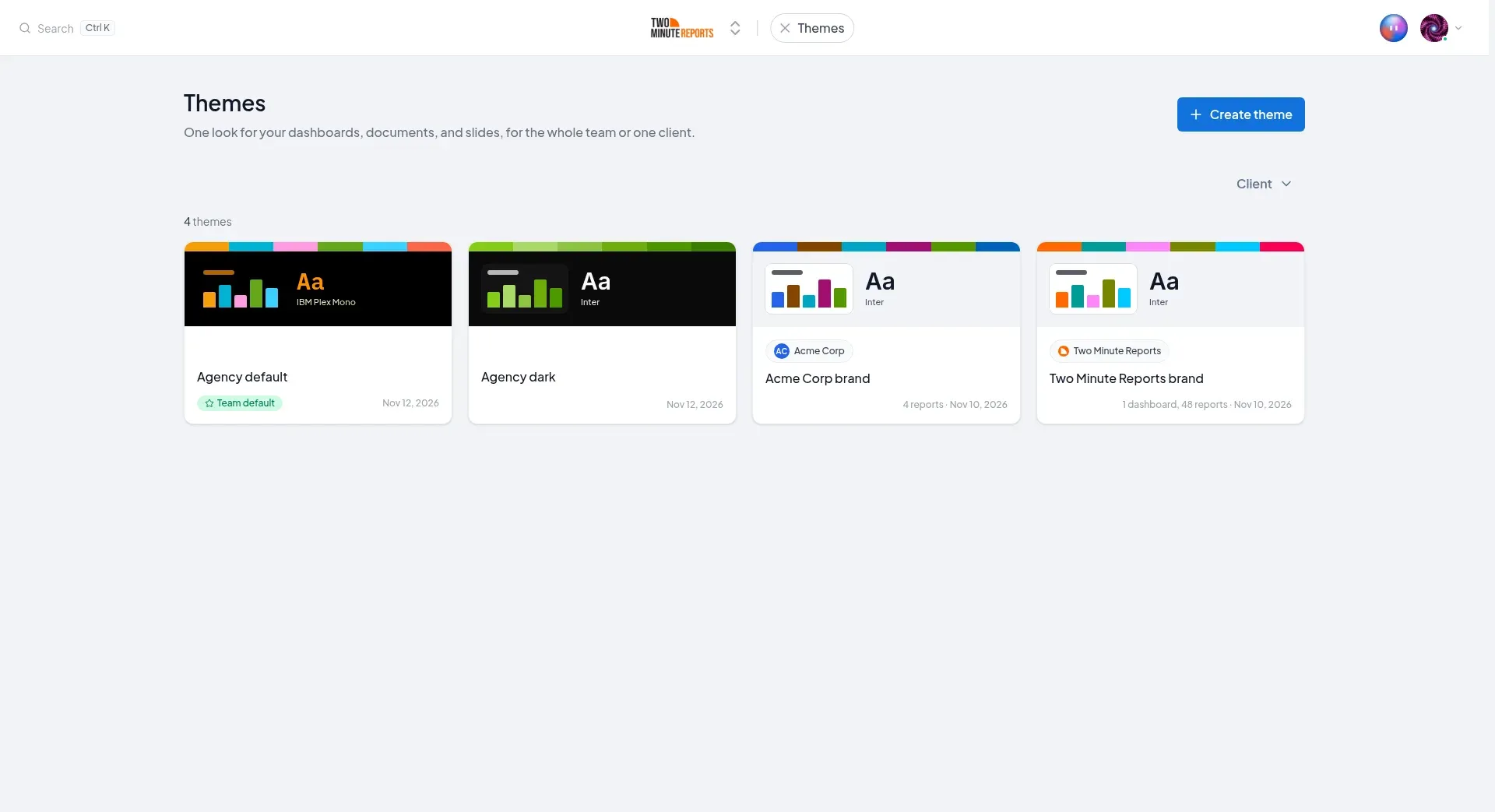
Each card shows:
- A sample of the theme: its colors, a small chart, and its heading font
- The client, for a client's theme
- The name. Select the pencil next to it to rename the theme
- Team default, on the team's default theme. The default is always first
- Where the theme is used, for example 1 dashboard, 48 reports, and the date of the last change
When your team has clients, use the Client filter to see the themes of some clients only. Select No client to see the themes that are for every client.
Open the menu on a card (the three dots) to manage the theme:
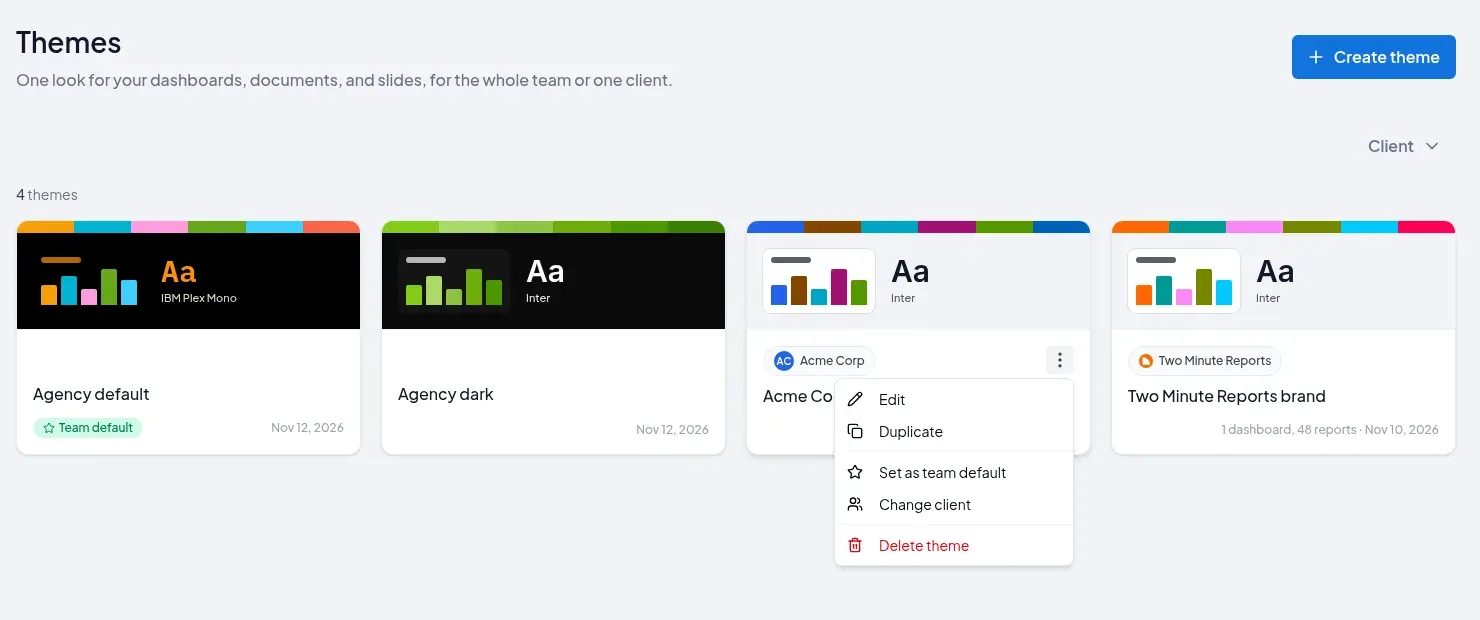
- Edit: open the theme in the builder. You can also select the card.
- Duplicate: make a copy, for example to start a new client's theme from another one.
- Set as team default or Remove team default: see Team default and client themes.
- Assign to a client or Change client: make it a client's theme, or move it to another client.
- Delete theme: see Delete a theme.
Create a theme
- On the Themes page, select Create theme.
- If your team has clients, the Create theme dialog opens. Choose a Client, or keep No client (every client). A client's theme is suggested first when you create a dashboard or a report for that client.
- Select Continue to builder. If your team has no clients, the builder opens immediately.
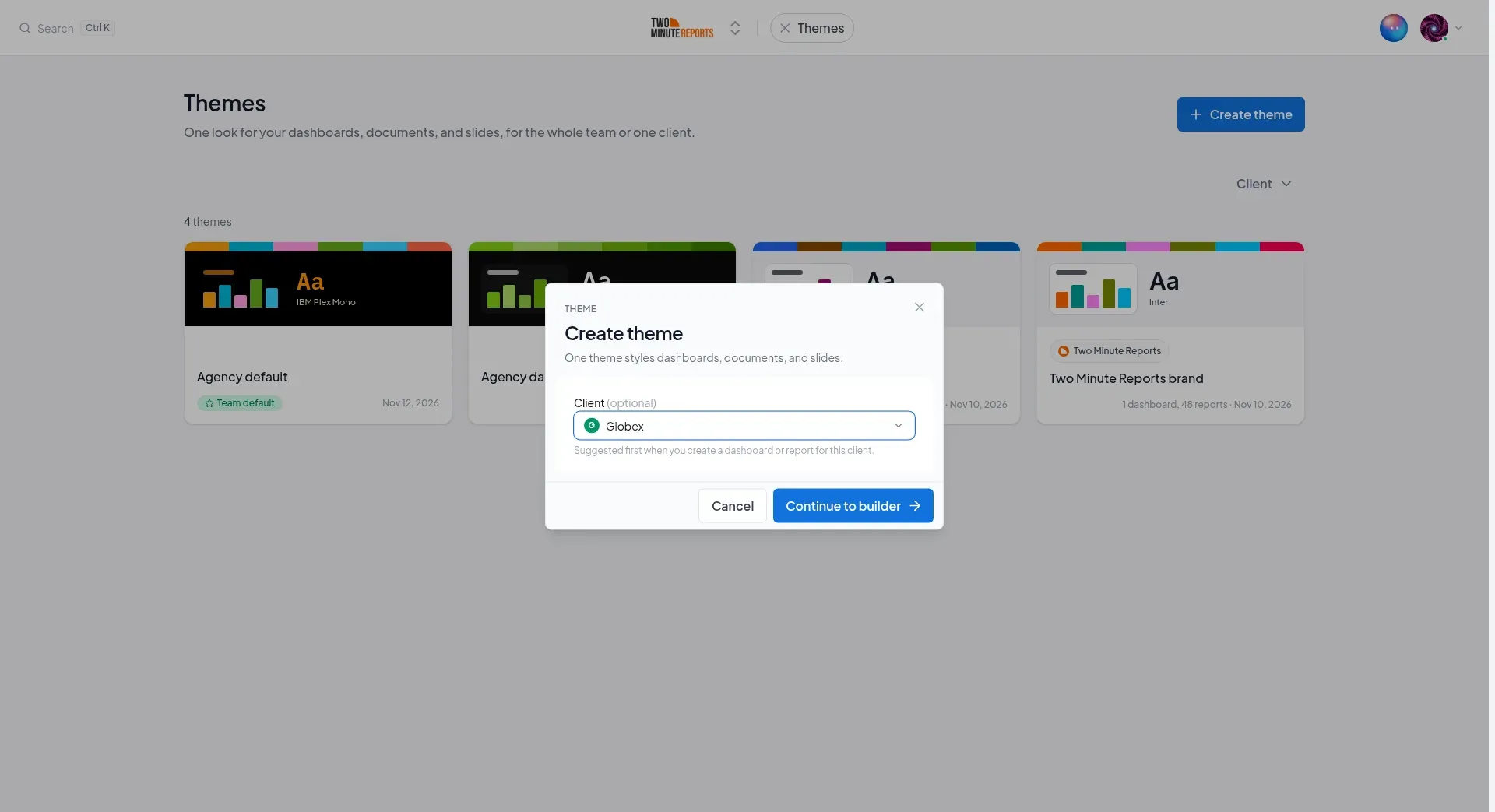
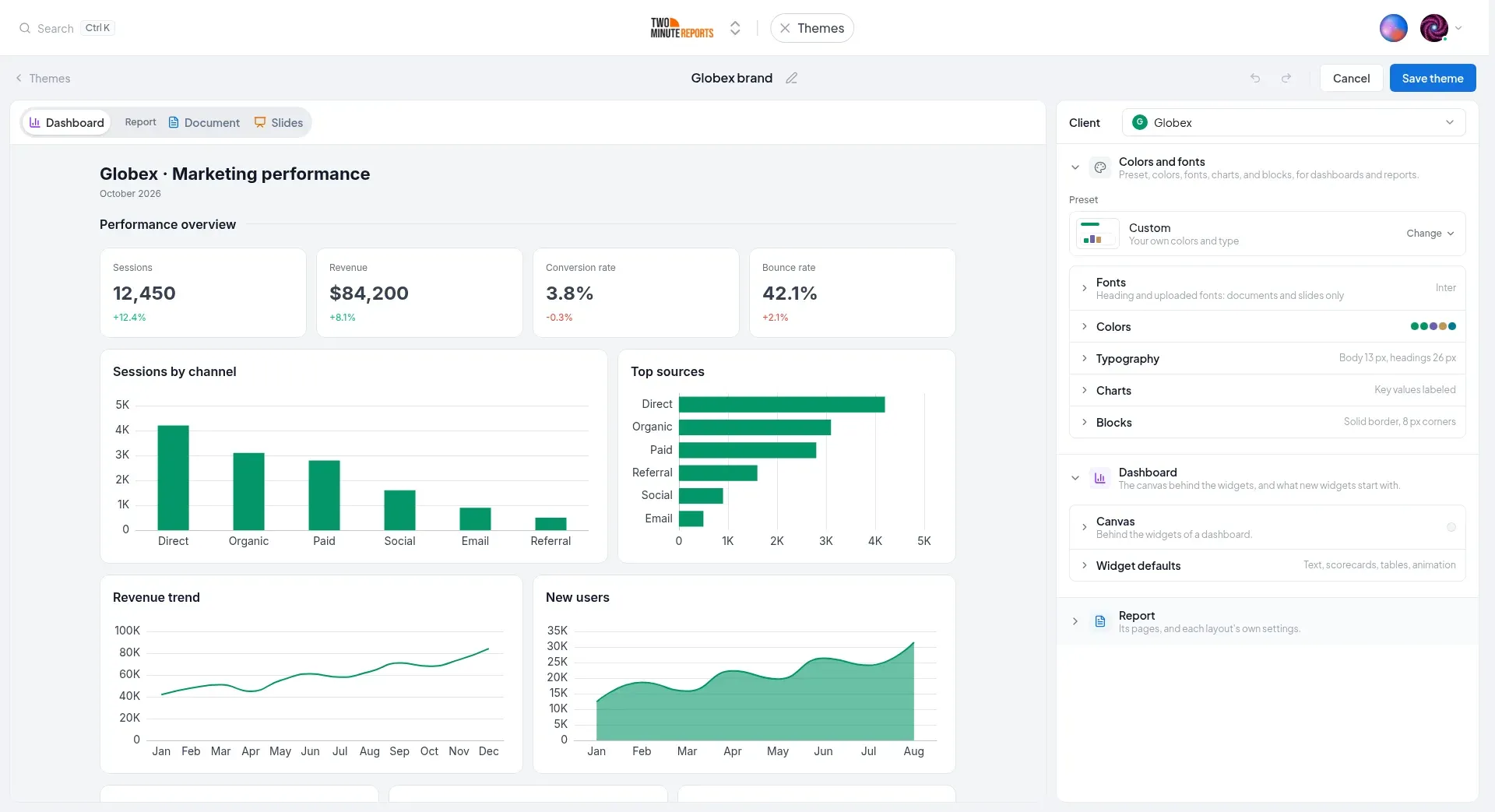
The new theme is named Untitled theme. For a client that has a brand color, it is named after the client, for example Globex brand, and starts in that color.
- Change the settings. See The theme builder.
- To rename the theme, select its name at the top.
- Select Save theme. Cancel discards the new theme.
You can also save a theme from a dashboard or a report. See Save a dashboard's look as a theme and Design and branding.
A new client's brand themes
When you add a client, Two Minute Reports makes two themes for it in its brand colors, named after the client. For a client called Globex, they are Globex brand and Globex brand (dark). They show on the Themes page a few seconds later. You can edit, rename, or delete them like any other theme.
The colors come from the first of these that the client has:
- The Brand color saved on the client
- The main color of the client's logo
- The icon of the client's website, from its Domain
A client with none of them, or with a logo in black and white only, gets no brand themes. If you add a brand color, a logo, or a domain later, the themes are made then.
Brand themes are made for every new client, however you add it: on the Clients page, in onboarding, by importing clients, or with Dash, the API, or MCP. A client that already has a theme of its own gets no new ones.
New dashboards and reports for the client start in its most recently changed theme, which at first is the light one.
The theme builder
The builder shows a preview on the left and the settings on the right.
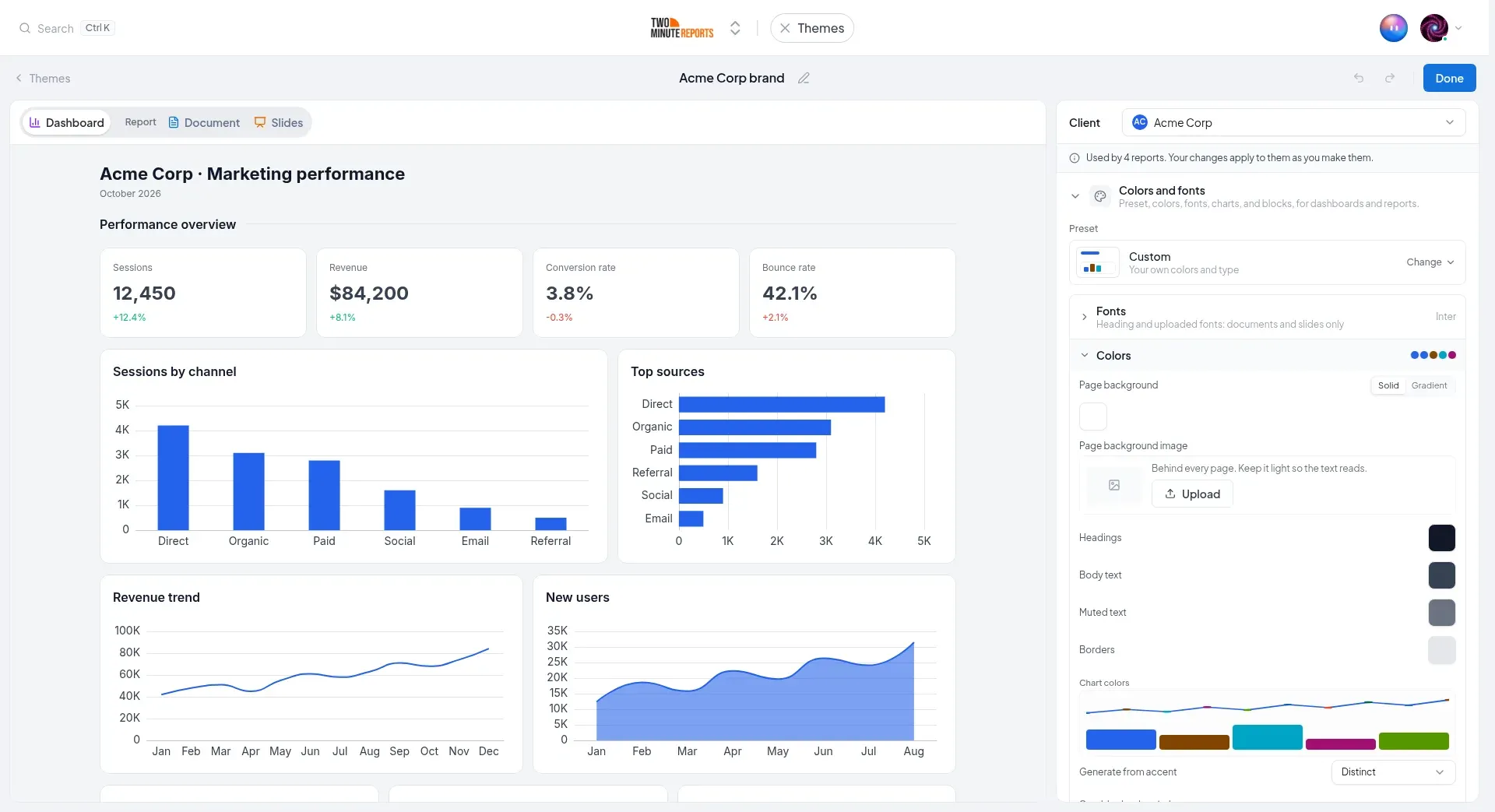
Preview a layout
Above the preview, choose what to see in your theme:
- Dashboard: a sample dashboard, with scorecards and charts.
- Report › Document: a full sample report as a document, with its cover and pages.
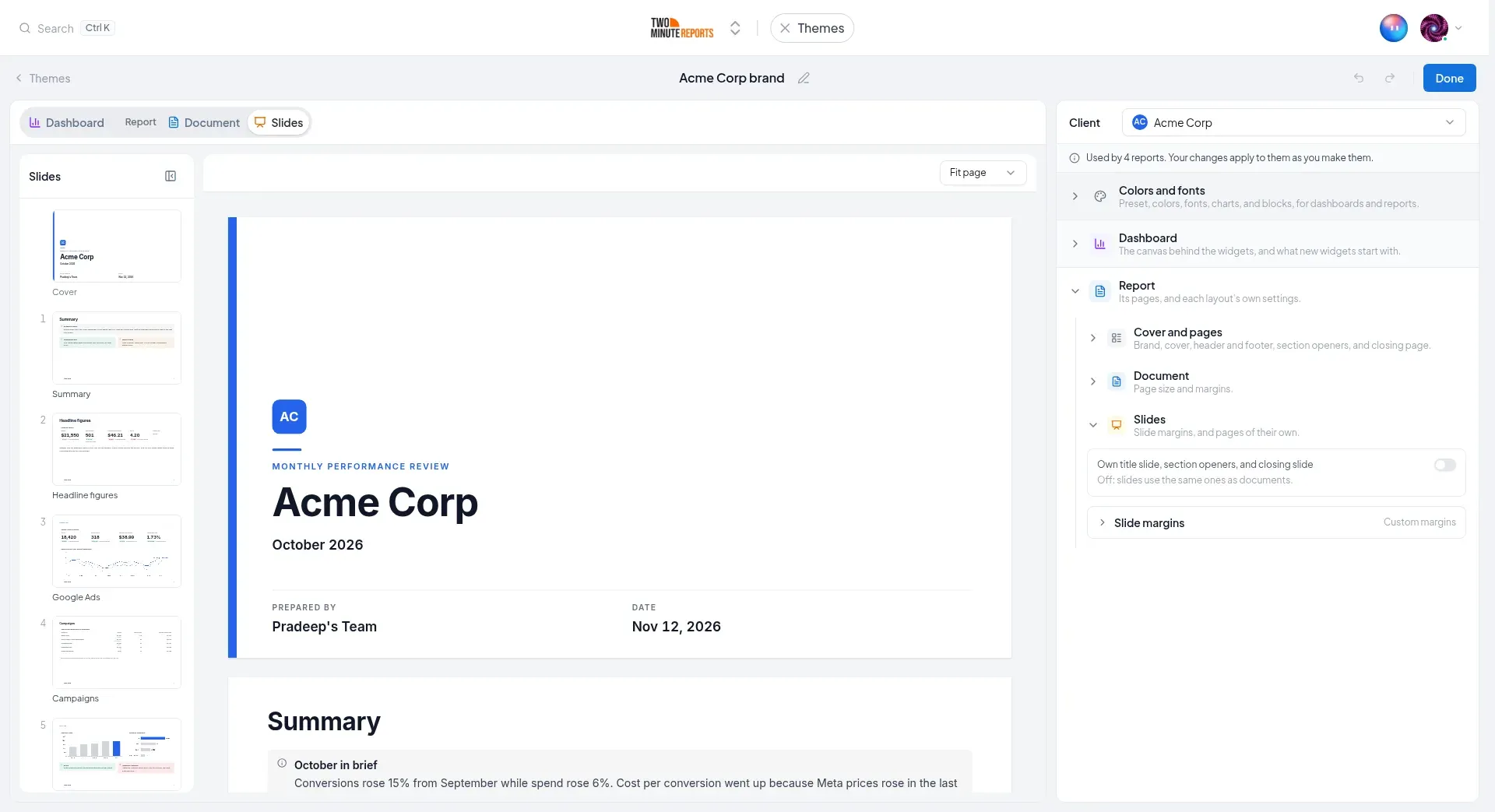
- Report › Slides: the same sample report as slides.
In Document and Slides, select a page in the Pages or Slides list to go to it. Use the zoom menu to choose Fit page, Fit width, or 100%.
When you choose a layout, its settings open: Colors and fonts and that layout's part. When you open a layout's part, the preview changes to that layout. So the preview always shows what you change.
At the top of the settings
- Client: the client the theme is for, or No client (every client). It shows when your team has clients.
- For a theme that is in use, a note says where, for example Used by 4 reports. Your changes apply to them as you make them.
Colors and fonts
These settings apply to dashboards, documents, and slides.
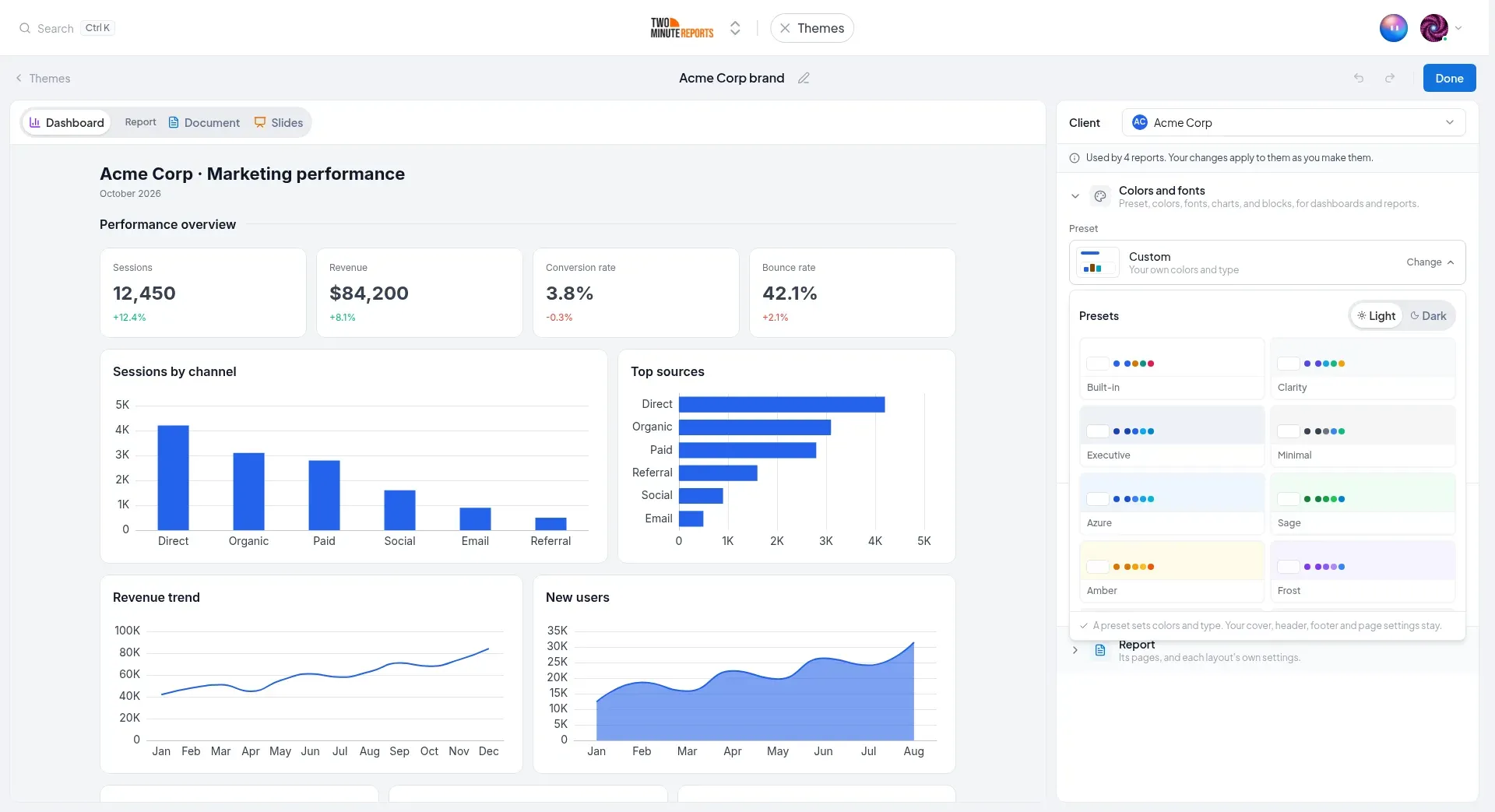
- Preset: the look the theme starts from. Select Change to see the presets. Choose Light or Dark, then select a preset. A preset sets the colors and type only. Your cover, header, footer, and page settings stay.
- Fonts: the Body font and the Heading font (or Same as body). Select Upload a font to add your own. The heading font and uploaded fonts apply to documents and slides only.
- Colors: the Page background (a solid color or a gradient) and a Page background image (PNG, JPG, or WebP, up to 10 MB), and the colors of Headings, Body text, Muted text, and Borders. Under Chart colors, use Generate from accent to make a palette, for example Distinct, Gradient, or Soft. Set Positive, Negative, Warning, and Neutral for trend indicators and chart zones.
- Typography: the text sizes for headings and body text, block titles, charts, tables, and funnels.
- Charts: Data labels (Key values labeled, Every value, or None), Grid lines, Shaded area under lines, Bar corners, and Donut hole.
- Blocks: the box around each widget and block: Background, Border, Border width, Corners, Padding, and Shadow.
Dashboard
These settings apply to dashboards only.
- Canvas: the background behind the widgets. Set a Color, or paste an image URL and choose Cover, Contain, or Fill.
- Widget defaults: what new widgets start with. This includes the text and image alignment, section dividers, scorecards (abbreviated numbers, decimal places, accent border), tables (alignment, abbreviated numbers), and Animation.
Report
These settings apply to documents and slides. For how each one looks on a report, see Design and branding.
Cover and pages sets the pages that frame a report:
- Brand: Use the brand color of {client}, so that each report takes its client's color, and Keep the theme's chart colors. Logos chooses the agency logo, the client logo, or both. Missing logo chooses Show the name or Show nothing. Accent color sets the theme's accent color.
- Cover: turn Start with a cover on or off. Choose a layout: Left aligned, Centered, Color band, Full image, Split, or Minimal. Add a background image, and set the text, such as the line above the title.
- Header and footer, Page numbers, Contents, Section openers, and Closing page.
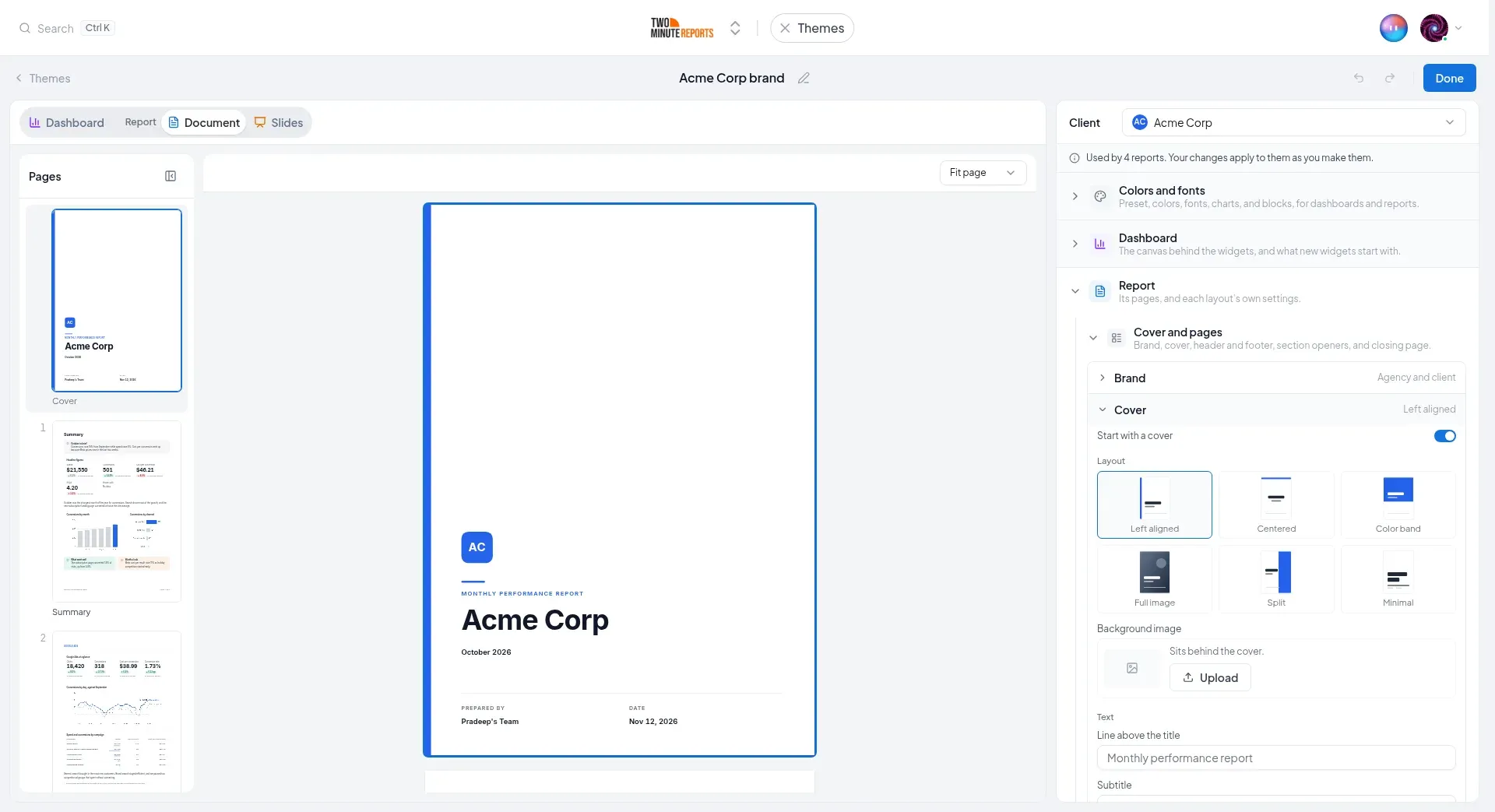
Document sets the Page setup: the Paper (A4 or US Letter) and the four margins.
Slides sets the Slide margins. Slides use the same cover, section openers, and closing page as documents. To design them separately, turn on Own title slide, section openers, and closing slide. Then preview Slides, and change them under Cover and pages. There they are called Title slide, Slide numbers, Agenda, and Closing slide.
Undo and save
- Use Undo and Redo at the top, or press Ctrl+Z and Ctrl+Shift+Z (Cmd on a Mac).
- A new theme is saved when you select Save theme.
- A theme that you open again saves as you go. The top bar shows Saving…, then Saved. If a save fails, it shows Couldn't save with Retry until a save succeeds.
- Done, or the link at the top left, takes you back to where you opened the builder from. The link says where, for example Themes, Dashboard, or Report.
If a team member saves the same theme while you have it open, your next change does not replace theirs. A banner says who changed it, for example Priya changed this theme since you opened it. Reload to see their changes. Your changes since then aren't saved. Choose:
- Reload: open their version, without your changes.
- Keep my version: save yours over theirs.
Team default and client themes
The team default is suggested for new dashboards and reports of a client that has no theme of its own. Set it with Set as team default on a theme's card. A team has one default.
A client's theme is suggested first for that client. A client can have more than one theme, for example a light one and a dark one.
When you create a dashboard with Dash, its Theme step starts on My theme with a suggested theme:
- The client's own theme. If the client has more than one, the most recently changed one. Under it, the dialog says Suggested for {client}.
- If the client has no theme, the team default. Under it, the dialog says Your team's default dashboard theme.
If there is neither, Let Dash decide is selected. You can choose any other theme: the list shows the client's themes first, then every other theme. The new dashboard uses the theme that you choose, so it changes when the theme changes.
Use a theme on a dashboard or a report
In a dashboard's Theme panel, select one of your themes. The dashboard then uses the theme, and the panel shows Uses {theme}:
- When anyone edits the theme, the dashboard changes too.
- The settings in the panel change only this dashboard. They are kept on top of the theme, and the card counts them, for example 1 change so far. Select Undo it to remove them.
- Edit theme opens the theme in the builder.
- Stop using keeps the look the dashboard has now, as its own. Later edits to the theme do not reach it.
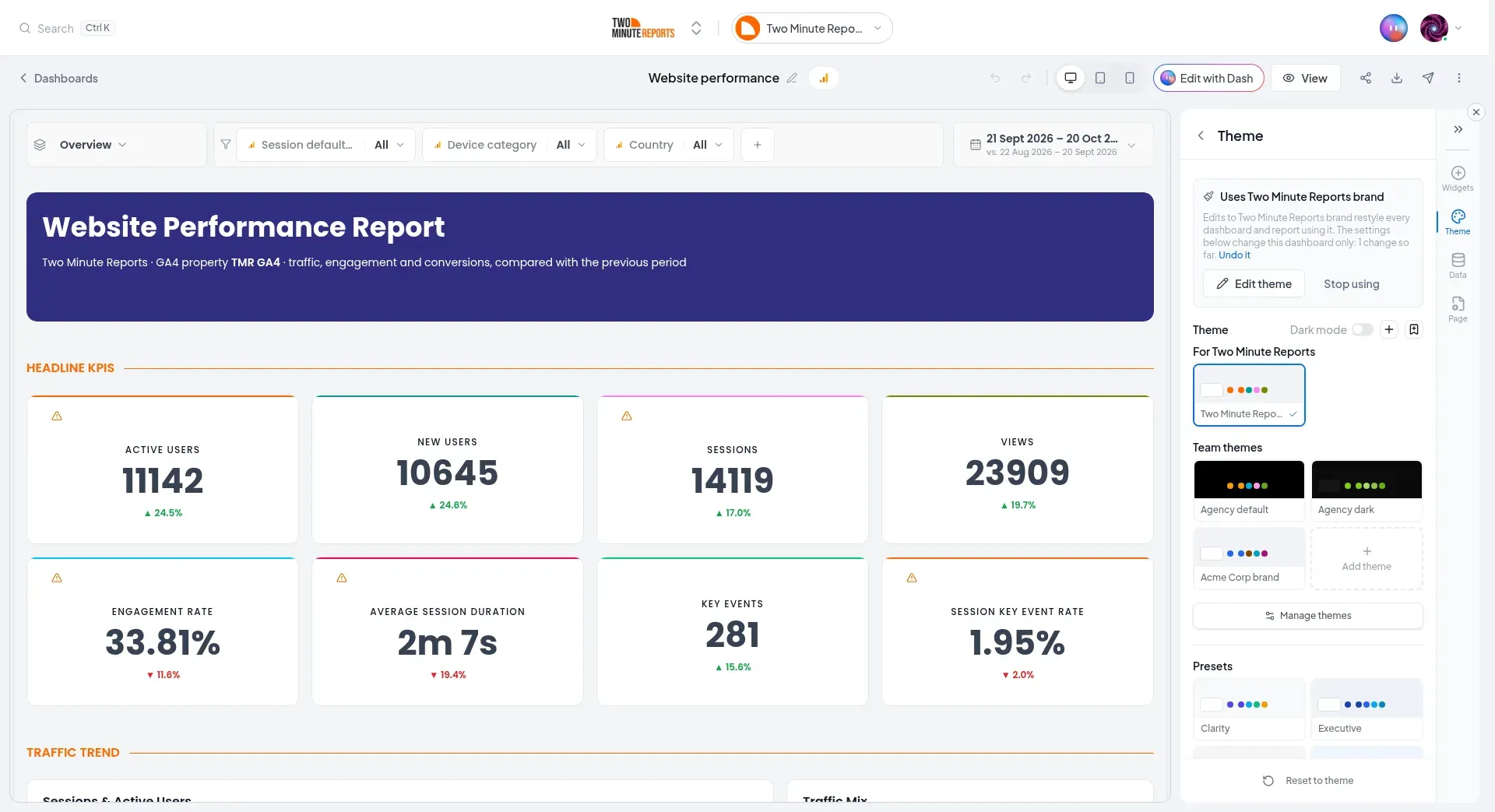
See Theming for the panel. A report uses a theme the same way, from its Design panel. See Design and branding.
Delete a theme
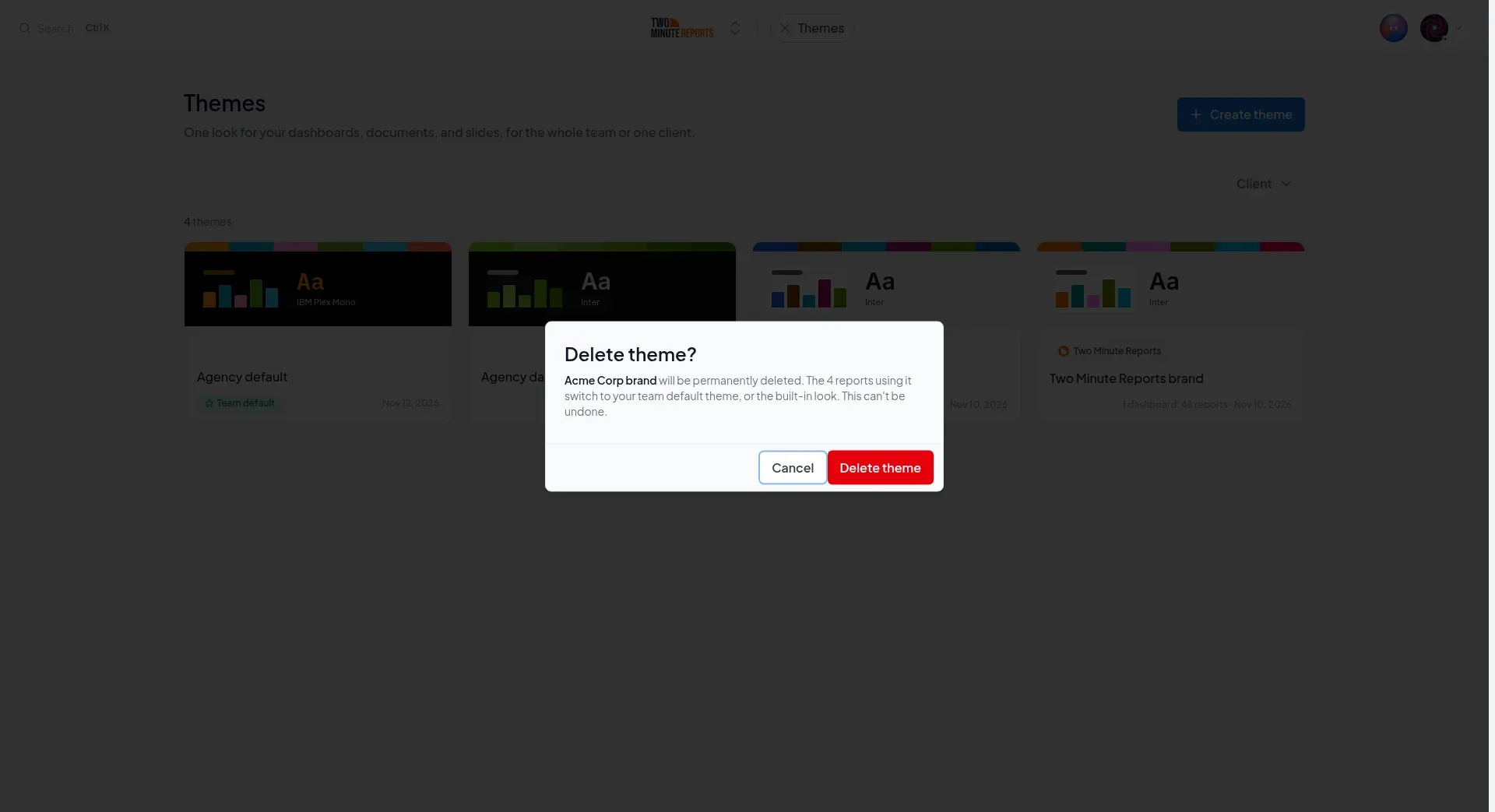
Open the menu on the theme's card and select Delete theme. The dialog says what happens to what uses it:
- Dashboards that use the theme keep the look they have, as their own.
- Reports that use the theme change to your team default theme. If there is no team default, or if you delete the default, they change to the built-in look.
You cannot undo a delete.
Who can do what
| Action | Permission |
|---|---|
| See the Themes page and the themes in a dashboard's panel | View themes |
| Create, edit, duplicate, and rename themes, open the builder, and set the team default | Create and edit themes |
| Delete themes | Delete themes |
| Select a theme for a dashboard, or change its look | Create and edit dashboards |
| Select a theme for a report, or change its look | Create and edit reports |
To create, edit, and delete themes, you also need a seat. Without the permission, Create theme is unavailable and says why. See the Permissions matrix.
Next steps
- Theming: use a theme on a dashboard, and change one dashboard on top of it
- Design and branding: use a theme on a report, with logos, a cover, and a closing page
- Clients: set up the clients your themes are for
- Create a dashboard: start a new dashboard in a client's theme
- Create a report: start a new report in a client's theme